This lease renewal calendar spreadsheet for Excel organizes lease expirations, internal review dates, notice milestones, renewal decisions, proposed monthly rent, responsibilities, statuses, and next actions.
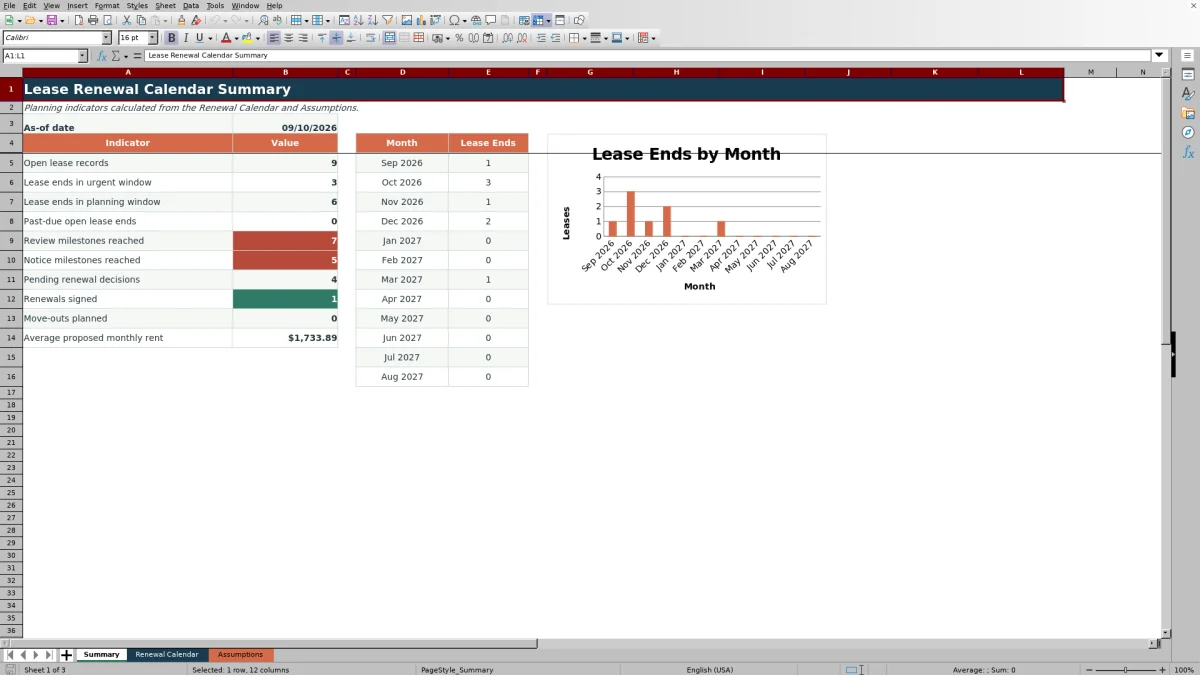
The XLSX workbook includes a 120-row renewal calendar, configurable planning assumptions, formula-driven action prompts, summary indicators, and a 12-month lease-expiration chart. Replace the included fictional sample records with current lease information before using the calendar.
How this workbook can help
- Keep lease dates, renewal decisions, proposed rent, responsibilities, and notes in one calendar.
- Calculate internal review dates, notice milestone dates, and days remaining from configurable assumptions.
- Identify open records, upcoming expirations, past-due lease ends, reached milestones, and pending decisions.
- Review monthly lease-expiration counts through a formula-driven summary and chart.
What is in the file
How to get started
Update the planning assumptions
Open the Assumptions sheet and enter the as-of date for the current review session. Adjust the internal review lead days, notice milestone lead days, planning window, and urgent window as needed.
Enter the lease records
Replace the fictional samples on the Renewal Calendar sheet. Enter each property, unit, tenant, lease start, lease end, proposed monthly rent, and any useful notes.
Record each renewal workflow
Select the renewal decision, responsible party, and status from the available lists. Review the calculated internal review date, notice milestone date, days left, and next-action prompt.
Review upcoming work
Filter the Renewal Calendar by property, decision, responsibility, or status. Use the Summary sheet to monitor open records, upcoming and past-due expirations, reached milestones, pending decisions, signed renewals, planned move-outs, and monthly lease-end volume.
A Central Lease Renewal Calendar
The Renewal Calendar provides a central lease register for up to 120 long-term residential lease records. Each row can hold the property, unit, tenant, lease dates, renewal decision, proposed monthly rent, responsibility, status, next action, and notes.
Filters across the calendar make it possible to focus on a property, assigned team member, workflow status, or renewal decision without rearranging the underlying records.
How the Planning Dates Are Calculated
The workbook creates date-driven milestones from the lease end date and the settings on the Assumptions sheet. Internal Review Date subtracts the configured review lead days, Notice Milestone Date subtracts the configured notice lead days, and Days Left compares the lease end with the as-of date.
The default settings use 120 days for internal review, 60 days for the notice milestone, 90 days for the planning window, and 30 days for the urgent window. Changing these inputs updates the related formulas and summary indicators.
Worked Lease Renewal Scenario
Input: A fictional apartment lease ends December 31, 2026. The as-of date is September 10, 2026, the review lead is 120 days, the notice milestone lead is 60 days, the renewal decision is Pending, and the status is Review Needed.
Result: The calendar calculates an internal review date of September 2, 2026, a notice milestone date of November 1, 2026, and 112 days left. Because the decision remains Pending and the internal review date has been reached, the next-action cell displays “Review renewal now.”
Interpretation: The review milestone has passed, but the lease end and notice milestone are still ahead based on the workbook settings.
Next decision: The assigned team member can update the notes and record Renew, Do Not Renew, Month-to-Month, Vacate, Hold, or leave the decision Pending while the workflow continues.
Common Errors and Solutions
Error: A lease date is pasted as text, so calculations do not behave as expected. Solution: Reenter it as an Excel date value.
Error: The lease end precedes the lease start. Solution: Correct the source date before relying on calculated milestones.
Error: An open-item summary count appears lower than expected. Solution: Check for blank lease-end cells or records marked Closed, since several open-item indicators exclude closed records.
Error: Days-left values or action prompts appear outdated. Solution: Update the as-of date on the Assumptions sheet for the current review session.
Workbook and blank spreadsheet comparison
Use the prepared workbook when its verified fields and calculations fit the task. Start with a blank spreadsheet when you need to design a different model and can build and test every field and formula yourself.
| Method | Setup | Calculations and review | Practical fit |
|---|---|---|---|
| This Excel workbook | Use the prepared structure in the validated file | Review the documented calculations and results | Local editable workflow supported by the workbook |
| Blank spreadsheet | Create the structure yourself | Build and test every formula and check | A custom model built from scratch |
Workbook Limits and Responsible Use
The calendar provides space for 120 lease records, covering rows 5 through 124. Additional records are not included in the validated formula and summary ranges.
Calculated dates and prompts depend on accurate lease dates, the current as-of date, and the selected lead-day assumptions. The notice milestone is an internal planning prompt based on the entered setting; the workbook does not determine a required notice deadline.
The Next Action column displays planning text inside the workbook. It does not send notices, store signed documents, or update source lease records.
A Repeatable Renewal Review Routine
Start each review session by updating the as-of date. Then filter the Renewal Calendar for Pending decisions, reached review dates, reached notice milestones, or the responsible team member.
After updating decisions and statuses, use the Summary sheet to check open lease records, urgent and planning windows, past-due lease ends, signed renewals, planned move-outs, and average proposed monthly rent. The monthly chart shows the number of lease-end dates in each of the 12 months beginning with the as-of month.
Frequently asked questions
How many lease records can the Excel calendar track?
The Renewal Calendar contains 120 prepared record rows, from row 5 through row 124. Its formulas and Summary references use that same range.
Which dates does the workbook calculate automatically?
For each populated lease-end date, the workbook calculates the Internal Review Date, Notice Milestone Date, and Days Left. The calculations use the as-of date and lead-day settings from the Assumptions sheet.
Which renewal decisions and statuses are available?
Decision choices are Pending, Renew, Do Not Renew, Month-to-Month, Vacate, and Hold. Status choices are Active, Review Needed, Offer Pending, Notice Pending, Renewal Signed, Move-Out Planned, and Closed.
What does the 12-month chart count?
The Summary chart displays lease-end counts for each of the 12 months beginning with the as-of month. These monthly formulas count lease-end dates within each month and do not apply a status filter.
Does the notice milestone establish a required notice deadline?
No. It is an internal planning date calculated by subtracting the configured notice milestone lead days from the lease end date. The workbook itself states that the prompt should not be treated as a determination of applicable requirements.
Editorial responsibility

Marcus ReedLeasing and property workflows

Elena BrooksWorkbook logic and financial operations