This rental key issue register is an Excel workbook for recording keys, fobs, garage remotes, mailbox keys, and other access items issued to occupants.
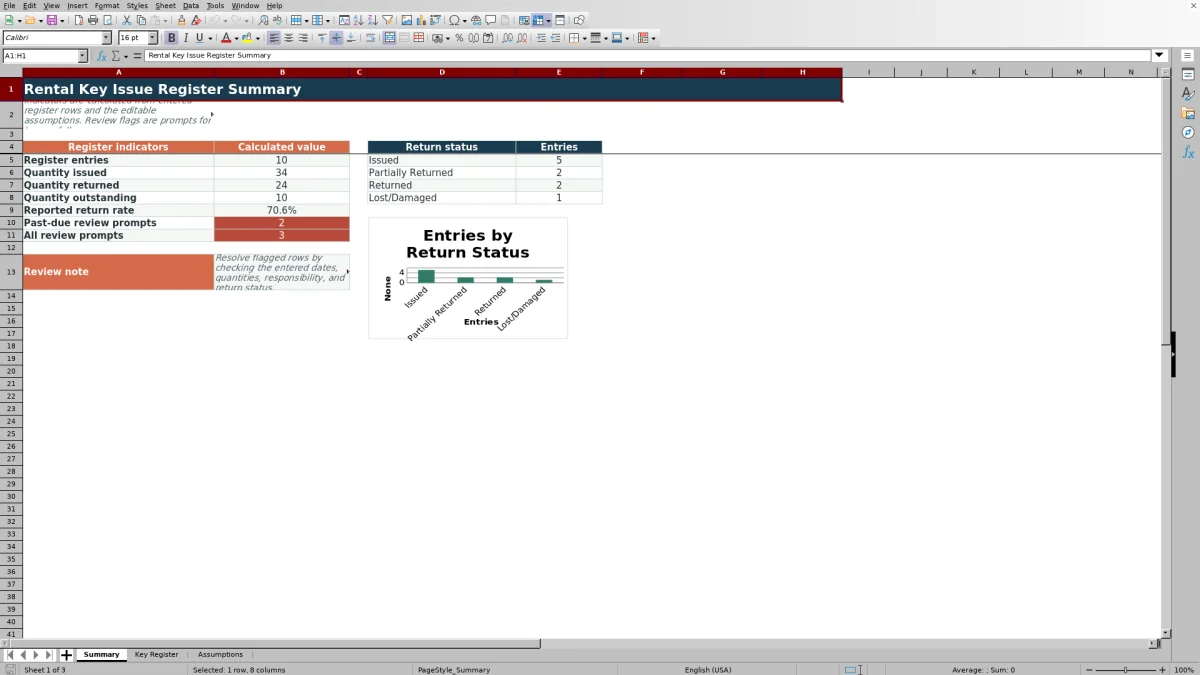
The XLSX includes a 100-row register, calculated outstanding quantities and days open, return-status tracking, review flags, editable assumptions, and a summary with a status chart.
How this workbook can help
- Keep occupant, unit, access-item, issue, and return details in one structured register.
- See issued, returned, and outstanding quantities without calculating each balance manually.
- Monitor return-status totals, return rate, and review prompts from a summary sheet.
- Standardize common entries with editable choices for access items, responsibility, and return status.
What is in the file
How to get started
1. Set the workbook assumptions
Open the Assumptions sheet and confirm the as-of date, follow-up grace period, maximum issue quantity, allowed date range, and dropdown choices.
2. Enter each access-item issue
Use one Key Register row for each occupant and access item. Enter the property, unit, occupant, item type, quantity issued, issue date, responsibility, and return status. Add an identifier, notes, or expected return date when applicable.
3. Record returned items
When an item is received, enter the quantity returned and return date, then select the applicable return status. The workbook calculates the remaining quantity and days open.
4. Check flags and summary totals
Use the Review Flag column to find entries that may be missing required information, contain an invalid input, or need past-due follow-up. Check the Summary sheet for register totals and return-status counts.
What the Rental Key Issue Register Records
The main worksheet uses one row per access-item issue. Each entry can identify the property, unit, occupant, access-item type, identifier or notes, quantity issued, issue date, expected return date, quantity returned, return date, responsibility, and return status.
Prepared choices include Key, Fob, Garage Remote, Mailbox Key, and Pool Gate Key. Responsibility choices include Occupant, Property Manager, Property Owner, and Shared, while return statuses include Issued, Partially Returned, Returned, and Lost/Damaged.
How Calculations Support Daily Tracking
The workbook uses calculated fields for quantity outstanding, days open, and the Review Flag. Quantity outstanding subtracts a valid returned quantity from the issued quantity without producing a negative balance.
When an outstanding quantity remains, days open uses the editable as-of date and issue date. The Summary sheet totals issued, returned, and outstanding quantities, calculates the reported return rate, counts status entries, and displays a chart based on those status counts.
Worked Scenario for a Partial Fob Return
Consider the fictional Unit F-201 example. The input records two fobs issued on June 2, 2026, one fob returned on September 5, 2026, and a Partially Returned status. With an as-of date of September 10, 2026, the result is an outstanding quantity of one and 100 days open.
The interpretation is that one fob remains outstanding. The next decision is to confirm that the partial-return status is still current, contact the fictional occupant if follow-up is appropriate, or update the returned quantity and date if the remaining fob has been received.
Common Entry Errors and Solutions
If the Review Flag reports missing required fields, complete the property, unit, occupant, access item, quantity issued, issue date, responsibility, and return status. The solution is to correct the source entry rather than overwrite the calculated flag.
- For an input-type prompt, replace text in quantity or date fields with an allowed whole number or valid date.
- For a past-due prompt, check the expected return date against the as-of date and grace period, then update the record if circumstances have changed.
- If a dropdown choice is incorrect, select the intended access item, responsibility, or return status from the configured list.
Workbook Limits and Operating Boundaries
The Key Register contains 100 prepared entry rows, from row 5 through row 104. Adding capacity requires extending the formulas, validation ranges, filter range, and Summary references so the additional rows are included.
The workbook depends on accurate and timely entries. Its as-of date is editable rather than automatically tied to the current date, expected return dates are optional, and changing a list label on the Assumptions sheet does not update labels already stored in register records.
Workbook and blank spreadsheet comparison
Use the prepared workbook when its verified fields and calculations fit the task. Start with a blank spreadsheet when you need to design a different model and can build and test every field and formula yourself.
| Method | Setup | Calculations and review | Practical fit |
|---|---|---|---|
| This Excel workbook | Use the prepared structure in the validated file | Review the documented calculations and results | Local editable workflow supported by the workbook |
| Blank spreadsheet | Create the structure yourself | Build and test every formula and check | A custom model built from scratch |
Keeping Register Entries Consistent
Use consistent list labels for access items, responsibility, and return status so the Summary counts remain meaningful. Before changing a choice on the Assumptions sheet, check whether existing records already use the old wording.
Enter return details as items are received, keep the as-of date current for the reporting period, and use the register filter to focus on a property, unit, occupant, item type, status, or review flag.
Frequently asked questions
What access items can this rental key issue register track?
The prepared list includes keys, fobs, garage remotes, mailbox keys, and pool gate keys. The choices can be edited on the Assumptions sheet.
Is an expected return date required?
No. Expected return dates are optional. When one is entered, the workbook can use it with the as-of date and grace period to produce a past-due review prompt.
How is quantity outstanding calculated?
The workbook subtracts a valid quantity returned from the quantity issued and does not return a balance below zero. The calculated field stays blank when the row is unused or the issued quantity is not numeric.
Can the responsibility and return-status choices be changed?
Yes. Both lists are editable on the Assumptions sheet. Changing a label does not relabel existing Key Register records, so existing entries may need separate updates.
What does the Review Flag column do?
It provides formula-based prompts for entries that may have missing required fields, invalid input types, inconsistent return details, or a past-due condition. Check and correct the underlying entry when a prompt appears.
Editorial responsibility

Marcus ReedLeasing and property workflows

Elena BrooksWorkbook logic and financial operations