This rental move-in inspection spreadsheet is an Excel workbook for documenting property and unit details, room conditions, fixtures, meter readings, photo references, follow-up items, and acknowledgment dates at the start of a tenancy.
The XLSX includes separate sheets for move-in records, condition details, assumptions, and calculated summary indicators. Fictional sample entries demonstrate the workflow and should be replaced before the workbook is used for actual properties.
How this workbook can help
- Keeps inspection details, acknowledgment dates, and general notes in a consistent move-in register.
- Connects room, fixture, meter, and photo records to the appropriate property and unit through an inspection ID.
- Flags missing fields, inconsistent dates, incomplete meter entries, and missing photo references.
- Summarizes completed inspections, outstanding acknowledgments, follow-up statuses, photo counts, meter readings, and estimated open amounts.
What is in the file
How to get started
1. Configure the assumptions
Check the dropdown choices, earliest and latest allowed dates, maximum photo count, and other visible limits on the Assumptions sheet.
2. Enter each move-in inspection
Add one row per inspection on the Move-Ins sheet. Assign a unique Inspection ID and enter the property, unit, tenancy reference, move-in date, inspection date, status, and notes.
3. Add condition and meter lines
Use the same Inspection ID on each related Condition Log row. Record the area, item or meter, record type, condition details, reading, photo information, responsibility, and status as applicable.
4. Complete acknowledgments and follow-ups
Enter resident and manager acknowledgment dates when received. For an open or scheduled item, add the follow-up due date and estimated amount where applicable.
5. Check alerts and summary results
Correct entries identified by the Record Alert, Property / Unit Check, or Review Alert columns. Then use the Summary sheet to monitor completion, outstanding work, photos, meters, and acknowledgment gaps.
What the workbook records
The inspection-level record lives on the Move-Ins sheet. Each row includes an Inspection ID, property, unit, tenancy reference, move-in date, inspection date, resident acknowledgment date, manager acknowledgment date, overall status, notes, and a calculated alert.
The Condition Log holds the supporting detail for each inspection:
- Room or area and inspected item
- Condition, cleanliness, and function check
- Meter reading and reading unit
- Photo reference and photo count
- Description, responsibility, status, due date, and estimated amount
How linked records and alerts work
Each condition line uses an Inspection ID to retrieve the corresponding property and unit from the Move-Ins sheet. This linked condition detail helps keep multiple room, fixture, and meter entries associated with the correct move-in record.
The Move-Ins alert checks required fields, inspection dates, acknowledgment completion, and status consistency. Condition Log alerts check the inspection ID, required fields, meter entries, condition entries, and photo references. The alert text identifies the source entry that needs correction.
Worked fictional scenario
Input: A fictional manager enters inspection MI-014 for Fictional Harbor View, Unit 3B, with matching move-in and inspection dates, both acknowledgment dates, and an overall status of Complete. A linked kitchen sink line is entered as a Fixture with Poor condition, Needs Cleaning cleanliness, Limited function, photo reference PH-014, photo count 2, Manager responsibility, Open status, a follow-up date, and an estimated amount of $125.
Result: The condition line displays the associated property and unit. Relative to the earlier totals, the Summary formulas add one complete move-in, one open line, two logged photos, and $125 to the open estimated amount.
Interpretation: The inspection and acknowledgments are complete, while the sink remains an outstanding follow-up item.
Next decision: After the work is completed, change the line status to Resolved. The status chart then places the line in Resolved, and the $125 is no longer included in the total for Open or Scheduled lines.
Common errors and solutions
Fix the source entry identified by an alert rather than typing over a formula cell.
- If the property and unit check says the inspection ID was not found, match the Condition Log ID to an existing ID on Move-Ins.
- If a meter alert appears, enter both the meter reading and its reading unit.
- If a condition alert appears, enter a condition for a record that is not classified as Meter.
- If a photo-reference alert appears, add the reference associated with the positive photo count.
- If an acknowledgment alert appears, enter the missing resident or manager date or update the overall status to reflect the incomplete record.
- If the inspection-date alert appears, confirm that the inspection date is not earlier than the move-in date.
Using the calculated summary
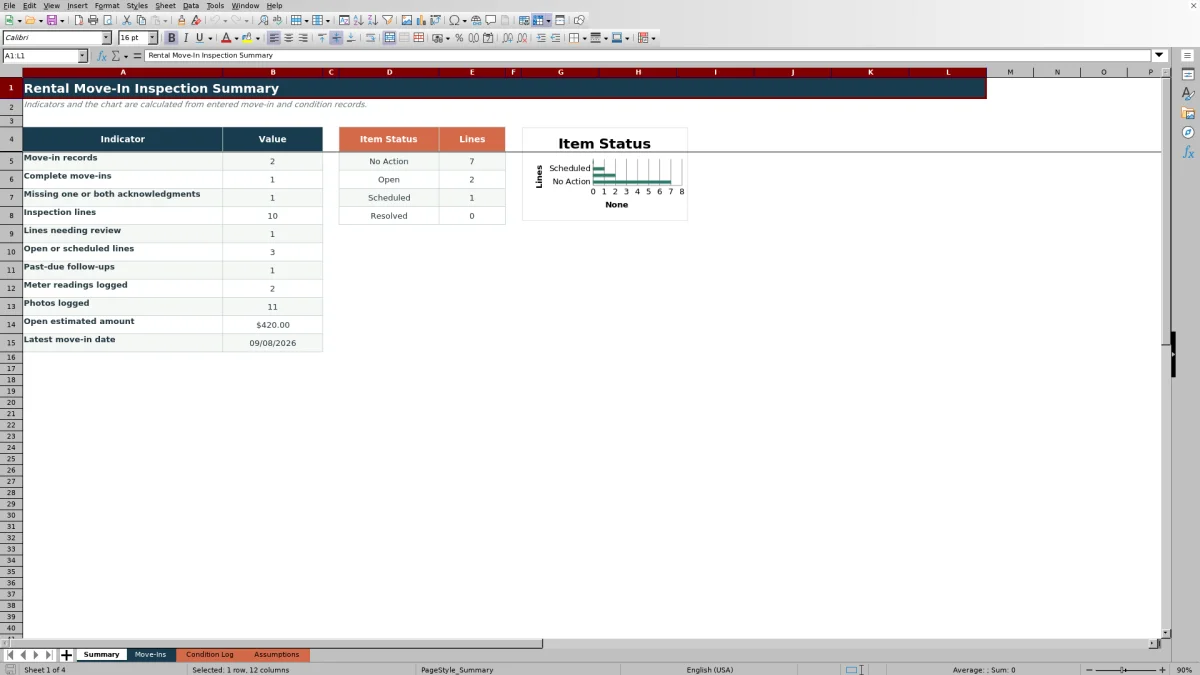
The Summary sheet provides an operational snapshot of records entered within the configured ranges. It calculates move-in records, completed move-ins, records missing one or both acknowledgments, inspection lines, lines needing attention, open or scheduled lines, past-due follow-ups, meter readings, photo totals, open estimated amounts, and the latest move-in date.
A chart groups condition lines into No Action, Open, Scheduled, and Resolved statuses. Filters on both entry sheets can then isolate a property, date, responsibility, status, or other recorded value.
Excel Workbook Comparison With a Paper Checklist
The Excel workbook and a paper move-in checklist can document an inspection, but they support different operating conditions.
| Criterion | Excel move-in inspection workbook | Paper move-in checklist |
|---|---|---|
| Record structure | Connects an inspection register to individual condition lines through an Inspection ID. | Typically keeps the inspection and item details together on one printed form. |
| Entry consistency | Uses dropdown lists and date, decimal, and whole-number validation. | Relies on printed prompts and handwritten entries. |
| Status monitoring | Calculates summary indicators and displays an item-status chart. | Requires staff to count statuses and follow-up items manually. |
| Photo documentation | Records photo references and photo counts beside condition lines. | Requires handwritten references or a separate notation system. |
| Practical fit | More suitable when recurring inspections need searchable rows, consistent choices, calculated totals, and linked follow-up records. | More suitable when completing a single on-site inspection without access to the Excel file. |
Limits and setup boundaries
The workbook uses fixed 100-row ranges from rows 5 through 104 on both entry sheets. Adding more records requires extending the formulas, validation, formatting, filters, and summary references.
- The supplied date validation allows dates from January 1, 2025, through December 31, 2028; these limits can be changed on the Assumptions sheet.
- The configured maximum photo count is 50 per condition line.
- The workbook records photo references and counts rather than storing the referenced photo files in those fields.
- Acknowledgments are recorded as resident and manager dates, not signature fields.
- The status, condition, responsibility, reading-unit, and related dropdown choices come from visible Assumptions cells.
Frequently asked questions
Can this Excel spreadsheet record rooms, fixtures, and utility meters?
Yes. Each Condition Log row includes an area, item or meter, and record type. Separate fields capture condition, cleanliness, function, meter reading, reading unit, notes, responsibility, status, and follow-up information.
How are condition lines connected to a move-in inspection?
Enter the Move-Ins sheet's unique Inspection ID in each related Condition Log row. The workbook uses that ID to display the associated property and unit or flag an ID that is not found.
Does the workbook store inspection photos?
The Condition Log provides fields for a photo reference and photo count. Use the reference to connect each line to photos stored in the property manager's chosen file location.
How does the spreadsheet track move-in acknowledgments?
The Move-Ins sheet has separate resident and manager acknowledgment-date columns. Its alert formula identifies missing acknowledgments based on the dates and overall status, while the Summary counts records missing one or both dates.
Can the workbook handle more than 100 move-ins or condition lines?
The configured formulas and controls cover rows 5 through 104, providing 100 rows on each entry sheet. To use additional rows, extend the formulas, validation rules, conditional formatting, filters, and Summary references.
Editorial responsibility

Marcus ReedLeasing and property workflows

Elena BrooksWorkbook logic and financial operations