This Tenant Document Expiration Tracker is an Excel workbook for recording manager-required documents by property, unit, tenancy or tenant, document type, effective date, expiration date, responsible party, renewal status, and notes.
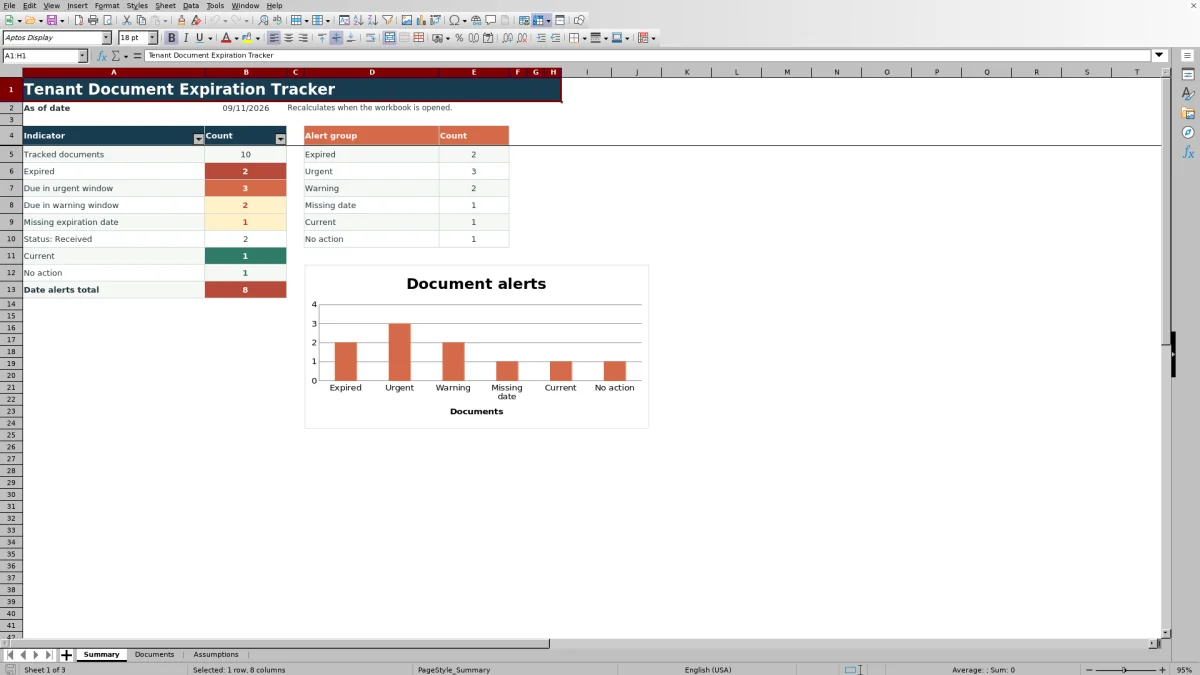
The XLSX calculates days remaining and assigns date-based alerts, while the Summary sheet presents counts and a chart for expired, urgent, warning, missing-date, current, and no-action records.
How this workbook can help
- Centralize up to 100 tenant document records with property, unit, tenant, date, responsibility, status, and follow-up details.
- See expired, urgent, warning, missing-date, current, and no-action counts on the Summary sheet.
- Adjust the warning window, urgent window, allowed date range, and entry lists to match the property’s operating process.
- Use validated lists and date rules to support consistent data entry across document records.
What is in the file
How to get started
1. Configure the timing rules
Open the Assumptions sheet and confirm the warning window, urgent window, earliest allowed date, and latest allowed date. The initial windows are 60 days for warning and 30 days for urgent.
2. Prepare the entry lists
Review the available renewal statuses, responsible parties, and document types. Edit these lists as needed before entering records.
3. Enter tenant document records
On the Documents sheet, use one row per document. Enter the property, unit, tenancy or tenant, document type, effective date, expiration date, responsible party, renewal status, and concise notes in the editable cells.
4. Monitor dates and renewal status
Review the calculated Days Remaining and Alert columns, then use the Summary sheet to check date-alert totals, renewal status counts, and the alert-group chart.
Organize Required Tenant Document Records
The Documents sheet keeps one row per document across a 100-row entry area. Each record can identify the property, unit, tenancy or tenant, document type, effective and expiration dates, responsible party, renewal status, and concise follow-up notes.
Document types initially include renter insurance, pet vaccination records, parking permits, government IDs, vehicle registrations, resident information forms, emergency contact forms, lease addenda, and other documents. These labels can be edited on the Assumptions sheet.
Understand Days Remaining and Alert Results
The workbook uses TODAY() to calculate days remaining and assign date-driven alerts. An expiration date before today produces Expired. A date within the urgent window produces Due in urgent window, while a date beyond that threshold but within the warning window produces Due in warning window. Later dates are marked Current.
A blank expiration date produces Check date when a document type is present, and a renewal status of Not Required produces No action. A status of Received is counted separately on the Summary sheet but does not suppress an applicable date alert.
Worked Tenant Document Scenario
Consider a fictional renter insurance record with a document type entered, a renewal status of Requested, and an expiration date 20 days after the workbook’s current date. The urgent window is 30 days and the warning window is 60 days.
The formulas return 20 days remaining and Due in urgent window. This result means the record is inside the configured urgent period. The next decision is to continue the established renewal follow-up and update Renewal Status or Notes when the document’s progress changes.
Common Errors and Solutions
- If Document Type is blank, the calculated days and alert can remain blank. Select the applicable document type from the list.
- If a required expiration date has not been entered, the record displays Check date. Add the date once it is available.
- If an expiration date precedes its effective date or falls outside the allowed range, the date validation rejects the entry. Correct the date or revise the allowed limits on the Assumptions sheet.
- If a record unexpectedly displays No action, check whether Renewal Status is set to Not Required. Choose the applicable status if the document still needs tracking.
- If a received document still has an urgent or expired alert, verify its expiration date. Received does not override the date calculation.
Workbook and blank spreadsheet comparison
Use the prepared workbook when its verified fields and calculations fit the task. Start with a blank spreadsheet when you need to design a different model and can build and test every field and formula yourself.
| Method | Setup | Calculations and review | Practical fit |
|---|---|---|---|
| This Excel workbook | Use the prepared structure in the validated file | Review the documented calculations and results | Local editable workflow supported by the workbook |
| Blank spreadsheet | Create the structure yourself | Build and test every formula and check | A custom model built from scratch |
Workbook Limits to Consider
The built-in document entry area covers rows 6 through 105, providing 100 prepared records. Formula, validation, filter, and summary ranges would need adjustment if the operating file is expanded beyond that area.
The workbook does not send reminders. Its date results depend on TODAY() and recalculate when the workbook opens. Alerts also depend on complete and accurate document types, expiration dates, renewal statuses, and assumption values.
Customize Assumptions and Lists
The editable assumptions begin with a 60-day warning window, a 30-day urgent window, an earliest allowed date of January 1, 2016, and a latest allowed date of December 31, 2046. Validation requires the urgent window to be no longer than the warning window.
The same sheet stores the choices used for renewal status, responsible party, and document type. Preserve the Not Required status if records should continue to produce the No action result, because the alert formula checks for that exact status.
Frequently asked questions
How many tenant documents can the workbook track?
The prepared Documents sheet includes 100 entry rows, covering rows 6 through 105.
How are urgent and warning alerts calculated?
The workbook compares each expiration date with TODAY(). Dates within the urgent window are marked Due in urgent window, while later dates that remain within the warning window are marked Due in warning window. The initial windows are 30 and 60 days.
Does marking a document Received remove its date alert?
No. Received is counted as a renewal status on the Summary sheet, but the alert continues to reflect the expiration date. Only Not Required produces No action.
Does the Excel workbook send expiration reminders?
No. The workbook calculates days remaining, displays alert categories, and summarizes the results, but it does not send notifications or reminders.
Can the document types and workflow choices be changed?
Yes. The Assumptions sheet contains editable lists for document type, renewal status, and responsible party, along with editable alert windows and allowed date limits.
Editorial responsibility

Marcus ReedLeasing and property workflows

Elena BrooksWorkbook logic and financial operations