The Tenant Portal Access Tracker is an Excel workbook for recording portal invitations, activations, access confirmations, issues, resets, and deactivations in long-term residential property operations.
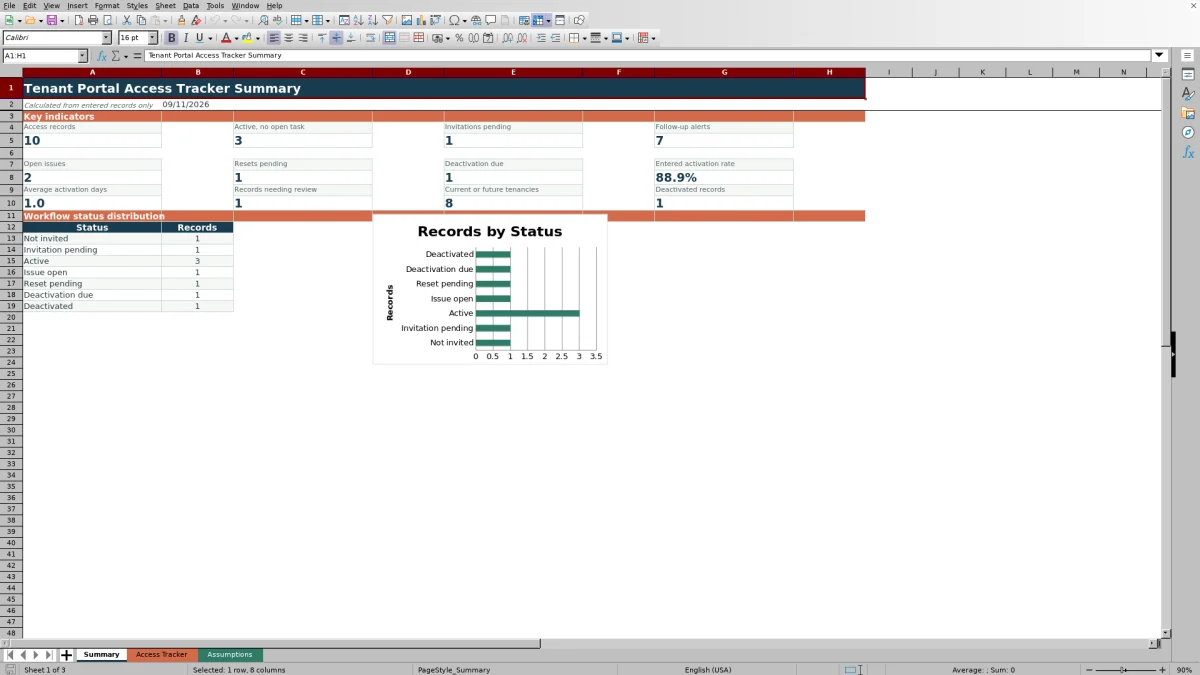
The workbook provides 100 entry rows, calculated statuses and alerts, adjustable timing assumptions, validated inputs, and a summary sheet with key indicators and a workflow status chart.
How this workbook can help
- Keep each tenant portal access record, event date, issue, reset, and responsibility assignment in one structured row.
- Use calculated statuses and follow-up alerts to identify pending invitations, unresolved issues, incomplete resets, and deactivation tasks.
- Monitor record counts, activation performance, open tasks, and workflow status distribution from the Summary sheet.
- Adjust follow-up periods and allowed entry dates without rewriting the tracker formulas.
What is in the file
How to get started
1. Configure the assumptions
Open the Assumptions sheet and confirm the follow-up periods for activation, open issues, resets, and access confirmations. Review the earliest and latest dates allowed for tracker entries.
2. Enter each access record
On the Access Tracker sheet, replace the fictional demonstration values in the yellow input cells. Enter a unique access record ID, property, unit, tenant reference, tenancy status, and responsibility assignment.
3. Record portal activity
Add invitation, activation, access-confirmation, issue, resolution, reset, and deactivation dates as those events occur. Include an issue description whenever an issue-opened date is entered.
4. Check calculated results
Use Access Status, Follow-Up Alert, and Activation Days to identify the current condition of each record. Review the Summary sheet for totals, pending work, activation measures, and workflow distribution.
What the Tenant Portal Access Tracker Covers
The workbook provides 100 access-record rows for tracking portal access by property, unit, and tenant reference. Each row can hold invitation, activation, last-access-confirmation, issue, resolution, reset, and deactivation dates.
Responsibility can be assigned to Tenant, Property Staff, Portal Provider, or Joint Review. Tenancy status choices are Current, Future, and Former.
How Statuses and Alerts Work
The calculated Access Status field classifies entered records as Not invited, Invitation pending, Active, Issue open, Reset pending, Deactivation due, or Deactivated. It can also display data-quality results such as Missing key fields, Duplicate record ID, Missing issue detail, or Check dates.
The Follow-Up Alert field uses the entered dates and timing settings to flag records requiring an action. Activation Days calculates the elapsed days between a valid invitation date and activation date.
Worked Scenario: A Pending Invitation
Fictional example: A property manager enters record ID DEMO-PA-104 for Fictional Oak Terrace, records an invitation date of September 8, 2026, selects Current tenancy status, and assigns responsibility to Property Staff. No activation date is entered.
If the workbook is opened on September 12, 2026, using the default three-day activation follow-up setting, the record remains Invitation pending and its follow-up field is populated. This indicates that the invitation has exceeded the configured interval. The next decision is to follow up on access and then enter the activation date if activation is confirmed.
Common Errors and Solutions
Fix the source entry when a calculated status identifies a record problem:
- Missing key fields: complete the record ID, property, unit, tenant reference, tenancy status, and responsibility fields.
- Duplicate record ID: assign a unique ID to each access record.
- Missing issue detail: add an issue description when an issue-opened date is present.
- Check dates: correct missing or reversed dates in the invitation, activation, confirmation, issue, reset, resolution, or deactivation sequence.
- Rejected date entry: confirm that the date falls between the earliest and latest dates configured on the Assumptions sheet.
Workbook and blank spreadsheet comparison
Use the prepared workbook when its verified fields and calculations fit the task. Start with a blank spreadsheet when you need to design a different model and can build and test every field and formula yourself.
| Method | Setup | Calculations and review | Practical fit |
|---|---|---|---|
| This Excel workbook | Use the prepared structure in the validated file | Review the documented calculations and results | Local editable workflow supported by the workbook |
| Blank spreadsheet | Create the structure yourself | Build and test every formula and check | A custom model built from scratch |
Workbook Limits
Workbook limits should be considered before use. The tracker supports 100 entry rows, and its default allowed date range is January 1, 2024, through December 31, 2028. These date limits can be edited within the validation range allowed on the Assumptions sheet.
- Dates, confirmations, descriptions, and responsibility assignments must be entered manually.
- The workbook does not send invitations, complete resets, deactivate accounts, or connect to a tenant portal.
- Calculated results depend on accurate entries and the workbook’s current timing settings.
- The summary reflects records entered in rows 6 through 105.
Maintain a Consistent Access Process
Use the Assumptions sheet to keep follow-up timing consistent across access records. The default settings are three days for activation follow-up, two days for open-issue follow-up, one day for reset follow-up, and 90 days for access-confirmation review.
Update tracker rows as events occur rather than creating separate entries for each event. A single row can then show the progression from invitation through activation, issue handling, reset activity, and eventual deactivation.
Frequently asked questions
What information can I record in the tenant portal access tracker?
You can record an access record ID, property, unit, tenant reference, tenancy status, invitation and activation dates, last access confirmation, issue details, reset activity, deactivation date, and responsibility assignment.
How does the workbook determine access status?
Formulas evaluate the entered fields and dates to assign a workflow status or identify missing, duplicate, incomplete, or inconsistent information. Blank input rows remain blank.
How many tenant portal records does the workbook support?
The Access Tracker provides 100 entry rows, covering rows 6 through 105. Summary calculations and formulas use that same record range.
Can I change the follow-up periods?
Yes. The Assumptions sheet contains editable settings for activation, open-issue, reset, and access-confirmation follow-up periods. Each setting accepts a whole number from 0 through 365.
Does the workbook perform actions in the tenant portal?
No. The workbook tracks manually entered events and calculates statuses, alerts, and summary measures. It does not send invitations, reset access, deactivate accounts, or connect directly to a portal.
Editorial responsibility

Marcus ReedLeasing and property workflows

Elena BrooksWorkbook logic and financial operations