The Rental Showing Schedule Spreadsheet for Excel is an XLSX workbook for organizing long-term residential unit tours. It keeps the showing date, start time, duration, property, unit, prospect, host or agent, access instructions, status, attendance, outcome, follow-up date, and notes in one schedule.
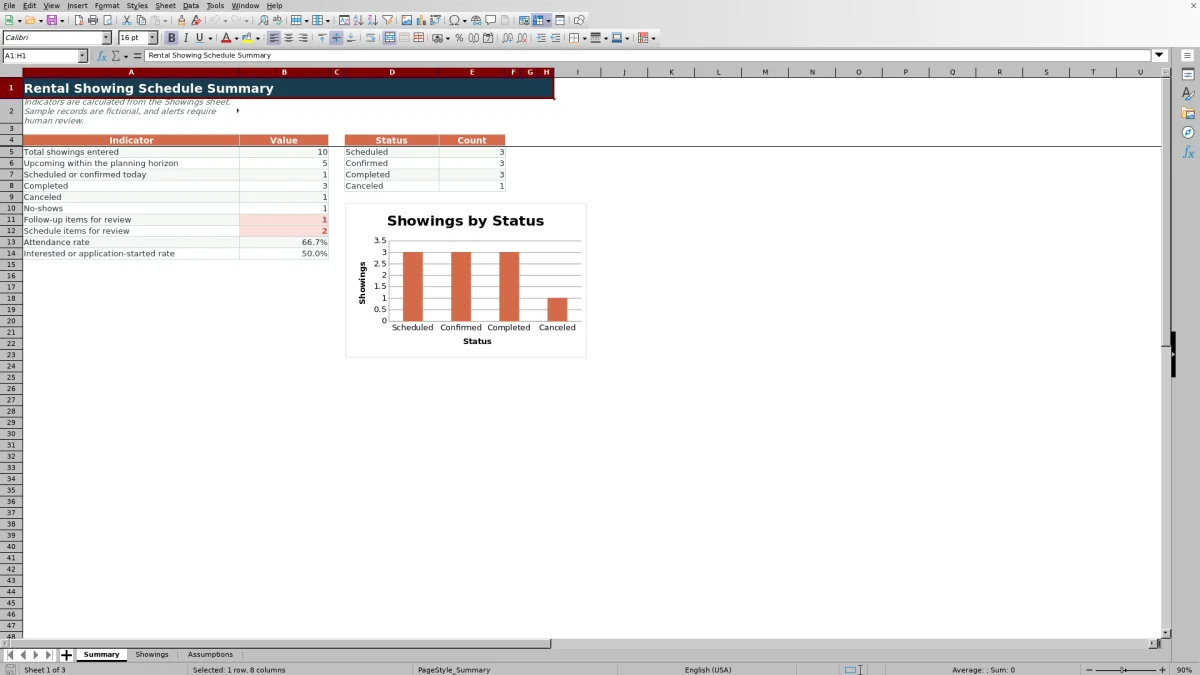
Its three worksheets combine a 100-row Showings log, a calculated Summary, and editable Assumptions. End-time formulas, dropdowns, validation, conditional formatting, schedule checks, follow-up checks, filters, and a status chart help leasing teams maintain consistent appointment records and identify entries needing attention.
How this workbook can help
- Consolidates appointment, prospect, property, access, attendance, outcome, and follow-up details in one schedule.
- Calculates showing end times from the entered start time and duration.
- Supports consistent entries through configurable dropdown lists and date, time, and duration validation.
- Makes showing activity easier to scan through a filterable schedule, calculated indicators, status counts, rates, and a chart.
What is in the file
How to get started
1. Set the operating assumptions
Open the Assumptions sheet and confirm the planning horizon, earliest start, latest end, maximum duration, accepted date range, and dropdown lists.
2. Enter each showing
Use one row per appointment on the Showings sheet. Add a showing ID, date, start time, duration, property, unit, prospect, host or agent, access instructions, and status.
3. Record attendance and outcome
After the appointment, select the attendance result and outcome. Add a follow-up date and notes when needed.
4. Check the schedule and summary
Inspect the End Time, Schedule Check, and Follow-Up Check columns, correct source entries that produce flags, and use the filters and Summary sheet to monitor activity.
What the Rental Showing Schedule Captures
One showing per row creates a structured record of the appointment date, start time, duration, property, unit, prospect, host or agent, access instructions, status, attendance, outcome, follow-up date, and notes. The workbook calculates the end time and places schedule and follow-up checks beside the operational inputs.
The Showings sheet covers rows 5 through 104 and includes an autofilter across all 17 columns. Frozen headings keep the field names visible while staff move through the schedule.
Configurable Scheduling Controls
Editable assumptions control the upcoming planning horizon, permitted time window, maximum appointment duration, and accepted date range. The supplied settings use a 14-day planning horizon, an 8:00 AM earliest start, an 8:00 PM latest end, and a 180-minute maximum duration.
The Assumptions sheet also supplies dropdown values for status, attendance, outcome, host or agent, and property. Updating the referenced list cells changes the choices available in the corresponding Showings fields.
Worked Scenario From Appointment to Follow-Up
Input: A fictional leasing coordinator enters showing FIC-SHOW-021 for October 15, 2026, at 3:00 PM with a 45-minute duration. The row includes Fictional Cedar Court, unit FIC-A2, prospect Jamie Example, host Avery Example, approved access instructions, and a Confirmed status.
Result: The End Time formula returns 3:45 PM. If required fields are present, the time is within the configured window, and no tested overlap exists, the Schedule Check can return Clear.
Interpretation: The calculated result indicates that the entered appointment fits the configured hours and has no detected schedule issue based on the recorded data.
Next decision: After the tour, the coordinator changes the status to Completed, attendance to Attended, and outcome to Interested. If the follow-up date remains blank, the Follow-Up Check returns Add follow-up, prompting the coordinator to choose an appropriate date.
Schedule and Follow-Up Checks
The Schedule Check evaluates populated rows for required date, time, duration, property, and unit entries, then checks status, host or agent, configured hours, and potential overlaps. A canceled showing can return Clear rather than continuing through the active-schedule tests.
The Follow-Up Check responds to status, attendance, outcome, and follow-up date. It can identify a missing follow-up for a completed showing with an interested or reschedule-requested outcome and can mark a past follow-up date as Review overdue.
Common Errors and Solutions
Resolve flags at the source by correcting the appointment fields rather than overwriting formula cells.
- If End Time is blank, confirm that the showing date, start time, and duration are present and valid.
- If Schedule Check reports missing required fields, complete the date, time, duration, property, and unit entries.
- If it reports a missing status or host, select an entry from the applicable dropdown.
- If it reports a time issue, compare the start and calculated end with the earliest-start and latest-end assumptions.
- If it identifies a potential overlap, inspect other rows for the same date and overlapping appointment period.
- If Follow-Up Check says Add follow-up or Review overdue, enter or revise the follow-up date when the recorded outcome calls for it.
Workbook and blank spreadsheet comparison
Use the prepared workbook when its verified fields and calculations fit the task. Start with a blank spreadsheet when you need to design a different model and can build and test every field and formula yourself.
| Method | Setup | Calculations and review | Practical fit |
|---|---|---|---|
| This Excel workbook | Use the prepared structure in the validated file | Review the documented calculations and results | Local editable workflow supported by the workbook |
| Blank spreadsheet | Create the structure yourself | Build and test every formula and check | A custom model built from scratch |
Workbook Limits and Operating Boundaries
Capacity is 100 showing rows, from row 5 through row 104. Adding capacity requires extending the formulas, validation, conditional formatting, filter range, and Summary references so new rows participate in the same checks and counts.
The workbook records access instructions but does not deliver access credentials, contact prospects, or send appointment invitations. Its formulas depend on complete and accurate entries, and its accepted dates, time limits, list choices, and planning horizon remain governed by the settings on the Assumptions sheet.
Frequently asked questions
How many rental showings can the Excel spreadsheet track?
The supplied Showings sheet has 100 appointment rows, covering rows 5 through 104. Its formulas, validation, conditional formatting, filter, and Summary references are configured for that range.
Can I change the properties and hosts shown in the dropdowns?
Yes. The Assumptions sheet contains editable Property and Host / Agent lists that feed the Showings dropdowns. The supplied validation references four entries in each list.
What statuses, attendance values, and outcomes can I record?
The supplied status list includes Scheduled, Confirmed, Completed, and Canceled. Attendance includes Pending, Attended, and No-show. The outcome dropdown is maintained on the Assumptions sheet and includes options such as Pending, Interested, Application started, Declined, and No interest.
How does the spreadsheet identify possible schedule problems?
The Schedule Check formula tests populated rows for required fields, status, host or agent, the configured showing-time window, and potential appointment overlaps. Its output is based only on information entered in the workbook.
What appears on the Summary sheet?
The Summary sheet calculates total showings, upcoming appointments within the planning horizon, scheduled or confirmed showings for the current date, completed and canceled counts, no-shows, schedule and follow-up items, attendance rate, and the interested-or-application-started rate. It also displays status counts and a chart for Scheduled, Confirmed, Completed, and Canceled records.
Editorial responsibility

Marcus ReedLeasing and property workflows

Elena BrooksWorkbook logic and financial operations