This rental applicant tracker spreadsheet is an Excel workbook for recording long-term residential rental applications from receipt through completeness, screening, decision, and lease offer follow-up.
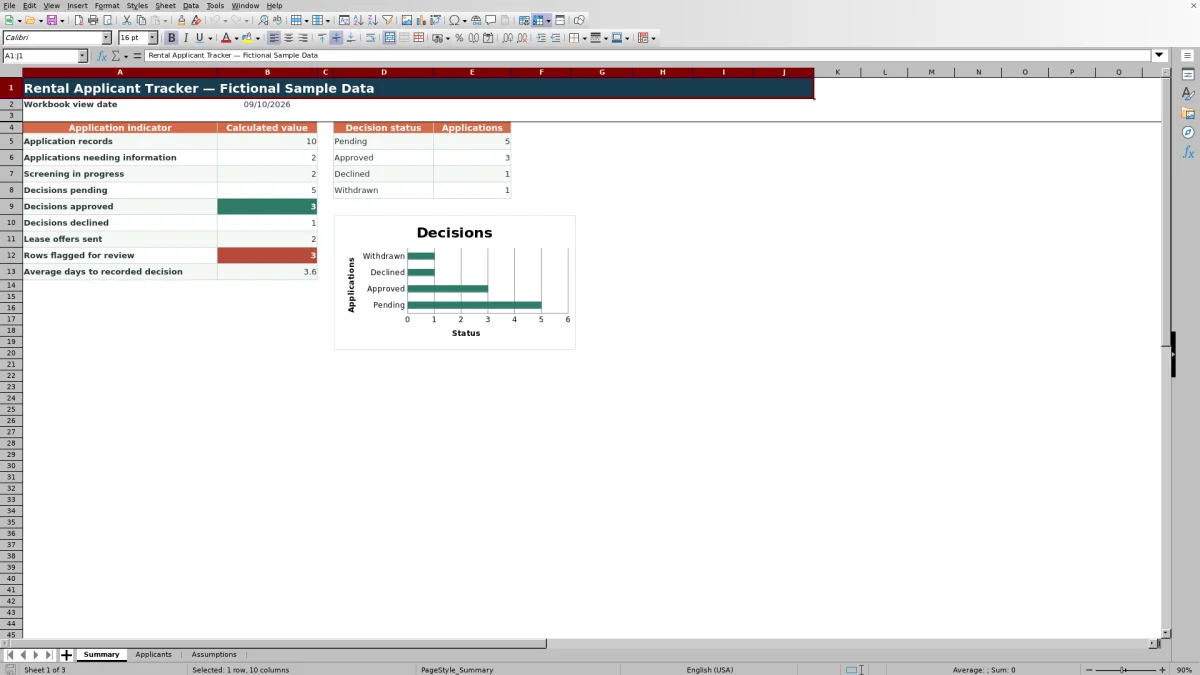
The XLSX includes a 100-row applicant table, validated entry fields, calculated days open, review alerts, summary indicators, a decision-status chart, and editable workflow settings with fictional sample data.
How this workbook can help
- Keeps application details, workflow statuses, dates, ownership, and notes together in a filterable table.
- Shows days open and flags records with missing information, missing decision dates, or property-and-unit mismatches.
- Summarizes pending, approved, and declined decisions along with applications needing information and lease offers sent.
- Lets property-management teams edit timing thresholds, workflow choices, properties, units, and listed monthly rents.
What is in the file
How to get started
1. Review the workbook settings
Open the Assumptions sheet and confirm the open-application review threshold, offer timing warning window, status choices, properties, units, and listed monthly rents.
2. Enter one application per row
Use the Applicants sheet to record the application ID, applicant, property, unit, received date, workflow statuses, proposed rent, next action owner, and notes.
3. Update decisions and lease offers
Add a decision date when a decision is recorded. If a lease offer is sent, update its status and enter the applicable expiration date.
4. Check alerts and summary results
Filter the Review Alert column for records needing attention, then use the Summary sheet to monitor application volume, status counts, offers sent, and average days to a recorded decision.
Follow Each Application Through the Leasing Workflow
The Applicants sheet uses one row per application to connect the applicant, property, unit, received date, completeness, screening status, decision, lease offer status, and next action owner. Filters make it possible to focus on pending applications, incomplete records, a particular property, or work assigned to a specific owner.
Use Consistent Statuses and Property Records
Data-validation lists provide controlled workflow choices for completeness, screening status, decision, lease offer status, property, unit, and next action owner. The Assumptions sheet holds the editable choices and a unit registry that associates each listed unit with a fictional property and monthly rent.
Date validation requires decision and offer-expiration dates to be on or after the application received date. Proposed monthly rent accepts values from zero through 100,000.
Worked Rental Application Scenario
Input: Enter a fictional application for Fictional Juniper Row, unit FJ-A1, received on September 10. Mark completeness and screening as Complete, record an Approved decision dated September 14, leave the lease offer status as Not Sent, and assign the Leasing Team.
Result: The Days Open formula returns 4 because the recorded decision date is four days after receipt. The application contributes to the application-record total and Approved decision count on the Summary sheet.
Interpretation: The application has a recorded decision, but the workflow still shows that no lease offer has been sent.
Next decision: The assigned team can determine whether to send a lease offer and, if sent, record its status and expiration date.
Common Entry Errors and Solutions
- A duplicate application ID can fail the uniqueness validation. Assign a distinct ID to each application row.
- A decision date earlier than the received date can fail date validation. Confirm both dates and correct the entry.
- A unit paired with the wrong property can trigger a property-and-unit alert. Select the property associated with that unit in the Assumptions registry.
- A recorded non-pending decision without a decision date can trigger a decision-date alert. Add the date when it is available.
- Blank core workflow fields can produce a missing-fields alert. Complete the applicant, property, unit, received date, statuses, and next action owner.
Read the Summary and Timing Indicators
The Summary sheet counts application records, applications needing information, screenings in progress, pending decisions, approved decisions, declined decisions, lease offers sent, and rows flagged for attention. It also calculates average days to a recorded decision and displays four configured decision-status counts in a chart.
The workbook view date and open-application calculations use Excel's current-date function, so unresolved applications continue to age as the file recalculates.
Workbook and blank spreadsheet comparison
Use the prepared workbook when its verified fields and calculations fit the task. Start with a blank spreadsheet when you need to design a different model and can build and test every field and formula yourself.
| Method | Setup | Calculations and review | Practical fit |
|---|---|---|---|
| This Excel workbook | Use the prepared structure in the validated file | Review the documented calculations and results | Local editable workflow supported by the workbook |
| Blank spreadsheet | Create the structure yourself | Build and test every formula and check | A custom model built from scratch |
Workbook Limits and Operating Boundaries
The application table is preconfigured for 100 records, covering rows 5 through 104. Adding records beyond that range may require extending the table, formulas, and validation ranges.
Alerts depend on accurate and timely entries. The workbook tracks operational statuses and dates, but it does not perform external applicant screening, send lease offers, execute leases, or define approval and denial criteria.
Frequently asked questions
What information can the rental applicant tracker record?
It records application IDs, applicants, properties, units, received dates, completeness, screening statuses, decisions, decision dates, lease offer details, proposed monthly rent, next action owners, notes, days open, and review alerts.
How many applications does the Excel workbook support?
The Applicants sheet contains 100 preconfigured entry rows, from row 5 through row 104.
Which values does the workbook calculate automatically?
It calculates days open and review alerts for each application row. The Summary sheet also calculates workflow totals, decision-status counts, rows flagged for attention, and average days to a recorded decision.
Can the status choices and timing thresholds be changed?
Yes. The Assumptions sheet contains editable open-application and offer-warning thresholds along with workflow choices, property options, next action owners, and the unit registry.
Does this spreadsheet decide whether an applicant qualifies?
No. It records workflow activity and provides operational alerts, but it does not define or apply applicant qualification, approval, or denial criteria.
Editorial responsibility

Marcus ReedLeasing and property workflows

Elena BrooksWorkbook logic and financial operations