This rental utility transfer checklist is an Excel workbook for coordinating utility account setup or transfer tasks before occupancy. It records the property, unit, tenancy, utility, vendor, responsible party, occupancy date, transfer deadline, and confirmation details for each item.
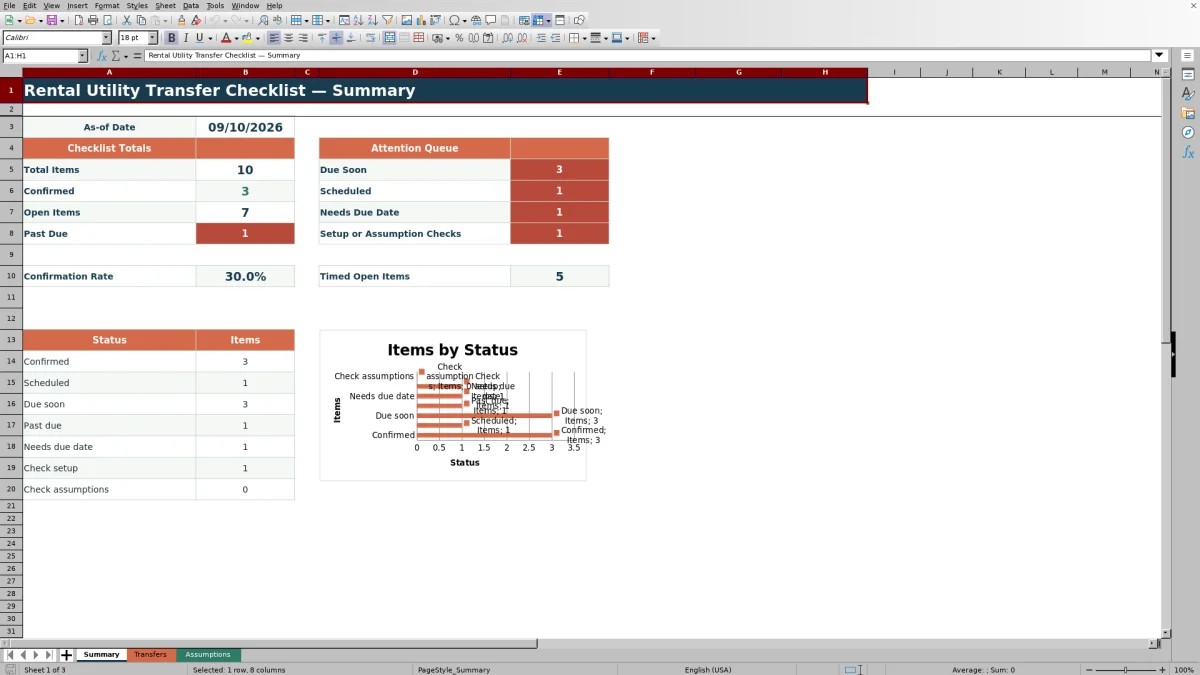
Calculated statuses and days-to-due values help identify upcoming, overdue, incomplete, and confirmed transfers. The Summary sheet presents checklist totals, a confirmation rate, attention-queue counts, status counts, and a status chart.
How this workbook can help
- Keep utility transfer dates, assignments, vendors, and confirmation details in one organized checklist.
- Prioritize scheduled, due-soon, past-due, and undated transfer items using calculated statuses.
- Identify missing required entries or unmatched confirmation fields before relying on a transfer record.
- Monitor overall completion and attention-queue totals from a separate summary view.
What is in the file
How to get started
Set the checklist assumptions
Open the Assumptions sheet and confirm the as-of date, due-soon window, earliest entry date, latest entry date, utility choices, and responsibility choices.
Enter each utility transfer
On the Transfers sheet, use one row per utility. Complete the property, unit, tenancy, utility, vendor, responsibility, occupancy date, and transfer due date fields.
Record completed confirmations
When confirmation is received, enter both the confirmed date and a matching confirmation description. Entering only one of these fields causes the row to show a setup-check status.
Work the attention queue
Use the calculated Status and Days to Due columns, sheet filters, conditional formatting, and Summary counts to decide which open items need follow-up.
Organize utility transfers by rental and tenancy
The Transfers sheet keeps one transfer item per row across 120 available rows. Property, unit, and tenancy fields identify the rental relationship, while utility, vendor, and responsibility fields identify the service and assigned party.
- Occupancy Date records the planned occupancy milestone.
- Transfer Due Date establishes the checklist deadline.
- Confirmed Date and Confirmation Description document the received confirmation.
- Status and Days to Due are calculated rather than entered manually.
Understand the calculated status queue
Each populated row receives a calculated status based on required entries, the confirmation fields, the transfer due date, the as-of date, and the configured due-soon window.
- Confirmed indicates that a date and matching description are present on a complete row.
- Scheduled indicates that an unconfirmed deadline is beyond the due-soon window.
- Due soon covers an unconfirmed deadline from the as-of date through the window limit.
- Past due identifies an unconfirmed deadline before the as-of date.
- Needs due date identifies an unconfirmed item without a deadline.
Worked rental utility transfer scenario
Consider a fictional electricity transfer for Unit 3B at Cedar Finch Apartments. The input includes an occupancy date of September 15, 2026, a transfer due date of September 12, 2026, tenant responsibility, no confirmation, an as-of date of September 10, and a seven-day due-soon window.
The result is Due soon with two days to due. The interpretation is that the deadline is still open but falls inside the configured attention window. The next decision is to follow up with the assigned tenant and record both confirmation fields when confirmation is received.
Common errors and solutions
A Check setup result means a required entry is missing or the confirmed date and confirmation description do not match. Complete the missing property, unit, tenancy, utility, vendor, responsibility, or occupancy date, or correct the confirmation pair.
A Check assumptions result means the as-of date or due-soon window is blank. Restore those values on the Assumptions sheet. For Needs due date, enter a transfer deadline when one is available. If a date is rejected, compare it with the earliest and latest entry dates configured on the Assumptions sheet.
Workbook and blank spreadsheet comparison
Use the prepared workbook when its verified fields and calculations fit the task. Start with a blank spreadsheet when you need to design a different model and can build and test every field and formula yourself.
| Method | Setup | Calculations and review | Practical fit |
|---|---|---|---|
| This Excel workbook | Use the prepared structure in the validated file | Review the documented calculations and results | Local editable workflow supported by the workbook |
| Blank spreadsheet | Create the structure yourself | Build and test every formula and check | A custom model built from scratch |
Workbook limits
This file is a coordination aid, not proof that a utility provider has opened, closed, or transferred an account. Calculated results depend entirely on the dates and details entered in the workbook.
The checklist supports 120 transfer rows. Its default accepted date range is January 1, 2021, through December 31, 2031, and its due-soon window cannot exceed the configured 60-day maximum. Confirmation descriptions remain free-text entries, and summary figures aggregate statuses rather than provider records.
Use the summary to plan the next action
The Summary sheet separates overall progress from items needing attention. Total Items, Confirmed, Open Items, Past Due, and Confirmation Rate show checklist progress, while the attention queue counts Due Soon, Scheduled, Needs Due Date, and setup or assumption checks.
Start with setup and assumption issues because incomplete inputs can prevent a useful deadline status. Then address past-due and due-soon items, use scheduled items for forward planning, and compare the confirmation count with the total before occupancy.
Frequently asked questions
What information does the rental utility transfer checklist track?
It tracks the property, unit, tenancy, utility, vendor, responsibility, occupancy date, transfer due date, confirmed date, confirmation description, calculated status, and days to due.
How does the Excel workbook determine whether a transfer is due soon?
An unconfirmed transfer is Due soon when its due date falls from the as-of date through the configured due-soon window. The default window is seven days.
What is required for a transfer to show as Confirmed?
A complete row must include both a confirmed date and a matching confirmation description. If only one confirmation field is completed, the status is Check setup.
Can the utility and responsibility choices be changed?
Yes. The Assumptions sheet contains editable lists for utility and responsibility choices. The provided utility choices are Electricity, Gas, Water, Sewer, Trash, Internet, and Other; the responsibility choices are Tenant, Owner, Property Manager, and Shared.
Does the workbook transfer utility accounts automatically?
No. The workbook coordinates user-entered transfer tasks and confirmation details. It does not contact utility providers or perform account transfers.
Editorial responsibility

Marcus ReedLeasing and property workflows

Elena BrooksWorkbook logic and financial operations