This rental application comparison worksheet is an Excel workbook for organizing completed administrative fields across long-term residential rental applications.
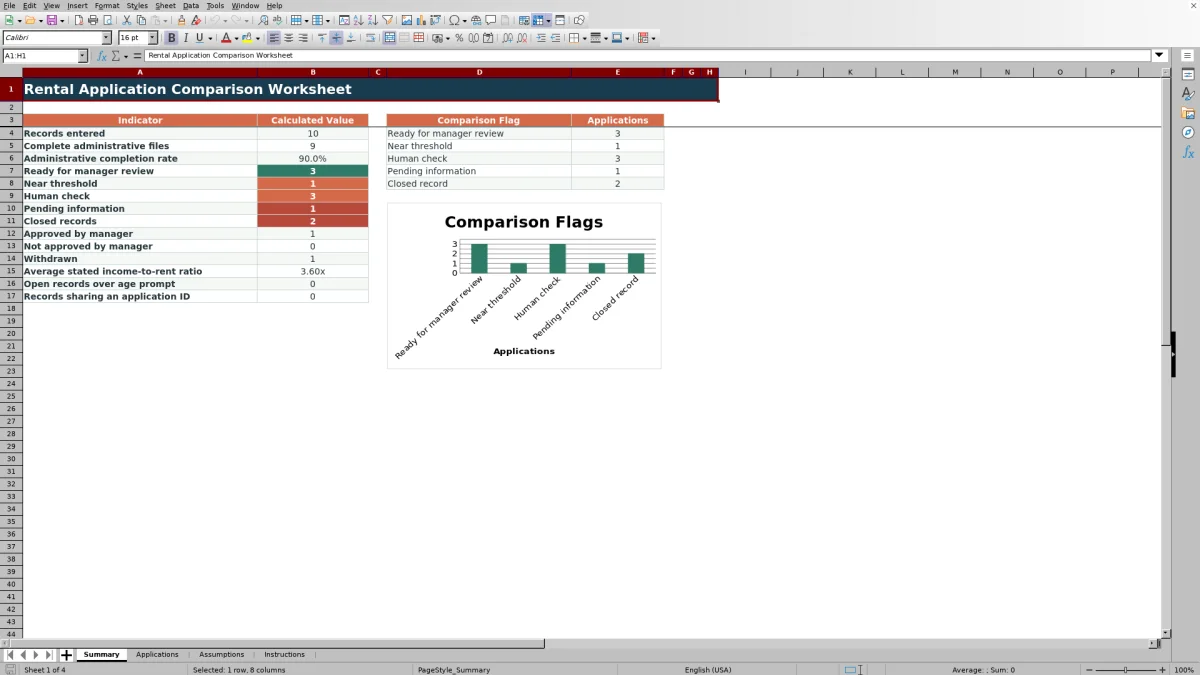
Use the Applications sheet to enter consistent record details, the Assumptions sheet to maintain manager-defined criteria and lists, and the Summary sheet to monitor completeness, comparison flags, outcomes, aging, and duplicate application IDs.
How this workbook can help
- Compare application records using the same manager-defined administrative criteria.
- Identify missing fields, invalid formats, duplicate IDs, and property-unit mismatches.
- Keep document, workflow, rental-review, and manager-outcome entries consistent with controlled lists.
- Monitor record totals, completion rates, comparison flags, outcomes, aging, and average stated income-to-rent ratio.
What is in the file
How to get started
1. Review the workbook settings
Open the Assumptions sheet and confirm the minimum stated income-to-rent ratio, open-record age prompt, desired-start gap, near-threshold margin, status lists, properties, units, and property-unit mappings.
2. Enter one application per row
Use the Applications sheet for the internal application ID, applicant alias, property, unit, dates, rent, stated income, documentation statuses, rental-review status, workflow status, manager outcome, and notes.
3. Resolve calculated flags
Check File Completeness and Comparison Flag for missing information, format problems, duplicate IDs, mapping issues, threshold proximity, aging prompts, or inconsistent dates and outcomes.
4. Update the record after the manager process
Record the applicable manager outcome and decision date, keep the workflow status consistent, and use the Summary sheet to monitor the current application queue.
A consistent rental application record
One row per application keeps the internal ID, applicant alias, property, unit, dates, monthly rent, stated monthly income, document statuses, rental-review status, workflow status, manager outcome, decision date, and reviewer notes together. The Applications sheet provides 100 prepared entry rows.
The calculated columns display the income-to-rent ratio, file completeness, and comparison flag without replacing the source fields entered by the reviewer.
Editable criteria and controlled entries
Manager-defined settings are maintained on the Assumptions sheet. They include a minimum stated income-to-rent ratio of 3.00x, a seven-day open-record age prompt, a 120-day maximum desired-start gap, and a 0.25x near-threshold margin in the supplied workbook.
Controlled lists support consistent property, unit, document-status, rental-review, workflow-status, and manager-outcome entries. The property-unit mapping also helps surface a mismatched selection through the Human check flag.
Worked fictional scenario
Input to result: a fictional application uses a mapped property and unit, a received date within seven days, a desired start date 26 days later, monthly rent of $2,100, and stated monthly income of $6,300. Both documentation fields are Verified, the rental review is Meets manager criteria, the workflow status is Manager Review, and the outcome remains Not decided.
The workbook calculates $6,300 divided by $2,100 as 3.00x. With all required administrative fields present and valid, File Completeness displays Complete. Under the supplied 3.00x threshold and 0.25x margin, the record is within the near-threshold range when no duplicate, mapping, or higher-priority prompt applies.
The interpretation is that the calculated ratio is close to the configured criterion, not that an outcome has been determined. The next decision is to examine the recorded information, update any supporting fields, and then record the manager outcome and decision date when applicable.
Common errors and practical solutions
Fix the source field rather than overwriting a calculated cell. Use these responses when a row does not display the expected result:
- If calculated cells are blank, confirm that the Application ID is present.
- If File Completeness shows Missing fields, complete the required administrative entries supported by the record.
- If File Completeness shows Check formats, confirm that dates are valid Excel dates and rent and income are numeric values.
- If the Comparison Flag shows Human check, inspect duplicate IDs, the property-unit mapping, date sequence, aging, workflow status, outcome, and decision date.
- If a dropdown lacks the needed operational choice, update the corresponding Assumptions list while preserving the intended meaning used by the formulas.
Workbook and blank spreadsheet comparison
Use the prepared workbook when its verified fields and calculations fit the task. Start with a blank spreadsheet when you need to design a different model and can build and test every field and formula yourself.
| Method | Setup | Calculations and review | Practical fit |
|---|---|---|---|
| This Excel workbook | Use the prepared structure in the validated file | Review the documented calculations and results | Local editable workflow supported by the workbook |
| Blank spreadsheet | Create the structure yourself | Build and test every formula and check | A custom model built from scratch |
Workbook limits and boundaries
Operational boundaries are explicit: the workbook organizes entered administrative information and generates formula-based prompts. It does not verify documentation, contact applicants, obtain credit data, process payments, or connect to external systems.
Formula results depend on the accuracy of the entered values and the current Assumptions settings. Internal aliases can be used so unnecessary sensitive identifiers, bank details, and other unrelated personal information are not stored in the worksheet.
Keeping the workbook current
Routine upkeep starts with the Assumptions sheet. Update criteria, list wording, properties, units, and mappings before adding operational records, while preserving the meanings expected by the formulas.
Replace the fictional sample entries with the intended administrative records without overwriting the calculated columns. Review the Summary sheet for incomplete files, comparison-flag totals, outcomes, aged open records, and shared application IDs.
Frequently asked questions
What is the Excel rental application comparison worksheet used for?
It is used to organize and compare completed administrative fields across rental applications with consistent columns, manager-defined settings, calculated completeness results, and comparison flags.
How many application records does the workbook support?
The Applications sheet contains 100 prepared entry rows, covering rows 4 through 103.
Can the income-to-rent criterion be changed?
Yes. The minimum stated income-to-rent ratio and near-threshold margin are editable on the Assumptions sheet, along with the open-record age prompt and maximum desired-start gap.
What does the Human check flag mean?
It indicates that the row meets a formula condition requiring closer inspection, such as a duplicate application ID, property-unit mismatch, date issue, aging prompt, or outcome and decision-date inconsistency.
Does the workbook verify documents or connect to screening systems?
No. The workbook records entered document statuses but does not verify documents, obtain credit data, contact applicants, process payments, or connect to external systems.
Editorial responsibility

Marcus ReedLeasing and property workflows

Elena BrooksWorkbook logic and financial operations