The Lease Clause Inventory Excel workbook organizes clauses and addenda that appear in manager-supplied lease forms. Each record can capture the property, unit, form reference, document date, document type, title, source location, presence status, responsibility, review status, and check dates.
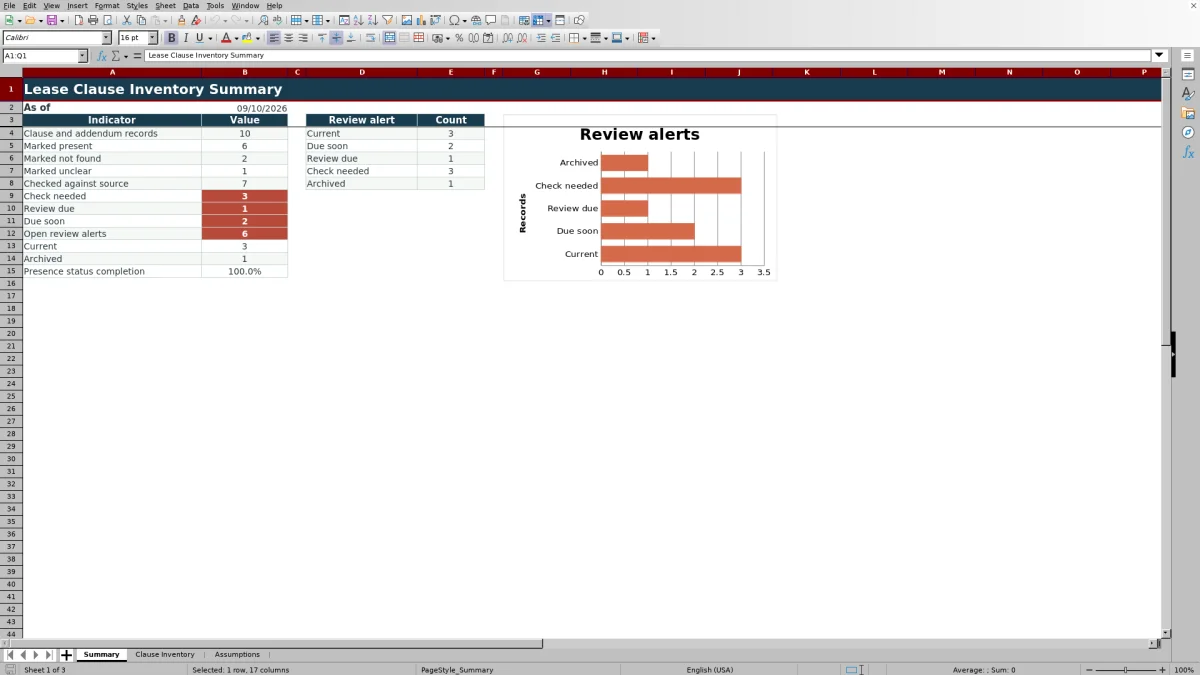
Calculated next review dates, days since check, and review alerts support internal tracking, while the Summary sheet shows counts and presence-status completion. The workbook indexes source content only; it does not draft, interpret, or recommend lease language.
How this workbook can help
- Creates a consistent index of clauses and addenda found in manager-supplied lease forms.
- Connects each record to a property, unit, form reference, document date, and source location.
- Surfaces Current, Due soon, Review due, Check needed, and Archived records through calculated alerts.
- Summarizes presence and review activity without drafting or recommending lease language.
What is in the file
How to get started
Review the assumptions
Open the Assumptions sheet and confirm the default review interval, due-soon window, document-type intervals, and available status values.
Index each source item
In the Clause Inventory sheet, create one row for each clause or addendum being tracked. Enter an inventory ID, property and unit details, form reference, document information, title, and exact source location.
Record the source check
Select the applicable presence status, responsibility, and review status. Enter the Last Checked date after checking the manager-supplied source form, and leave the calculated columns in place.
Use filters and alerts
Filter the inventory by property, document type, status, or alert. Use the Summary sheet to monitor record counts, presence-status completion, and items marked Due soon, Review due, or Check needed.
A structured lease clause index
The workbook uses one record per indexed item so property managers can connect a clause or addendum to its property, unit, tenancy or form reference, document date, document type, title, and source location. Inventory IDs provide a consistent way to distinguish records.
Presence Status separates items marked Present, Not found, Unclear, or Not applicable. Responsibility can be recorded as Resident, Manager, Shared, or Not stated, based on the source being indexed.
How review dates and alerts work
The calculated review fields begin with the Last Checked date. The workbook adds the interval assigned to the selected document type, or the default interval when no matching type is available, to calculate the Next Review Date.
Days Since Check uses the current date. Review Alert then classifies a populated record as Current, Due soon, Review due, Check needed, or Archived according to its dates and statuses. The Summary sheet aggregates these alert categories and displays them in a chart.
Worked fictional scenario
Input: A manager adds fictional record FIC-CLI-021 for Cedar Place, selects Rules/Policies as the document type, marks the item Present and Checked against source, and enters June 1, 2026, as Last Checked. The Rules/Policies interval is 180 days, and the due-soon window is 30 days.
Result: The workbook calculates November 28, 2026, as the Next Review Date. If the workbook date is November 10, 2026, Days Since Check is 162 and the Review Alert is Due soon.
Interpretation: The record has the required tracking entries and its next scheduled check falls within the 30-day window. Due soon is an internal scheduling prompt, not a statement about the lease language.
Next decision: The manager can schedule the source check before November 28 and update Last Checked and Review Status after that check is completed.
Common errors and solutions
Resolve errors at the source by checking the editable fields before changing any calculated result.
- If a row does not appear in the total record count, enter its Inventory ID because the Summary count uses that field.
- If Review Alert shows Check needed, look for a blank presence status, review status, or Last Checked date; an Unclear presence status; a future Last Checked date; or a review status other than Checked against source.
- If the Next Review Date is unexpected, confirm that Document Type matches an entry on the Assumptions sheet and that the corresponding interval is correct.
- If Days Since Check is blank, verify that Last Checked contains a valid date that is not later than the current date.
Workbook and blank spreadsheet comparison
Use the prepared workbook when its verified fields and calculations fit the task. Start with a blank spreadsheet when you need to design a different model and can build and test every field and formula yourself.
| Method | Setup | Calculations and review | Practical fit |
|---|---|---|---|
| This Excel workbook | Use the prepared structure in the validated file | Review the documented calculations and results | Local editable workflow supported by the workbook |
| Blank spreadsheet | Create the structure yourself | Build and test every formula and check | A custom model built from scratch |
Limits of the inventory
The workbook records only what appears in manager-supplied source forms. It does not create, revise, interpret, or recommend clauses or addenda, and its alerts are internal prompts rather than conclusions about document content.
Calculated results depend on the current date, the selected document type, the Last Checked date, the selected statuses, and the intervals entered on the Assumptions sheet. Missing entries, future check dates, or an Unclear presence status can produce Check needed.
Editable assumptions and controlled lists
The Assumptions sheet starts with a 365-day default review interval and a 30-day due-soon window. Document-type intervals are 365 days for Lease Form, Addendum, Disclosure, and Other, and 180 days for Rules/Policies and Renewal.
The same sheet stores the values used by the Document Type, Presence Status, Responsibility, and Review Status lists. Editing the existing assumption cells changes the scheduling inputs or available list values used by the inventory.
Frequently asked questions
What should be entered in the lease clause inventory spreadsheet?
Enter one row for each clause or addendum being indexed from a manager-supplied form. Record the inventory ID, property, unit, form reference, document date and type, item title, source location, applicable statuses, responsibility, and Last Checked date.
How does the Excel workbook calculate review alerts?
The workbook calculates a Next Review Date by adding the applicable document-type interval to Last Checked. It then uses the current date, due-soon window, presence status, review status, and required tracking fields to return Current, Due soon, Review due, Check needed, or Archived.
Can the document types, statuses, and timing settings be changed?
Yes. The existing cells on the Assumptions sheet contain the default interval, due-soon window, document-type intervals, and list values used by the inventory. Changes to those cells affect the related calculations or validated selections.
Why does a record show Check needed?
Check needed can appear when a required tracking field is blank, Last Checked is in the future, Presence Status is Unclear, Review Status is not Checked against source, or a Next Review Date cannot be calculated.
Does this spreadsheet draft or recommend lease language?
No. It is designed to index clauses and addenda found in manager-supplied source forms and to provide internal review prompts. It does not draft, interpret, revise, or recommend lease language.
Editorial responsibility

Marcus ReedLeasing and property workflows

Elena BrooksWorkbook logic and financial operations