This Excel rental criteria review worksheet provides property managers with a structured XLSX for recording applicant review data, supporting evidence, documented exceptions, assigned reviewers, and review status.
Manager-entered assumptions drive income, credit, and prior-rental-balance checks for up to 100 records, while the Summary sheet reports counts, completion rate, averages, exceptions, and calculated outcomes. The included records and criteria are fictional examples.
How this workbook can help
- Apply manager-entered income, credit, and prior-rental-balance thresholds consistently across rental review records.
- Keep evidence descriptions, documented exceptions, reviewer assignments, and review status in one operational record.
- Identify missing evidence, unmet entered criteria, documented exceptions, and withdrawn records through calculated checks.
- Monitor review volume, completion, averages, and calculated outcomes from a consolidated summary.
What is in the file
How to get started
1. Confirm and enter the manager’s criteria
Open the Assumptions sheet and replace the fictional values for minimum income multiple, minimum credit score, and maximum prior rental balance with the manager’s documented criteria. Confirm the permitted credit, amount, and review-date ranges.
2. Update the operating lists
Replace the fictional property and reviewer names on the Assumptions sheet with the values used by the property-management team. These entries supply the dropdown lists on the Reviews sheet.
3. Record each rental review
Use one row per record on the Reviews sheet. Enter the review ID, property, unit, date, applicant record, rent, verified income, credit score, prior rental balance, evidence description, exception description when applicable, reviewer, and status.
4. Check results and monitor progress
Read the income, credit, balance, and overall calculated checks for each row. Resolve missing information or update documented inputs as needed, then use the Summary sheet to monitor counts, completion rate, averages, exceptions, and outcome totals.
A Structured Record for Rental Criteria Reviews
The Reviews sheet keeps the operational details for one review record on each row. Available fields cover the review ID, property, unit, review date, applicant record, monthly rent, verified monthly income, credit score, prior rental balance, evidence description, exception description, reviewer, and review status.
Rows 5 through 104 provide capacity for 100 records. Frozen panes keep the headings visible, and the filter across columns A through R supports focused review of properties, reviewers, statuses, or calculated outcomes.
How the Calculated Checks Work
The calculated check logic uses the editable assumptions for minimum income-to-rent multiple, minimum credit score, and maximum prior rental balance. The workbook calculates income divided by rent, then returns Meets, Not Met, or Review in the three criterion columns according to the entered data.
For a non-withdrawn row, a missing evidence description or a criterion marked Review produces Evidence needed. An unmet criterion produces Criteria not met unless the Exception Description field contains an entry, in which case the result is Exception noted. A withdrawn status produces Withdrawn, while a fully supported row with all three criteria met produces Meets entered criteria.
Worked Scenario: From Inputs to Next Decision
Consider the fictional Cedar Court example using the included assumptions: a monthly rent of $1,800, verified monthly income of $5,400, a credit score of 700, and a prior rental balance of $0. The entered thresholds are a 2.50x income multiple, a minimum credit score of 620, and a maximum prior rental balance of $0.
Input to next decision: Input of $5,400 divided by $1,800 produces a 3.00x income multiple → Result: all three criterion columns return Meets and the overall result is Meets entered criteria when evidence is described → Interpretation: the entered values satisfy the three configured thresholds and do not require an exception description → Next decision: retain the completed record and proceed under the manager’s documented process, or update the row if the underlying information changes.
Errors and Solutions
Common fixes address the entries that most directly affect the worksheet’s formulas and validations.
- Error — Evidence needed appears even though numeric values are present. Solution — complete the Evidence Description field for the non-withdrawn record.
- Error — A criterion displays Review. Solution — check whether rent, verified income, credit score, or prior rental balance is blank and enter the applicable documented value.
- Error — Criteria not met appears when an exception exists. Solution — enter the documented exception in the Exception Description field; the calculated result will change to Exception noted when at least one criterion is Not Met.
- Error — A date, score, or dollar amount is rejected. Solution — check the entry limits on the Assumptions sheet and correct either the value or the manager-entered validation setting.
Workbook and blank spreadsheet comparison
Use the prepared workbook when its verified fields and calculations fit the task. Start with a blank spreadsheet when you need to design a different model and can build and test every field and formula yourself.
| Method | Setup | Calculations and review | Practical fit |
|---|---|---|---|
| This Excel workbook | Use the prepared structure in the validated file | Review the documented calculations and results | Local editable workflow supported by the workbook |
| Blank spreadsheet | Create the structure yourself | Build and test every formula and check | A custom model built from scratch |
Workbook Limits and Boundaries
Defined operating limits help set appropriate expectations. The workbook does not supply legal criteria; its assumptions are editable manager inputs, and the included values are fictional examples. Calculated outputs reflect only the entered values and configured thresholds and are not approval or denial decisions.
- The Reviews sheet supports 100 records in rows 5 through 104.
- The formula model evaluates income multiple, credit score, and prior rental balance only.
- The Evidence Description field records a description of reviewed material; it is not a document-storage system.
- Entry validation checks configured types and ranges but does not establish the accuracy of source information.
Using the Summary for Workload Tracking
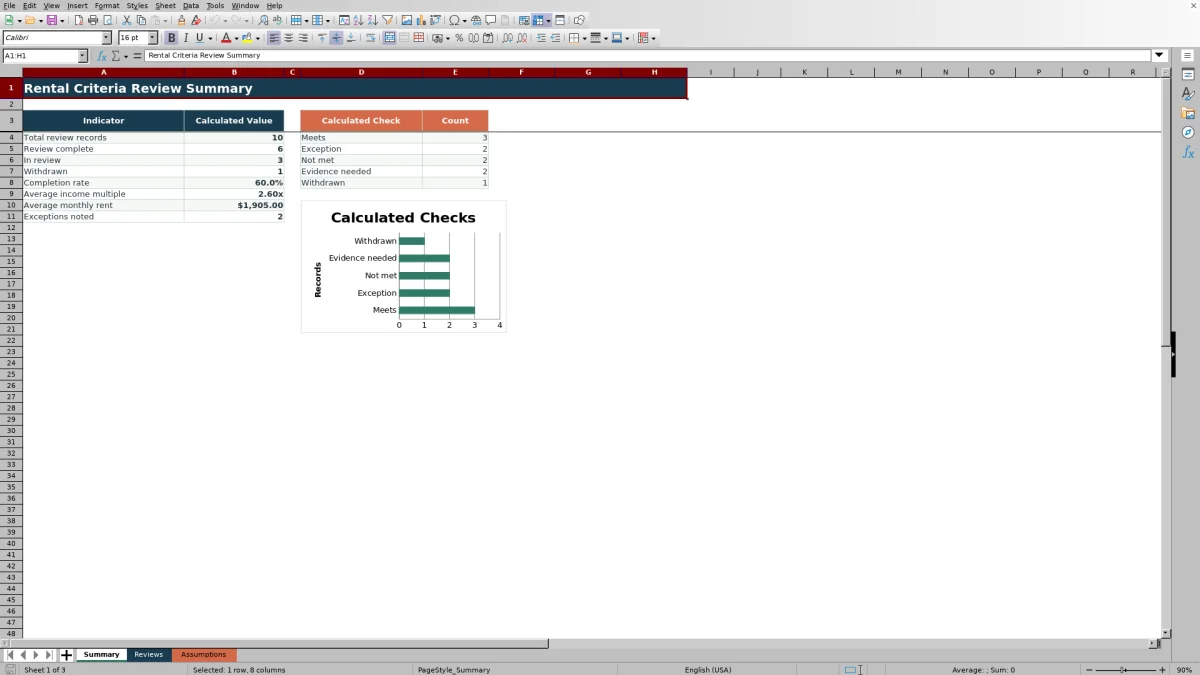
The Summary indicators count total review records, completed reviews, reviews in progress, withdrawn reviews, and exceptions. They also calculate completion rate, average income multiple, and average monthly rent.
A chart presents counts for Meets entered criteria, Exception noted, Criteria not met, Evidence needed, and Withdrawn. Managers can use these totals to locate incomplete records, monitor documented exceptions, and decide which records require updated information or status entries.
Frequently asked questions
Does the Excel rental criteria review worksheet set rental criteria?
No. The Assumptions sheet contains editable, fictional example inputs for the income, credit, and prior-rental-balance checks. Replace them with the manager’s documented criteria and confirm applicable requirements before use.
How many rental review records can the workbook hold?
The Reviews sheet provides 100 record rows, running from row 5 through row 104. Its formulas, validations, conditional formatting, and filter are configured for that range.
What causes the calculated result to show Evidence needed?
For a non-withdrawn row, Evidence needed appears when the Evidence Description field is blank or when at least one of the income, credit, or balance criterion columns returns Review because an applicable input is missing.
How does the worksheet identify a documented exception?
When at least one criterion returns Not Met and the Exception Description field contains an entry, the overall Calculated Check returns Exception noted. Without an exception description, the result is Criteria not met.
What information appears on the Summary sheet?
The Summary sheet reports total records, status counts, completion rate, average income multiple, average monthly rent, exception totals, and counts for each calculated outcome. It also includes one chart based on the outcome counts.
Editorial responsibility

Marcus ReedLeasing and property workflows

Elena BrooksWorkbook logic and financial operations