The Tenant Accommodation Request Tracker is an Excel workbook for privately recording receipt, acknowledgment, interactive-process steps, documents, next actions, responsibilities, review dates, vendors, status, and closure details.
Its Requests sheet supports 100 prepared entries, while calculated days and follow-up alerts feed a Summary sheet. The XLSX is an operational tracking tool and does not evaluate eligibility.
How this workbook can help
- Keep receipt, process, document, responsibility, review, and closure details in one operational record.
- Use calculated days tracked and follow-up alerts to identify records that need attention.
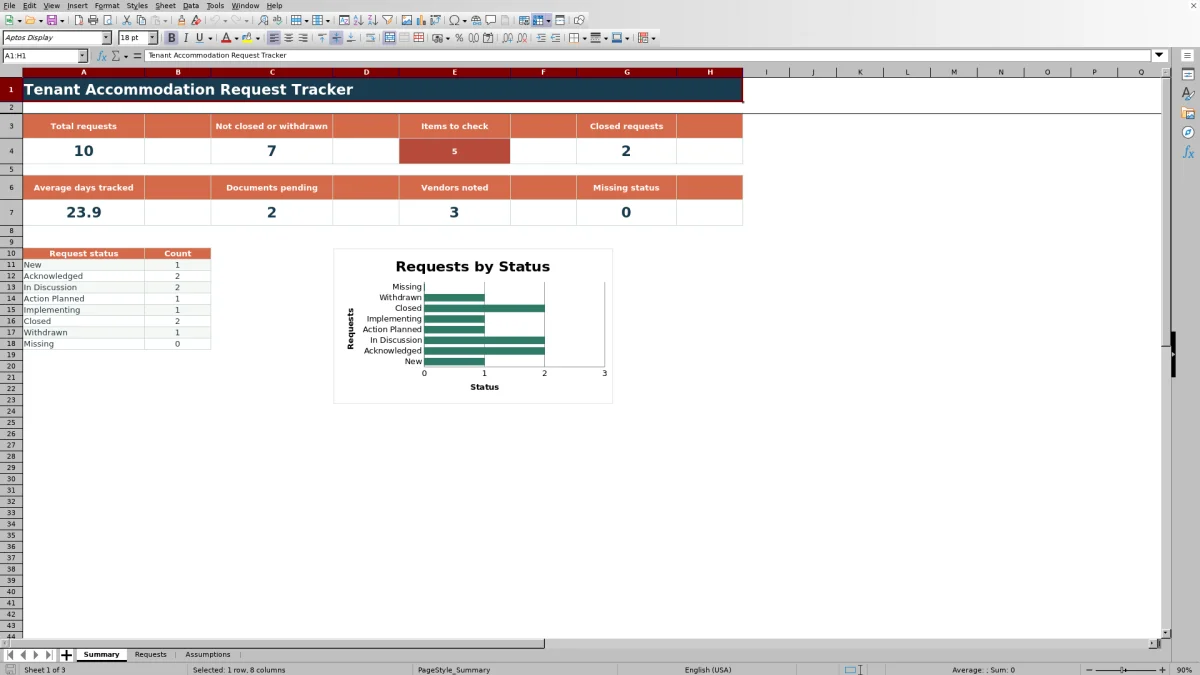
- See request counts, pending documents, vendors, missing statuses, and status totals on the Summary sheet.
- Standardize key entries with selectable request statuses, document statuses, and responsibility values.
What is in the file
How to get started
1. Set the due-soon window
Open the Assumptions sheet and enter a whole number from 0 to 60 for the due-soon window. The default value is seven days.
2. Record each request
On the Requests sheet, use one prepared row for each request. Enter the request ID, property, unit, tenancy, date received, and the minimum operational description needed.
3. Update process and follow-up fields
Record acknowledgment and process dates, document status, the next action, responsibility, next review date, vendor when applicable, request status, and closed date. Use the selectable list values where provided.
4. Check alerts and the summary
Review Days Tracked and Follow-Up Alert for each populated row. Use the Summary sheet to check totals, open items, documents pending, vendors noted, missing statuses, and request-status counts.
Organize the Operational Request Record
Operational record: The Requests sheet provides prepared rows 5 through 104, with one row available for each tenant accommodation request. The 18 fields cover the request ID, property, unit, tenancy, receipt date, description, acknowledgment, latest process step, document status, next action, responsibility, review date, vendor, request status, closure date, and calculated tracking results.
Recording only the minimum operational detail keeps the sheet focused on process administration. The workbook tracks what was received, what step occurred, what remains next, and who is responsible without evaluating eligibility.
Understand Calculated Tracking Signals
Calculated signals: Days Tracked uses the received date and either the current date or closed date, depending on request status. A populated request needs a received date and status before this calculation appears, and a Closed or Withdrawn request also needs a closed date.
Follow-Up Alert checks for missing dates or status, inconsistent closure information, missing review dates, past-due reviews, and reviews inside the due-soon window. Records outside the window can show Scheduled, while properly closed or withdrawn records can show Complete. The Summary sheet counts alerts requiring attention separately from Scheduled and Complete records.
Worked Scenario for an Open Request
Worked scenario: Assume the workbook recalculates on September 10, 2026, and the due-soon window remains seven days. For fictional request FIC-AR-010, enter September 8, 2026, as Date Received, select Acknowledged as Request Status, and enter September 12, 2026, as Next Review Date.
Input: the request is open, has been tracked for two days, and has a review scheduled two days ahead. Result: Days Tracked shows 2 and Follow-Up Alert shows Due soon. Interpretation: the review date falls within the configured seven-day window. Next decision: complete the planned follow-up and update Last Process Step and Last Step Date, or revise Next Review Date if the follow-up is rescheduled.
Common Errors and Solutions
Common corrections: Formula-generated alerts point to specific record conditions that can be checked directly.
- Add received date means the request ID is present but Date Received is blank.
- Set status means Request Status has not been selected.
- Check closed date means a closed date is present while the request remains in an open status.
- Add closed date means Closed or Withdrawn was selected without a Closed Date.
- Set review date means an open request has no Next Review Date.
- Past due means the next review date is earlier than the current date; update the recorded process step and set the next applicable review date.
Workbook Limits and Boundaries
Defined limits: The workbook tracks operational entries but does not evaluate eligibility, store document attachments, or determine whether a requested action should be approved. Document Status records where documents stand in the process rather than storing their contents.
The prepared formulas, validations, filter, and summary ranges cover request rows 5 through 104. Entries added beyond row 104 are not automatically included in those prepared ranges. Calculated results also depend on users maintaining dates and statuses consistently; an alert confirms a recorded condition, not that an operational step occurred.
Workbook and blank spreadsheet comparison
Use the prepared workbook when its verified fields and calculations fit the task. Start with a blank spreadsheet when you need to design a different model and can build and test every field and formula yourself.
| Method | Setup | Calculations and review | Practical fit |
|---|---|---|---|
| This Excel workbook | Use the prepared structure in the validated file | Review the documented calculations and results | Local editable workflow supported by the workbook |
| Blank spreadsheet | Create the structure yourself | Build and test every formula and check | A custom model built from scratch |
Maintain Consistent Request Entries
Consistent upkeep: Review and replace the fictional sample entries before recording active requests. Use a distinct Request ID for each row, update Last Process Step with Last Step Date, and keep Request Status aligned with Closed Date so the calculated alerts reflect the recorded situation.
Edit list choices on the Assumptions sheet carefully. Changing a request-status, document-status, or responsibility choice does not rewrite existing request entries that use the prior wording. Check the Summary and filtered Requests sheet regularly to locate missing statuses, pending documents, vendor entries, and follow-up alerts.
Frequently asked questions
Does the Excel tracker determine whether a tenant qualifies for an accommodation?
No. The workbook records request receipt, operational process steps, documents, responsibilities, dates, and status. It does not evaluate eligibility or determine an outcome.
How many request entries are prepared in the workbook?
The Requests sheet contains 100 prepared entry rows, from row 5 through row 104. The formulas, validation ranges, filter, and Summary calculations are configured for those rows.
How does the Follow-Up Alert work?
The alert checks recorded dates and statuses. It can prompt the user to add a received date, select a status, check closure information, set a review date, address a past-due review, or note that a review is due soon. It can also show Scheduled or Complete when the recorded conditions meet those results.
Can the status and responsibility choices be changed?
Yes. The Assumptions sheet contains the lists for Request Status, Document Status, and Responsibility. Existing request entries are not rewritten when a list item changes, so choices should be edited carefully.
What information appears on the Summary sheet?
The Summary sheet calculates total requests, requests not closed or withdrawn, items to check, closed requests, average days tracked, documents pending, vendors noted, missing statuses, and counts by request status. It also includes one chart based on the status counts.
Editorial responsibility

Marcus ReedLeasing and property workflows

Elena BrooksWorkbook logic and financial operations