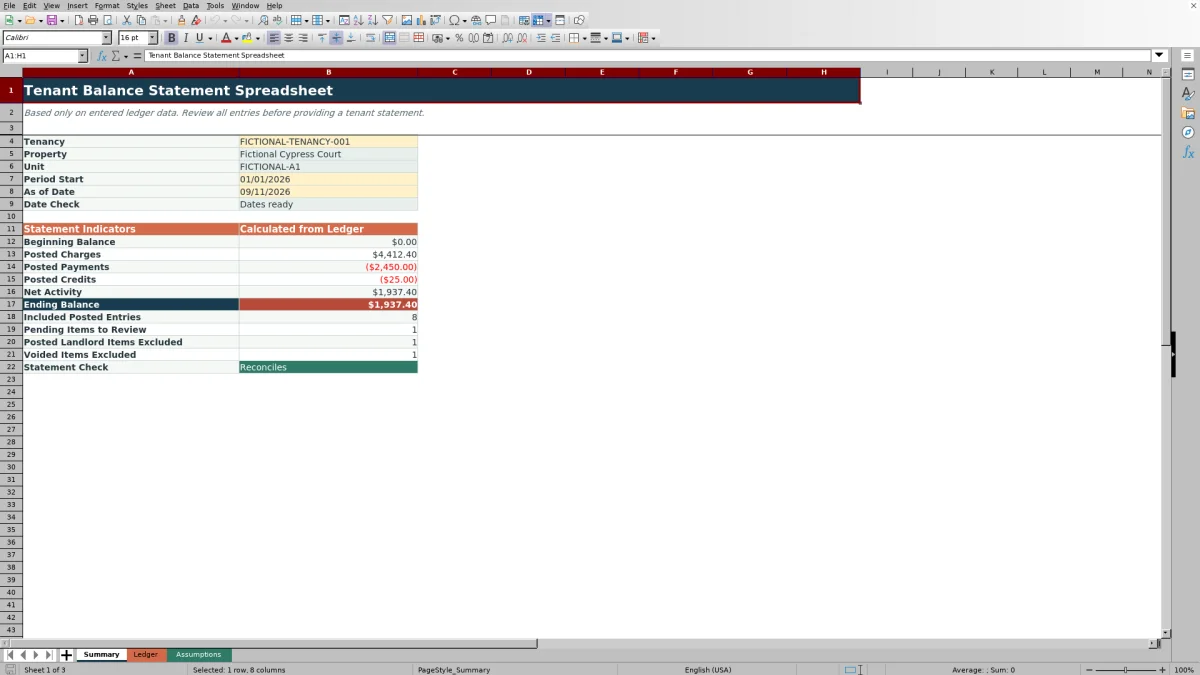
The Tenant Balance Statement Spreadsheet for Excel is an XLSX workbook for summarizing posted charges, payments, credits, and the running balance for one long-term residential tenancy.
It combines a 100-row transaction Ledger, a tenancy directory, and a date-driven Summary that reports beginning balance, period activity, ending balance, exception counts, and a reconciliation message.
How this workbook can help
- See beginning balance, period activity, and ending balance for a selected tenancy and date range.
- Keep charges, payments, and credits in one transaction ledger with a running balance.
- Separate posted tenant activity from pending, voided, and landlord-responsibility entries.
- Catch incomplete rows, property or unit mismatches, invalid date order, and calculation differences.
What is in the file
How to get started
1. Update the tenancy directory
Replace the fictional tenancy, property, and unit information on the Assumptions sheet. Edit the allowed entry types, responsibilities, and statuses only when needed for your operating process.
2. Enter ledger transactions
Complete the transaction date, property, unit, tenancy, description, entry type, quantity, amount, responsibility, and status for each Ledger row. Enter positive quantities and amounts because the selected entry type controls the statement sign.
3. Resolve ledger messages
Use the Review column to identify incomplete required inputs or property and unit values that do not match the tenancy directory. Confirm that only tenant-responsibility items intended for the balance are marked Posted.
4. Set the statement period
Select the tenancy on the Summary sheet, enter the Period Start and As of Date, and check the calculated balances and exclusion counts. Confirm that the dates are ready and the Statement Check displays Reconciles.
What the Tenant Ledger Records
Transaction-level inputs cover the transaction date, property, unit, tenancy, description, entry type, quantity, amount, responsibility, and status. The prepared Ledger then calculates Statement Amount, Running Balance, and a Review message for each of its 100 entry rows.
Entry types are Charge, Payment, and Credit. Responsibility can be Tenant or Landlord, while status can be Posted, Pending, or Voided. These classifications determine whether a complete row contributes to the tenant balance.
How the Balance Calculations Work
Balance logic includes only complete rows assigned to the selected tenancy with Tenant responsibility and Posted status. A charge creates a positive statement amount equal to quantity multiplied by amount. A payment or credit creates a negative statement amount from the same positive inputs.
The beginning balance includes qualifying activity before Period Start. Posted Charges, Posted Payments, and Posted Credits cover the selected period through the As of Date, and Net Activity adds those period totals. Ending Balance includes qualifying activity through the As of Date. The Ledger running balance accumulates qualifying amounts for each tenancy in Ledger row order.
Worked Fictional Statement Scenario
Input: Select FICTIONAL-TENANCY-001 with a Period Start of January 1, 2026, and an As of Date of January 31, 2026. Use the three visible fictional entries: a $1,450 posted tenant charge followed by posted tenant payments of $1,000 and $450.
Result: With no earlier qualifying entry, the beginning balance is $0.00, posted charges are $1,450.00, posted payments are -$1,450.00, net activity is $0.00, and the ending balance is $0.00.
Interpretation: The two payments fully offset the January charge, so these three entries leave no balance due as of January 31.
Next decision: Check the pending, landlord, and voided counts. If no unresolved category affects the intended statement and the calculation displays Reconciles, use the applicable Ledger detail and Summary totals to prepare the tenant balance statement.
Common Errors and Solutions
Common corrections begin with the Date Check and Ledger Review column.
- If Period Start is after the As of Date, correct one of the dates until the Summary displays Dates ready.
- If a Ledger row displays Complete required inputs, fill every required field from Transaction Date through Status.
- If a row identifies a property or unit issue, align those values with the selected tenancy in the Assumptions directory.
- If an expected amount is absent from the balance, check Entry Type, Responsibility, and Status. Pending, voided, and landlord-responsibility rows are excluded from Statement Amount.
- If the statement does not reconcile, inspect the qualifying rows and date range before using the totals.
Workbook Limits and Boundaries
Workbook limits include 100 prepared Ledger rows from rows 7 through 106 and 100 tenancy-directory positions from rows 4 through 103. Rows outside those prepared ranges are not covered by the documented formulas and validation rules.
The workbook is based only on entered Ledger data. It contains no charts or Excel tables, and the Summary does not generate a separate filtered transaction schedule. Ledger running balances follow row order, so transaction sequence matters. A Reconciles result confirms the arithmetic relationship among beginning balance, net activity, and ending balance; it does not establish the accuracy of source entries.
Workbook and blank spreadsheet comparison
Use the prepared workbook when its verified fields and calculations fit the task. Start with a blank spreadsheet when you need to design a different model and can build and test every field and formula yourself.
| Method | Setup | Calculations and review | Practical fit |
|---|---|---|---|
| This Excel workbook | Use the prepared structure in the validated file | Review the documented calculations and results | Local editable workflow supported by the workbook |
| Blank spreadsheet | Create the structure yourself | Build and test every formula and check | A custom model built from scratch |
Using the Summary in Statement Operations
Operational sequence matters because the Summary depends on Ledger classifications and dates. Enter transactions first, resolve required-input and directory messages, then select the tenancy and statement period.
Use the category counts to explain why certain records do not affect the displayed balance. Pending tenant items remain outside the balance until their status changes, while landlord and voided items remain excluded. Pair the Summary totals with the relevant filtered Ledger records when transaction detail is needed.
Frequently asked questions
Which Ledger rows affect the tenant balance?
Only complete rows with Tenant responsibility and Posted status create a Statement Amount. The row must also match the selected tenancy and applicable date criteria to appear in Summary totals.
How should payments and credits be entered?
Enter positive quantities and positive amounts. Selecting Payment or Credit causes the formula to create a negative Statement Amount, while selecting Charge creates a positive amount.
What happens when Period Start is after the As of Date?
The Date Check displays a warning that Period Start is after the As of Date, and the statement calculation cells remain blank until the date order is corrected.
Why is a transaction excluded from the ending balance?
A transaction may be excluded because it is incomplete, outside the selected date range, assigned to another tenancy, marked Pending or Voided, or assigned to Landlord responsibility.
How much information can the workbook hold?
The workbook contains 100 prepared Ledger entry rows and 100 positions in the tenancy directory. Expanding beyond those prepared ranges requires workbook modification.
Editorial responsibility

Marcus ReedLeasing and property workflows

Elena BrooksWorkbook logic and financial operations