This tenant communication log spreadsheet is an Excel workbook for documenting calls, emails, texts, letters, portal messages, and in-person conversations related to current tenancies. It provides 150 entry rows for recording the property, unit, tenancy, communication date, description, commitment, action owner, status, and relevant follow-up dates.
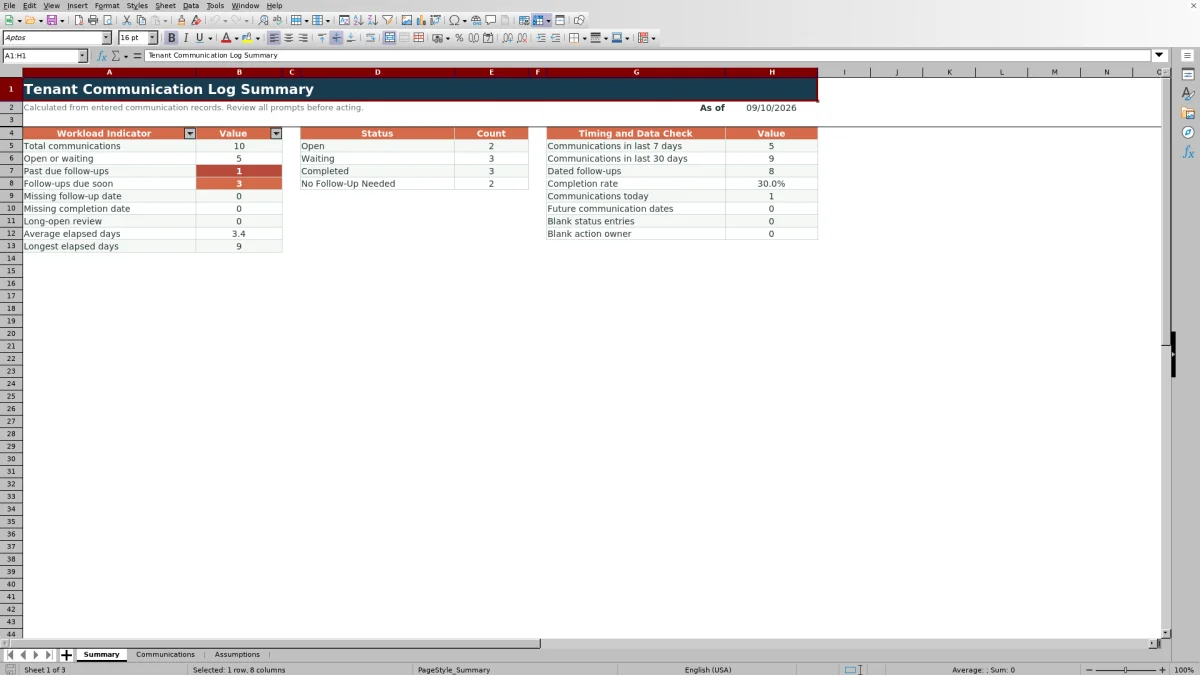
The workbook includes Communications, Summary, and Assumptions sheets. Dropdown choices support consistent entries, calculated fields identify elapsed time and follow-up conditions, and summary formulas show workload, status, timing, and missing-data counts.
How this workbook can help
- Keeps cross-channel tenant communications and commitments in one structured log.
- Connects each next step with an action owner, due date, status, and completion date.
- Surfaces past-due, due-soon, missing-date, and inconsistent-date conditions.
- Summarizes communication volume, active work, completion activity, aging, and blank fields.
What is in the file
How to get started
1. Confirm the workbook assumptions
Open the Assumptions sheet and check the channel, direction, status, and action-owner choices. Confirm the due-soon window, long-open threshold, and earliest and latest allowed dates.
2. Enter each communication
Use one row on the Communications sheet for each current-tenancy interaction. Enter the property, unit, tenancy, communication date, channel, direction, description, and any vendor or outside party involved.
3. Record responsibility and follow-up
Describe the commitment or next step, select an action owner and status, and enter a follow-up due date when additional action is needed. Add a completed date when a completed item is closed.
4. Check alerts and summary counts
Review Elapsed Days and Follow-Up Check for timing or date prompts. Then use the Summary sheet to monitor open or waiting items, due-soon and past-due follow-ups, long-open records, completion activity, and blank status or owner entries.
What the tenant communication log records
Core record: Use one row for each communication associated with a current tenancy. The entry fields cover Property, Unit, Tenancy, Communication Date, Channel, Direction, Description, Commitment / Next Step, Vendor / Outside Party, Action Owner, Follow-Up Due, Status, and Completed Date.
The Communications sheet supplies 150 entry rows from row 5 through row 154. Its filter spans the complete operational log, while frozen headers keep the field names visible during data entry.
How follow-up calculations work
Timing logic: Elapsed Days measures from the communication date to today for an active record. For a Completed or No Follow-Up Needed record, the calculation uses the completed date when one is entered.
Follow-Up Check first identifies future communication dates or follow-up and completion dates that precede the communication date. It can then display Add completed date, Closed, Add follow-up date, Past due, Due soon, or Scheduled according to the dates, status, and editable due-soon window.
Worked tenant follow-up scenario
Input: Assume the workbook date is September 10, 2026. A fictional tenant reports a sticking closet door on September 8. The property manager records Waiting as the status, September 12 as Follow-Up Due, and Property Manager as Action Owner.
Result: Elapsed Days returns 2, and Follow-Up Check returns Due soon because September 12 falls within the default seven-day window. The Summary sheet also adds the record to Waiting, Open or waiting, Follow-ups due soon, Dated follow-ups, and Communications in last 7 days.
Interpretation: The commitment is not past due, but its deadline is close enough to appear in the due-soon workload.
Next decision: Confirm the service appointment before September 12. After the work is finished, change the status to Completed and enter the completed date.
Common errors and solutions
Fix source fields: Correct the editable dates, status, and owner rather than changing a calculated result.
- If Follow-Up Check says Check dates, look for a future communication date or a follow-up or completed date earlier than the communication date.
- If it says Add completed date, enter the date the completed item was finished.
- If it says Add follow-up date, enter a due date for the active commitment or select No Follow-Up Needed when that status accurately describes the record.
- If the Summary sheet reports blank status or blank action-owner entries, return to the populated communication rows and complete those fields.
- If an item appears in the long-open count, confirm its current status and next step. The default threshold is 30 elapsed days.
Workbook and blank spreadsheet comparison
Use the prepared workbook when its verified fields and calculations fit the task. Start with a blank spreadsheet when you need to design a different model and can build and test every field and formula yourself.
| Method | Setup | Calculations and review | Practical fit |
|---|---|---|---|
| This Excel workbook | Use the prepared structure in the validated file | Review the documented calculations and results | Local editable workflow supported by the workbook |
| Blank spreadsheet | Create the structure yourself | Build and test every formula and check | A custom model built from scratch |
Practical limits of the workbook
Operational limits: The Communications sheet has 150 prepared entry rows, and summary formulas reference that defined range. The workbook does not send messages, and it contains no charts or Excel table objects.
Its instructions limit entries to current-tenancy communications. Calculated prompts depend on the accuracy and completeness of the dates, statuses, commitments, and owners entered in the editable cells.
Adjusting choices and thresholds
Editable assumptions: The Assumptions sheet stores six channel choices, three direction choices, four status choices, and five action-owner choices used by the Communications dropdowns. Existing values can be replaced to match the team's operating terms.
The same sheet stores the seven-day due-soon window, 30-day long-open threshold, earliest allowed date of January 1, 2001, and latest allowed date of December 31, 2051. Changes to these values affect the associated validation and summary calculations.
Frequently asked questions
What information can I record in the tenant communication log?
You can record the property, unit, tenancy, communication date, channel, direction, description, commitment or next step, vendor or outside party, action owner, follow-up due date, status, and completed date.
Which communication channels and directions are available?
The default channel choices are Phone, Email, Text, Resident Portal, In Person, and Letter. The direction choices are Incoming, Outgoing, and Two-Way.
How does the spreadsheet identify due-soon and past-due follow-ups?
An active follow-up is Past due when its due date is before today. It is Due soon when its date is today or falls within the editable due-soon window, which defaults to seven days. A later follow-up is Scheduled.
What should I enter when a follow-up is completed?
Select Completed in the Status field and enter the Completed Date. The workbook then uses the communication and completion dates to calculate elapsed days and returns Closed when the dates are consistent.
Can I customize the dropdown choices and timing thresholds?
Yes. The Assumptions sheet contains the existing channel, direction, status, and action-owner choices, along with the due-soon window, long-open threshold, and allowed date limits. Editing those stored values updates their connected workbook controls and calculations.
Editorial responsibility

Marcus ReedLeasing and property workflows

Elena BrooksWorkbook logic and financial operations