This Tenant Emergency Contact Sheet is an Excel workbook for recording emergency contact information supplied by long-term residential tenants. It provides fields for the property, unit, tenant, tenancy status, contact name, relationship, phone numbers, email, preferred contact method, and tenant-provided access notes.
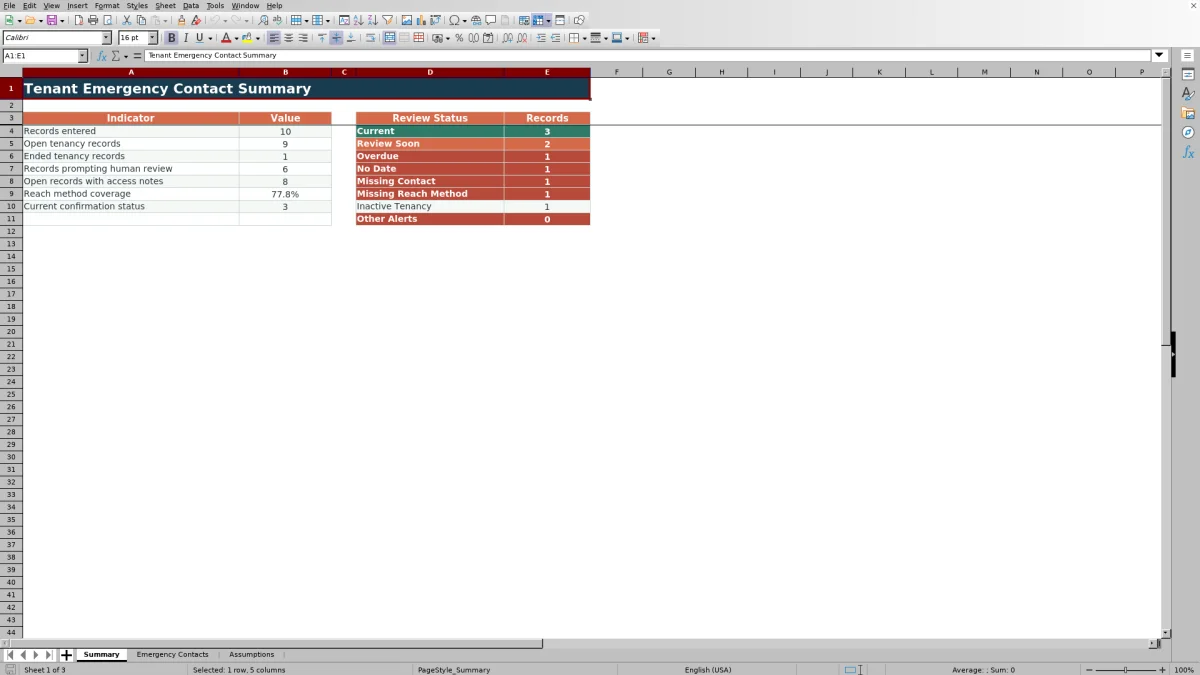
The XLSX also records when each contact was last confirmed, calculates the number of days since that date, and assigns a formula-based review status. Its Summary sheet reports record counts and contact coverage, while the Assumptions sheet contains editable confirmation-age settings and dropdown choices.
How this workbook can help
- Keep up to 100 tenant emergency contact records in a consistent register.
- Track contact methods, tenant-provided access instructions, and last-confirmed dates together.
- Use calculated statuses to identify missing details, date problems, and aging confirmations.
- View open-tenancy counts, access-note coverage, reach-method coverage, and status totals on one summary.
What is in the file
How to get started
1. Configure the workbook settings
Open the Assumptions sheet and check the Review Soon and Overdue thresholds, the earliest allowed confirmation date, and the dropdown choices. Replace the fictional property choices with the properties used in your operation.
2. Enter each tenant record
Use one row on the Emergency Contacts sheet for each record. Enter the property, unit, tenant name, tenancy status, emergency contact, relationship, and available contact methods.
3. Record instructions and confirmation dates
Add any access instruction supplied by the tenant in the Access Note field. Enter the date when the emergency contact information was last confirmed; the workbook calculates its age and assigns a status.
4. Use the filters and summary
Filter the register by property, tenancy status, or review status. Check the Summary sheet for missing information, aging confirmations, contact-method coverage, and other items requiring follow-up.
What the Excel Workbook Records
The main register provides 100 contact rows, covering rows 5 through 104. Each row can store the property, unit, tenant name, tenancy status, emergency contact, relationship, two phone numbers, email address, preferred contact method, tenant-provided access note, and last-confirmed date.
The two calculated columns show Days Since Confirmed and Review Status. Property managers can filter the complete register from the header row while keeping column headings visible through the frozen pane.
How Confirmation and Review Statuses Work
For a populated tenant row, the workbook uses a formula-based prompt to flag conditions such as Missing Tenancy Status, Inactive Tenancy, Missing Contact, Missing Reach Method, No Date, Date Before Limit, Future Date, or Check Settings. Valid confirmation dates can then produce Current, Review Soon, or Overdue based on the thresholds stored on the Assumptions sheet.
The default Review Soon threshold is 275 days, the default Overdue threshold is 365 days, and the default earliest allowed confirmation date is January 1, 2000. These values are editable within their validated ranges.
Worked Scenario for a Fictional Tenant
Assume a fictional active tenant has an emergency contact name, phone number, preferred method, access note, and a valid Last Confirmed date from 300 days ago. The workbook accepts those inputs and calculates 300 in Days Since Confirmed.
Result: With the default 275-day Review Soon threshold and 365-day Overdue threshold, the row displays Review Soon. The interpretation is that the contact details have crossed the first age threshold but have not reached the overdue threshold. The next decision is to contact the tenant for updated information and replace the Last Confirmed date only after confirmation occurs.
Common Errors and Solutions
Correct the source entry when a status identifies a problem. For Missing Tenancy Status, select Active, Notice Given, or Ended. For Missing Contact, enter the tenant-provided emergency contact name. For Missing Reach Method, enter at least one phone number or email address. For No Date, add the date the details were confirmed.
Date Before Limit means the entered date is earlier than the minimum on the Assumptions sheet, while Future Date means it is later than today. Check Settings indicates that one or more required settings are blank or that the Overdue threshold is not greater than the Review Soon threshold. Inactive Tenancy appears when the tenancy status is Ended.
Workbook Limits and Boundaries
The workbook does not provide technical access controls in the validated manifest. The Access Note field stores restrictions or instructions supplied by the tenant, but it is not a password, permission rule, key-management control, or authorization workflow.
The register is preconfigured for 100 rows. It has no charts, Excel table objects, messaging function, tenant portal connection, or documented role-based permissions. Calculated statuses organize the entered data but do not verify names, phone numbers, email addresses, or access instructions.
Excel Workbook Comparison with a Property-Management Platform
The complete Excel workbook and a contact module in a property-management platform serve different operating needs. One option is more suitable when its documented structure matches the way the contact data must be maintained.
| Criterion | Tenant Emergency Contact Excel Workbook | Property-Management Platform Contact Module |
|---|---|---|
| Format | Standalone XLSX with Summary, Emergency Contacts, and Assumptions sheets. | Account-based feature within an external property-management system. |
| Record structure | Fourteen defined columns and 100 preconfigured contact rows. | Fields and record capacity vary by the selected platform and configuration. |
| Follow-up indicators | Formula statuses use missing fields, date checks, tenancy status, and editable age thresholds. | Reminders or workflows may be available when supported and configured by the platform. |
| Summary information | Built-in counts cover entered records, tenancy status, contact coverage, access notes, and review statuses. | Reports depend on the platform's available fields, dashboards, and settings. |
| Access and integration | The manifest shows no role-based permissions, portal connection, or system integration. | A platform may connect contacts to tenant profiles and user permissions when those capabilities are included. |
| Conditional fit | More suitable when a self-contained, editable spreadsheet with visible formulas and assumptions is needed. | More suitable when integrated tenant records or platform-managed user permissions are required and available. |
Using the Summary for Ongoing Follow-Up
The Summary sheet separates general indicators from review-status counts. It reports records entered, open tenancy records, ended tenancy records, records prompting follow-up, open records with access notes, reach-method coverage, and current confirmation status.
Use the status counts to choose the next task. Missing Contact and Missing Reach Method point to incomplete contact entries, No Date identifies records without a confirmation date, and Review Soon or Overdue identifies valid dates that have reached the configured age thresholds.
Frequently asked questions
How many tenant emergency contact records can the Excel sheet hold?
The Emergency Contacts sheet has 100 preconfigured record rows, from row 5 through row 104.
What does the Review Status column show?
It uses formulas to display statuses including Current, Review Soon, Overdue, No Date, Missing Contact, Missing Reach Method, Inactive Tenancy, Missing Tenancy Status, Check Settings, Date Before Limit, and Future Date.
Can I change when a confirmation becomes due for follow-up?
Yes. The Assumptions sheet contains editable Review Soon and Overdue thresholds. The default values are 275 and 365 days, and the Overdue value must remain greater than the Review Soon value for the status logic to operate as configured.
Does the Access Note field restrict access to a unit or to the workbook?
No. It records an instruction supplied by the tenant, such as whether the contact may receive keys or enter independently. The validated workbook manifest does not show password protection, role-based permissions, or an access-authorization workflow.
Which fields use dropdown lists?
The workbook provides dropdown validation for Property, Tenancy Status, Relationship, and Preferred Contact. The available choices are maintained on the Assumptions sheet.
Editorial responsibility

Marcus ReedLeasing and property workflows

Elena BrooksWorkbook logic and financial operations