The Rental Unit Turnover Readiness Checklist is an Excel workbook for organizing work before a new long-term residential tenancy. It covers cleaning, repairs, safety checks, keys, utilities, listing preparation, and final review tasks in a structured XLSX file.
Property managers can assign responsibility, set due dates, select statuses, mark tasks as required or optional, and enter quantities and unit amounts. The workbook calculates estimated amounts, flags selected date or status issues, and summarizes progress across populated task rows.
How this workbook can help
- Organize up to 120 turnover tasks with property, unit, responsibility, vendor, date, and status details.
- Monitor required completion, open work, overdue items, blocked tasks, missing due dates, and upcoming deadlines.
- Standardize entries with editable dropdown lists for categories, responsibilities, statuses, and requirement levels.
- Estimate task amounts from quantity and unit amount entries and view the combined estimate on the Summary sheet.
What is in the file
How to get started
1. Review the workbook settings
Open the Assumptions sheet and confirm the due-soon horizon, quantity limit, unit amount limit, allowed date range, and dropdown choices. The default due-soon horizon is three days.
2. Replace the fictional example entries
Open the Checklist sheet and clear or replace the fictional property, unit, vendor, and task inputs. Keep the formulas in the Estimated Amount and Alert columns.
3. Enter and maintain turnover tasks
Use one row for each task. Add the property, unit, dates, category, description, responsibility, vendor when applicable, status, quantity, unit amount, and requirement level. Record a completed date when changing a task to Complete.
4. Check the Summary sheet
Review completion, open required tasks, overdue work, blocked items, missing due dates, upcoming deadlines, estimated amounts, and status counts. Return to the Checklist sheet to address incomplete or inconsistent entries.
Organize Rental Unit Turnover Tasks
The Checklist sheet provides one row per turnover task across 120 available entry rows. Each row can identify the property and unit, turnover start, target-ready date, category, task description, responsibility, vendor, due date, status, completed date, quantity, unit amount, and requirement level.
Available categories include Cleaning, Repairs, Safety Checks, Keys, Utilities, Listing, and Final Review. Tasks can be assigned to a manager, maintenance, leasing, a vendor, or an owner, while the requirement field distinguishes Required work from Optional work.
Set Dates, Responsibilities, and Amounts
The Assumptions sheet controls the workbook's editable lists and entry limits. Its default settings allow checklist dates from January 1, 2021, through December 31, 2036, quantities up to 1,000, and unit amounts up to $25,000.
The default three-day due-soon horizon determines which open required tasks appear in the due-soon Summary count. When quantity and unit amount are present, the Estimated Amount formula multiplies them for that task.
Worked Turnover Scenario
Input: A fictional property manager enters two required tasks for Pine Bridge Homes, Unit 3B. A completed cleaning task has a quantity of 1 and a unit amount of $300. A planned repair has a quantity of 2, a unit amount of $100, and a due date two days after the workbook's current date.
Result: The Summary shows two required tasks, one completed required task, 50.0% required completion, one open required task, one required task due soon, and a total estimated amount of $500.
Interpretation: The planned repair falls within the default three-day horizon, so the workbook indicates that work remains even though cleaning is complete.
Next decision: Confirm responsibility and scheduling for the repair, then update its status and completed date after the work is finished.
Common Errors and Solutions
Resolve visible alerts by checking the related dates and status fields rather than overwriting the Alert formula.
- If Target Ready is earlier than Turnover Start, correct the date sequence.
- If Due Date is earlier than Turnover Start, confirm and revise the due date.
- If a completed date is entered while the status is not Complete, either correct the status or remove an unintended date.
- If the status is Complete but Completed Date is blank, enter the actual completion date.
- If a task is missing from key Summary counts, confirm that Task Description is populated because that field determines whether the row is counted as a checklist task.
Interpret Summary Indicators
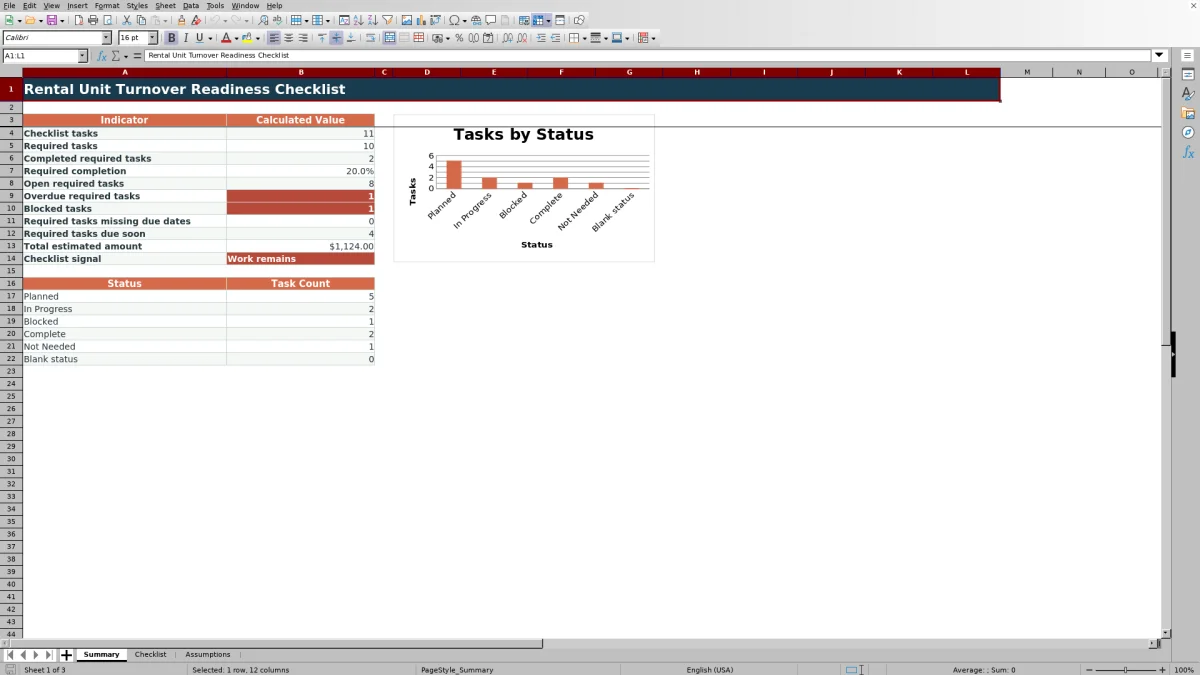
The Summary sheet reports checklist tasks, required tasks, completed required tasks, required completion, open required tasks, overdue required tasks, blocked tasks, required tasks missing due dates, required tasks due soon, and the total estimated amount. A chart also displays counts for Planned, In Progress, Blocked, Complete, Not Needed, and blank statuses.
The date-sensitive totals depend on the workbook's current date. An overdue required task has a due date before the current date and is not Complete or Not Needed. A due-soon required task has a due date from the current date through the configured horizon and is not Complete or Not Needed.
Comparison: Excel Workbook and Paper Checklist
The Excel workbook is more suitable when a property-management team needs consistent dropdown entries, calculated estimates, date-based counts, filtering, and a consolidated Summary. A paper checklist may be more suitable when staff need a simple offline sheet and do not need formulas, filters, or standardized dropdown controls.
| Operational need | Excel workbook | Paper checklist |
|---|---|---|
| Task capacity | Provides 120 structured task-entry rows. | Depends on the printed layout and available pages. |
| Consistent entries | Uses editable dropdowns for category, responsibility, status, and requirement. | Relies on handwritten or manually standardized entries. |
| Amount calculations | Multiplies quantity by unit amount and totals numeric estimates on the Summary sheet. | Requires separate manual calculations. |
| Deadline monitoring | Counts overdue, missing-date, and due-soon required tasks with formulas. | Requires staff to inspect and compare dates manually. |
| Task review | Supports worksheet filtering and a status-count chart. | Supports visual review but has no automatic filter or chart. |
Workbook Limits
The workbook has 120 checklist rows, and the Summary combines populated tasks rather than providing separate dashboards for each property or unit. The Estimated Amount field records quantity multiplied by unit amount; it is not a dedicated actual-cost or invoice field.
The workbook does not include dedicated columns for photographs, signatures, invoice numbers, or attached documents. Its date-based counts depend on entered due dates, selected statuses, requirement levels, the current workbook date, and the due-soon setting.
Frequently asked questions
How many turnover tasks can the Excel checklist hold?
The Checklist sheet provides 120 task-entry rows, running from row 5 through row 124.
Can I change the task categories and status options?
Yes. The Assumptions sheet contains the editable lists used by the category, responsibility, status, and requirement dropdowns.
How does the workbook identify tasks that are due soon?
It counts required tasks that are not Complete or Not Needed and have a due date from the current date through the configured horizon. The default horizon is three days.
How are estimated turnover amounts calculated?
For a populated task, Estimated Amount equals Quantity multiplied by Unit Amount when both values are entered. The Summary totals the numeric estimated amounts.
Can the checklist track multiple properties or rental units?
Yes. Every task row has separate Property and Unit fields. The Summary aggregates all populated rows, so property-specific totals require filtering the Checklist sheet.
Editorial responsibility

Marcus ReedLeasing and property workflows

Elena BrooksWorkbook logic and financial operations