This rental application completeness checklist is an Excel workbook for recording whether user-defined application documents and fields have been received for administrative review.
Use the XLSX spreadsheet to track each item by application, applicant, property, unit, responsibility, status, due date, received date, and review note while formulas summarize progress and flag follow-up needs.
How this workbook can help
- Keep application documents and fields organized in one row-by-row administrative record.
- Identify missing, past-due, due-soon, and inconsistent checklist entries from calculated alerts.
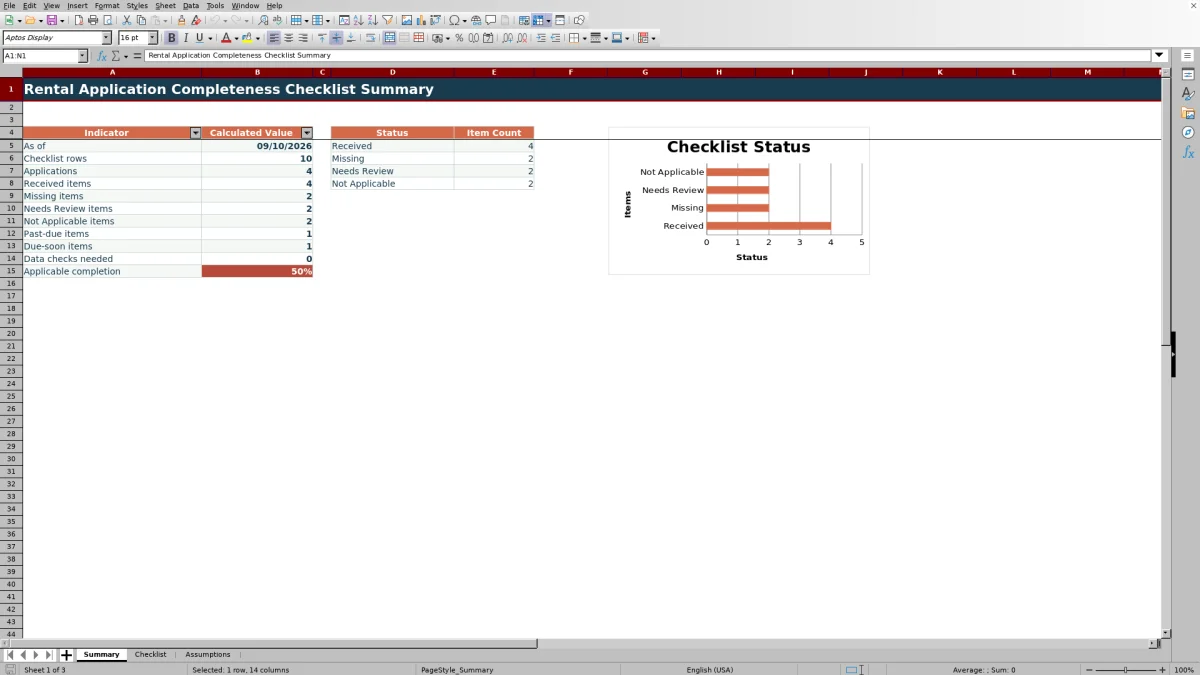
- Monitor checklist volume, unique applications, status counts, and applicable completion from the Summary sheet.
- Use configurable status, responsibility, and due-soon settings to support an established leasing workflow.
What is in the file
How to get started
1. Review the workbook settings
Open the Assumptions sheet and confirm the four status choices, four responsibility choices, and due-soon window. The default due-soon window is 3 days.
2. Enter each application item
On the Checklist sheet, use one row for each required document or field. Enter a consistent Application ID and complete the applicant, property, unit, application date, item, responsibility, and applicable dates.
3. Update status and notes
Select Received, Missing, Needs Review, or Not Applicable from the status list. Add a review note that explains the recorded receipt, follow-up need, or exception.
4. Check alerts and totals
Review Days Open and Review Alert on the Checklist sheet, then use the Summary sheet to check status totals, past-due items, due-soon items, data checks, and applicable completion.
What the Rental Application Checklist Tracks
The workbook uses one row per application item. Each row can identify the application, applicant, property, unit, application date, checklist item, due date, received date, responsible party, status, and review note.
Repeating the same Application ID across related rows lets the Summary sheet count unique applications while retaining item-level detail.
Status, Date, and Alert Logic
Status treatment is position-based on the Assumptions sheet. The first status, initially Received, counts as complete. The second, initially Missing, uses due-date alerts. The third, initially Needs Review, remains incomplete. The fourth, initially Not Applicable, is excluded from the applicable completion rate.
Days Open and Review Alert formulas use the application date, due date, received date, status, current date, and configurable due-soon window. Blank or conflicting entries can produce prompts such as Status needed, Add received date, Add due date, or Check status/date.
Worked Fictional Scenario
Input: A fictional application item has an application date of September 2, 2026, a received date of September 4, 2026, and a status of Received.
Result: The workbook calculates 2 Days Open and returns Received in the Review Alert column.
Interpretation: The row contains the date needed for the selected complete status, and the elapsed time from application to receipt is two days.
Next decision: Continue to the next item for that Application ID and address any row still marked Missing or carrying a data-entry alert.
Common Errors and Solutions
Resolve input conflicts before relying on totals.
- If a populated row has no status, select the appropriate status to clear Status needed.
- If Received is selected without a received date, enter the actual received date or correct the status.
- If Missing is selected without a due date, enter the applicable item due date so the workbook can evaluate timing.
- If Not Applicable is paired with a received date, confirm which entry is correct and remove the conflict.
- If application items are assigned inconsistent Application IDs, standardize the ID so the unique-application count remains meaningful.
Workbook and blank spreadsheet comparison
Use the prepared workbook when its verified fields and calculations fit the task. Start with a blank spreadsheet when you need to design a different model and can build and test every field and formula yourself.
| Method | Setup | Calculations and review | Practical fit |
|---|---|---|---|
| This Excel workbook | Use the prepared structure in the validated file | Review the documented calculations and results | Local editable workflow supported by the workbook |
| Blank spreadsheet | Create the structure yourself | Build and test every formula and check | A custom model built from scratch |
Workbook Limits
Completeness is not verification. The workbook records whether user-defined items have been received or assigned another status; it does not establish document authenticity, accuracy, sufficiency, or applicant eligibility.
Prepared formulas and validations cover Checklist rows 5 through 104. Date validation accepts entries from January 1, 2016 through December 31, 2036. Alerts depend on accurate dates, statuses, and Application IDs, and formula behavior depends on preserving the intended order of status choices.
Ongoing Checklist Maintenance
Review the Summary sheet for past-due items, due-soon items, and data checks, then filter the Checklist sheet to locate the related rows. Update received dates, statuses, responsibilities, and notes as information arrives.
Before changing status labels, review their formula treatments on the Assumptions sheet. Keep the complete status first, the missing status second, the review status third, and the excluded status fourth so calculations continue to follow their configured roles.
Frequently asked questions
How many checklist items can the Excel workbook track?
The prepared Checklist range contains 100 item rows, from row 5 through row 104. Each row represents one document, field, or other application item.
What status choices are included?
The default choices are Received, Missing, Needs Review, and Not Applicable. They can be edited on the Assumptions sheet, but their positions determine how formulas treat them.
How does the applicable completion rate work?
The Summary sheet divides items in the first configured status, initially Received, by populated checklist rows after excluding items in the fourth configured status, initially Not Applicable.
Can the due-soon window be changed?
Yes. The Assumptions sheet sets the due-soon window to 3 days by default and validates whole-number entries from 0 through 30.
Does the checklist verify documents or decide application outcomes?
No. It records administrative completeness and follow-up information. It does not authenticate documents, assess their sufficiency, determine eligibility, or approve or deny an application.
Editorial responsibility

Marcus ReedLeasing and property workflows

Elena BrooksWorkbook logic and financial operations