This rental vacancy marketing calendar is an Excel workbook for coordinating listing publication, listing refreshes, open houses, inquiry follow-ups, pricing reviews, and related leasing activities for vacant or pre-marketing units.
The XLSX connects a unit roster with a dated marketing calendar, formula-based alerts, activity costs, assigned responsibilities, configurable assumptions, and a summary of vacancy and task activity.
How this workbook can help
- Coordinates publication, refresh, open-house, follow-up, and pricing-review tasks in one calendar.
- Connects each unit roster entry to a count of matching calendar activities by property and unit.
- Surfaces upcoming, past-due, completed, canceled, and amount-review information through formulas and summary metrics.
- Standardizes common entries with list, date, quantity, rent, and activity-amount validation.
What is in the file
How to get started
1. Configure the assumptions
Open the Assumptions sheet and replace the fictional responsibilities, channels, activity options, status options, thresholds, and accepted dates with values appropriate for your operations.
2. Enter vacant or pre-marketing units
Add each property and unit to the Vacancies sheet. Record its vacancy status, available date, asking rent, target move-in date, marketing start, responsibility, and relevant notes.
3. Schedule marketing activities
Create a Marketing Calendar row for each listing publication, refresh, open house, inquiry follow-up, pricing review, or other configured activity. Enter the date, channel, description, quantity, amount, responsibility, and status.
4. Monitor and update the plan
Use the Days to Due and Alert columns to identify open work, then review the Summary sheet for upcoming activities, past-due activities, status counts, asking-rent information, and open or completed amounts. Update task statuses as work progresses.
Create a Unit-Centered Vacancy Marketing Plan
The workbook organizes listing publication, refreshes, open houses, inquiry follow-ups, pricing reviews, and other configured activities around individual vacant units. Using connected property and unit names lets the Vacancies sheet count matching Marketing Calendar tasks for each roster entry.
The roster also records vacancy status, availability, asking rent, target move-in date, marketing start, responsibility, and notes. This keeps unit details beside the activity count without placing every marketing event in the roster itself.
Track Dates, Statuses, Amounts, and Alerts
Each calendar row includes an activity date, activity type, channel or vendor, description, quantity, amount, responsibility, and status. Formula columns calculate days to due and display an alert based on the current workbook date, task status, due-soon threshold, and amount-review limit.
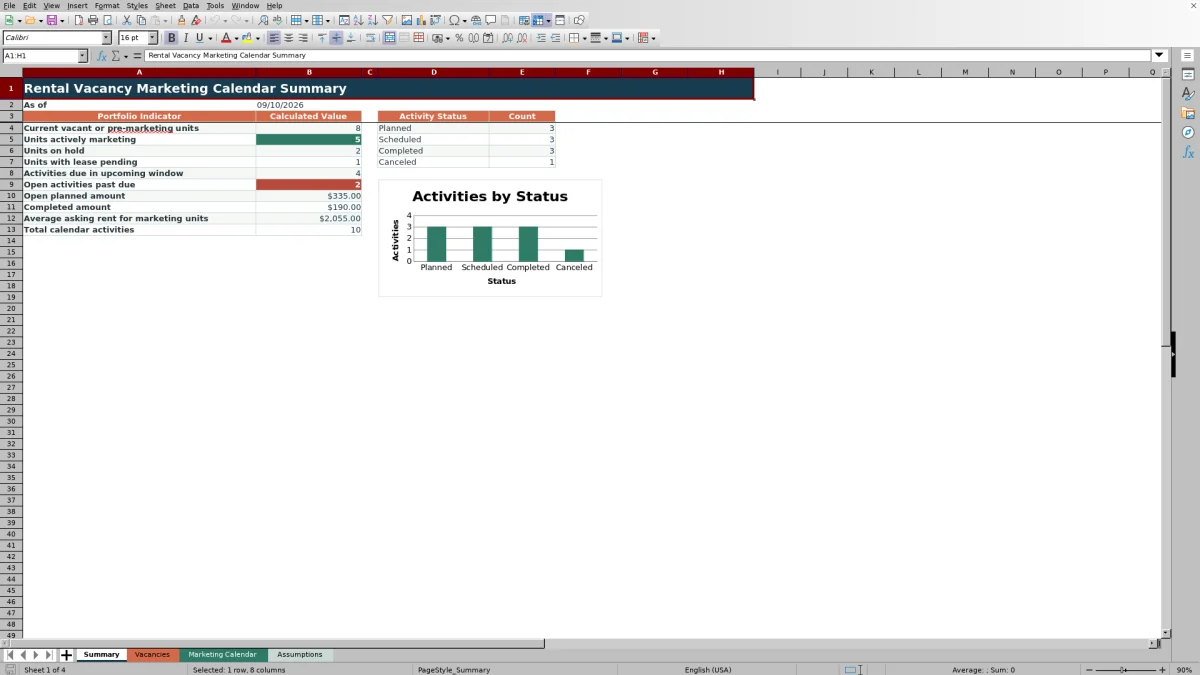
The Summary sheet counts Planned, Scheduled, Completed, and Canceled activities. It also reports activities in the configured upcoming window, open activities past due, open planned amount, completed amount, and total calendar activities.
Worked Vacancy Marketing Scenario
Input: A fictional manager enters Fictional Cedar Kite Homes and Demo Unit A1 on the vacancy roster, then adds a Planned open house dated two days after the current workbook date with an amount of $125. The default due-soon window is three days, and the default amount-review limit is $500.
Result: The calendar calculates 2 in Days to Due and returns the due-soon alert. The activity is included in the Summary upcoming-activity count, and the matching unit's Calendar Tasks count includes the row.
Interpretation: The activity is open, falls inside both the three-day due-soon window and the 14-day upcoming window, and does not exceed the default amount-review limit.
Next decision: The assigned person can confirm the open-house arrangements and change the status to Scheduled or Completed as the activity progresses.
Common Entry Errors and Solutions
Error: A property's calendar-task count is zero even though activities were entered. Solution: Make the property and unit text match exactly on the Vacancies and Marketing Calendar sheets.
Error: Days to Due or Alert is blank. Solution: Confirm that the property, activity date, and task status are populated on that calendar row.
Error: An open activity is missing from upcoming or past-due totals. Solution: Check whether its status was entered as Completed or Canceled, because those statuses are excluded from open calculations.
Error: Excel rejects a date or quantity. Solution: Check the accepted date range and quantity limit on the Assumptions sheet, then enter a value within those controls.
Workbook and blank spreadsheet comparison
Use the prepared workbook when its verified fields and calculations fit the task. Start with a blank spreadsheet when you need to design a different model and can build and test every field and formula yourself.
| Method | Setup | Calculations and review | Practical fit |
|---|---|---|---|
| This Excel workbook | Use the prepared structure in the validated file | Review the documented calculations and results | Local editable workflow supported by the workbook |
| Blank spreadsheet | Create the structure yourself | Build and test every formula and check | A custom model built from scratch |
Workbook Limits to Consider
The prepared vacancy and calendar areas each cover 100 rows, from row 5 through row 104. Entries beyond those ranges are not included in the documented formulas unless the workbook is extended.
Linked calendar-task counts depend on exact property and unit matches between the two operational sheets.
Date-based results use TODAY(), so values change as Excel recalculates on a different date.
Date and quantity entries are limited by the values configured on the Assumptions sheet.
The workbook records and monitors marketing work; it does not publish listings, contact prospects, or schedule vendor services automatically.
Maintain the Calendar as Leasing Work Changes
Update vacancy statuses when a unit moves among Marketing, Hold, Lease Pending, and Filled. Update calendar statuses among Planned, Scheduled, Completed, and Canceled so open counts and amount totals remain aligned with the recorded work.
Review the Summary sheet on a regular operating cadence, then filter either Excel table by property, unit, responsibility, date, activity, or status when more detail is needed. Replace all fictional demonstration entries before using the file for active units.
Frequently asked questions
What does the rental vacancy marketing calendar track?
It tracks vacant or pre-marketing units and their related listing publications, refreshes, open houses, inquiry follow-ups, pricing reviews, dates, channels, quantities, amounts, responsibilities, statuses, and alerts.
How does the due-soon alert work?
An open activity receives the due-soon alert when its activity date is no later than the current workbook date plus the configured due-soon window. The supplied default window is three days.
How are vacancy rows linked to calendar activities?
The Calendar Tasks formula counts Marketing Calendar rows whose property and unit match the property and unit on the vacancy roster. Exact, consistent entries are required for the count to work as intended.
Can the status, activity, responsibility, and channel options be changed?
Yes. The Assumptions sheet contains the lists used by the workbook's data-validation fields. Replace the example entries within the existing list ranges to match local operating terminology.
Should the fictional sample data be kept?
No. The included properties, units, people, vendors, descriptions, dates, rents, and amounts are demonstration data. Replace them with operating information while retaining the prepared formulas and validation controls.
Editorial responsibility

Marcus ReedLeasing and property workflows

Elena BrooksWorkbook logic and financial operations