The Rent Change Notice Schedule Excel workbook organizes up to 100 long-term residential rental notices from dates and requirements you enter. It tracks each property, unit, tenancy ID, rent amount, effective date, delivery method, responsible party, status, and requirement note.
The spreadsheet calculates a target send date by subtracting entered notice days from the effective date, then shows rent changes, days to target, alerts, and summary totals. It does not determine the required notice period or permitted delivery method; confirm those details from your own authoritative records before use.
How this workbook can help
- Turn entered effective dates and notice-day requirements into target send dates.
- Keep notice details, delivery information, assignments, and statuses in one schedule.
- Monitor notice counts, rent changes, target dates, and status totals from a summary sheet.
- Identify missing schedule inputs, approaching target dates, and incomplete sent records through alerts.
What is in the file
How to get started
1. Configure the scheduling settings
Open the Assumptions sheet and enter the review date, upcoming alert window, maximum notice days, and maximum monthly rent. Review the available status, delivery method, and responsible party choices.
2. Enter each rent change notice
On the Notice Schedule sheet, add the property, unit, tenancy ID, current rent, new rent, effective date, and required notice days. Enter the notice-day requirement only after confirming it from an authoritative source.
3. Check calculated dates and alerts
Read the target send date, rent change, change percentage, days to target, and alert. Correct missing inputs or conflicting status and sent-date entries before relying on the schedule.
4. Record delivery progress
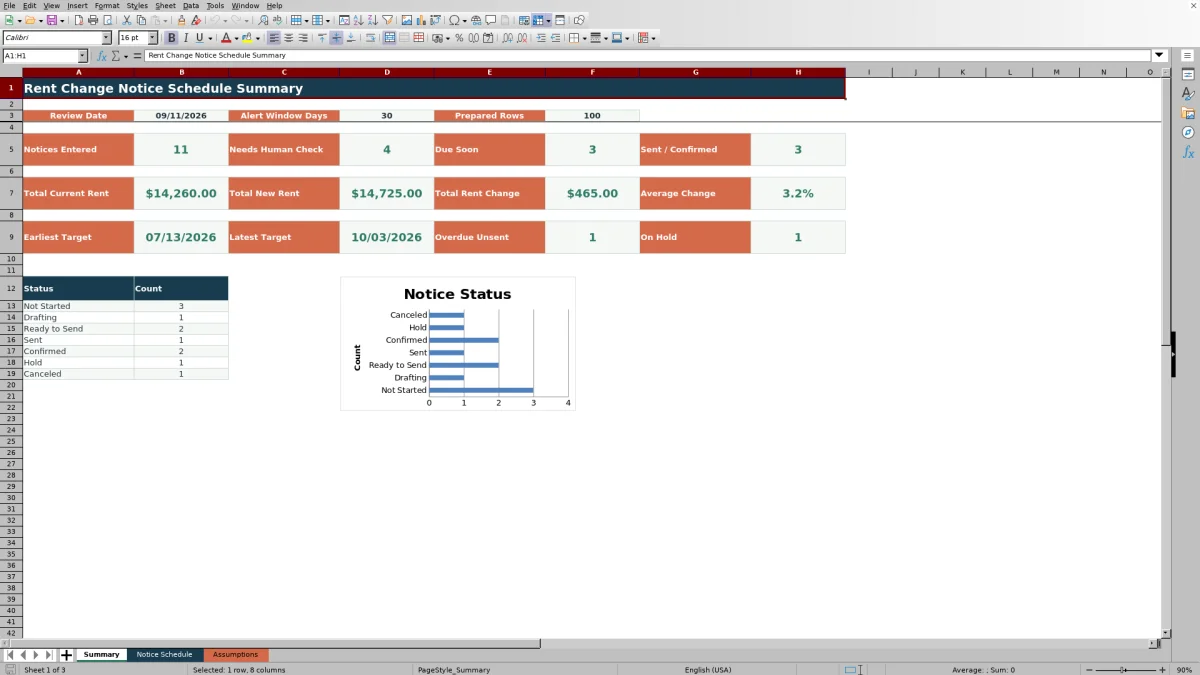
Select the delivery method, responsible party, and status, then enter the sent date when applicable. Use the Summary sheet to monitor due-soon items, overdue unsent items, holds, rent totals, target dates, and status counts.
What the rent change notice schedule tracks
The workbook provides one row per notice across 100 prepared rows. Each row can identify the property, unit, tenancy, current and new rent, effective date, entered notice days, delivery method, responsible party, status, and requirement-check note.
Calculated columns keep operational details beside the source inputs. These columns show the target send date, dollar change, percentage change, days remaining to the target, and an alert.
How target dates and alerts work
The target send date is the effective date minus the required notice days entered in the same row. This design relies on user-entered requirements rather than selecting a notice period for the user.
Days to target compares the calculated target with the review date stored on the Assumptions sheet. Alerts can identify missing schedule inputs, approaching targets, holds, cancellations, sent statuses without dates, and notices recorded after their targets.
Worked scenario for a fictional tenancy
Input: A fictional Juniper Court record lists current rent of $1,200, new rent of $1,250, an effective date of October 15, 2026, and 30 entered notice days. The review date is September 11, 2026, and the status is Not Started.
Result: The workbook calculates a September 15, 2026 target send date, a $50 rent change, a 4.2% increase, and four days to target.
Interpretation: The target falls inside the 30-day upcoming alert window, so the record is due soon. The result reflects the entered 30-day figure and does not confirm that the figure is the applicable requirement.
Next decision: Confirm the notice requirement and permitted delivery method from the appropriate source, assign responsibility, and update the status as preparation proceeds.
Common errors and practical solutions
Missing effective date or notice days: enter both values so the target send date and timing alert can be calculated.
Sent or Confirmed status without a sent date: add the actual sent date or correct the status.
Rejected rent or notice-day entry: use a nonnegative value within the maximum configured on the Assumptions sheet.
Unexpected summary counts: check blank property cells, status selections, sent dates, and canceled records in the filtered schedule.
Unclear source requirement: document the source or question in the Requirement Check Note field before using the calculated target.
Workbook and blank spreadsheet comparison
Use the prepared workbook when its verified fields and calculations fit the task. Start with a blank spreadsheet when you need to design a different model and can build and test every field and formula yourself.
| Method | Setup | Calculations and review | Practical fit |
|---|---|---|---|
| This Excel workbook | Use the prepared structure in the validated file | Review the documented calculations and results | Local editable workflow supported by the workbook |
| Blank spreadsheet | Create the structure yourself | Build and test every formula and check | A custom model built from scratch |
Workbook limits and required checks
The workbook does not determine legal requirements, select a permitted delivery method, or establish that a notice is sufficient. Notice days and requirement notes must come from the user's own records or other authoritative sources.
The target formula subtracts the entered number of days directly from the effective date; it does not adjust for weekends, holidays, or other timing conditions. The schedule contains 100 prepared notice rows, and recording a sent date documents the user's entry rather than independently confirming delivery.
Maintaining the notice schedule
Update the review date regularly so days-to-target values and upcoming alerts remain current. Filter the Notice Schedule by responsible party, status, delivery method, target date, or alert to focus follow-up work.
After a notice is prepared or sent, update its status and sent date instead of creating a duplicate row. The Summary sheet then reflects the revised status counts, sent and confirmed total, target-date range, rent totals, overdue unsent count, and on-hold count.
Frequently asked questions
Does this Excel workbook determine the required rent change notice period?
No. The user enters the required notice days from a verified source. The workbook uses that entry to calculate a target send date but does not select or validate the applicable requirement.
How is the target send date calculated?
The workbook subtracts the entered Required Notice Days from the entered Effective Date. It performs direct date arithmetic and does not adjust the result for weekends, holidays, or other timing conditions.
How many rent change notices can the workbook track?
The Notice Schedule includes 100 prepared rows, running from row 5 through row 104.
What information can the alerts identify?
Alerts can identify missing schedule inputs, upcoming targets, overdue unsent items, holds, cancellations, sent statuses that lack dates, and sent dates that fall after calculated targets.
What does the Summary sheet show?
The Summary sheet shows notice counts, check and due-soon counts, sent and confirmed totals, current and new rent totals, total and average rent changes, earliest and latest targets, overdue unsent items, holds, status counts, and a status chart.
Editorial responsibility

Marcus ReedLeasing and property workflows

Elena BrooksWorkbook logic and financial operations