The Authorized Occupant Register Excel workbook is an XLSX template for maintaining a manager's record of leaseholders and approved occupants by property, unit, tenancy, status, and occupancy dates.
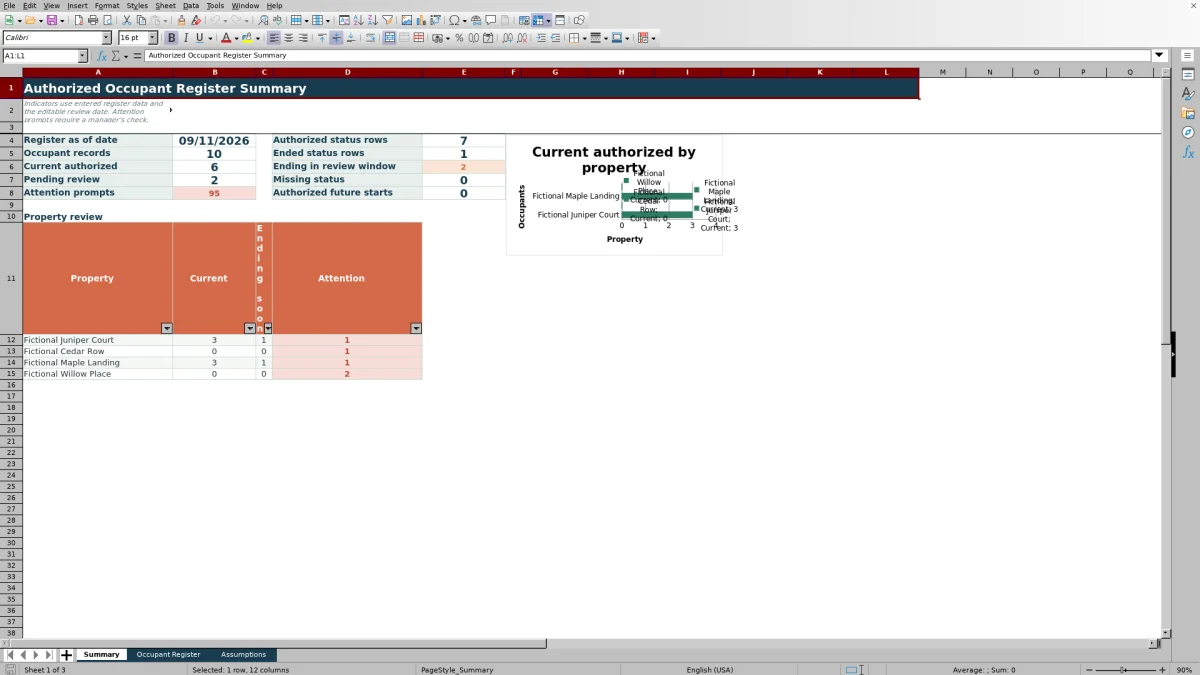
Use the Occupant Register for row-level entries, the Assumptions sheet for review controls and choice lists, and the Summary sheet for counts, property-level indicators, attention prompts, and a current-authorized-occupant chart.
How this workbook can help
- Keep leaseholders and approved occupants organized by property, unit, tenancy, and date.
- Surface records with missing statuses or date issues before follow-up.
- Monitor current authorizations and upcoming occupancy end dates from one summary.
- Apply consistent property, responsibility, and status choices across 100 entry rows.
What is in the file
How to get started
1. Set the review controls
Open the Assumptions sheet and confirm the register as-of date, end-date review window, earliest accepted date, and latest accepted date. The supplied review window is 30 days.
2. Configure the choice lists
Replace the fictional property choices when needed and confirm the responsibility and status choices. These lists supply the drop-down options on the Occupant Register sheet.
3. Enter one occupant per row
Record the property, unit, tenancy ID, occupant name, responsibility, authorization date, occupancy dates, status, and manager notes. Use the yellow entry cells and leave the formula-driven Review Check column unchanged.
4. Resolve prompts and read the summary
Check each populated row for a Review Check message. Then use the Summary sheet to view current authorizations, upcoming end dates, future starts, missing statuses, attention totals, and property-level results.
What the occupant register records
The workbook separates detailed occupant entries from controls and reporting. The Occupant Register provides 100 occupant rows for property, unit, tenancy ID, occupant name, responsibility, authorization date, occupancy start, occupancy end, status, Review Check, and manager notes.
- Responsibility choices include Leaseholder, Occupancy Only, Minor Occupant, and Approved Aide.
- Status choices include Authorized, Pending Review, Ended, and Withdrawn.
- Property, responsibility, and status fields use configurable drop-down lists.
- Authorization and occupancy dates are subject to the accepted date range on the Assumptions sheet.
How summary indicators and review prompts work
The Summary sheet uses the editable as-of date and the 30-day review window, which can also be edited, to evaluate entered register data. It reports occupant records, status totals, current authorized occupants, records ending within the window, missing statuses, attention prompts, and authorized future starts.
The Review Check formula evaluates each populated occupant row. Its prompts address issues such as a missing status, an occupancy start before the authorization date, an end date before the start date, missing authorization or start dates for an Authorized record, and a missing end date for an Ended record.
Worked scenario for an upcoming occupancy end
Input: A fictional Juniper Court occupant is entered with an authorization date of March 15, 2026, an occupancy start of March 25, 2026, an occupancy end of September 20, 2026, and an Authorized status. The register as-of date is September 11, 2026, and the review window is 30 days.
Result: The row contributes to the Authorized status count, the current authorized count, and the count of records ending within the review window.
Interpretation: The occupant is recorded as authorized on the as-of date, and the scheduled end falls within the next 30 days.
Next decision: The manager can check the supporting record and then retain the date, revise it, or update the status when the source information supports that change.
Common errors and solutions
Missing status: select the applicable configured status so the row can be included in the corresponding status totals.
Authorized record without an authorization or start date: confirm the source information and enter the supported dates.
Occupancy start before authorization: verify both dates and correct the entry if either date was transposed or entered incorrectly.
Occupancy end before occupancy start: check the date sequence and revise the incorrect value.
Ended record without an end date: enter the supported occupancy end date so the record is complete.
Workbook and blank spreadsheet comparison
Use the prepared workbook when its verified fields and calculations fit the task. Start with a blank spreadsheet when you need to design a different model and can build and test every field and formula yourself.
| Method | Setup | Calculations and review | Practical fit |
|---|---|---|---|
| This Excel workbook | Use the prepared structure in the validated file | Review the documented calculations and results | Local editable workflow supported by the workbook |
| Blank spreadsheet | Create the structure yourself | Build and test every formula and check | A custom model built from scratch |
Workbook limits to consider
The workbook has defined operating limits that should be considered before data entry.
- The prepared register and its formulas, validations, and summary ranges cover 100 entry rows, from row 5 through row 104.
- The supplied property choice area and property-level summary support four configured property entries.
- The initial accepted date range is January 1, 2016, through December 31, 2036, although both limits are editable.
- Many summary formulas identify a populated record through the Occupant Name field, so a row without a name may be omitted from those counts.
- Review Check messages are internal prompts based on entered data and do not independently confirm an outside authorization status.
Maintaining the register over time
At each register update, confirm the as-of date before interpreting the Summary sheet. Filter the Occupant Register by property, unit, status, or date when focusing on a smaller group of records.
Address rows with Review Check messages, update occupancy end dates and statuses when supported by current records, and revise the Assumptions lists when property or category choices change. The property-level counts and chart then reflect the configured property choices and entered register data.
Frequently asked questions
What information can I record for each occupant?
You can record the property, unit, tenancy ID, occupant name, responsibility, authorization date, occupancy start, occupancy end, status, and manager notes. The workbook calculates the Review Check field.
How many occupant records does the workbook support?
The prepared Occupant Register contains 100 entry rows, covering rows 5 through 104. The formulas, validations, and summary calculations use that range.
Can I change the property, responsibility, and status choices?
Yes. The Assumptions sheet contains four property choices, four responsibility choices, and four status choices that feed the register drop-downs and related summary formulas.
What does the Review Check column do?
It displays an internal prompt when a populated row has a missing status, certain missing dates, or a date sequence that needs attention. A row without an identified issue returns OK.
Does the spreadsheet determine whether an occupant is authorized?
No. The workbook summarizes the status and dates entered by the user. Its Review Check messages support record maintenance but do not independently determine an outside authorization status.
Editorial responsibility

Marcus ReedLeasing and property workflows

Elena BrooksWorkbook logic and financial operations