This rental property pet register Excel workbook organizes manager-approved pets, conditional approvals, and pending entries by property, unit, and tenancy reference. Each record can include pet details, status, responsibility, approval and review dates, supplied-document information, and operational notes.
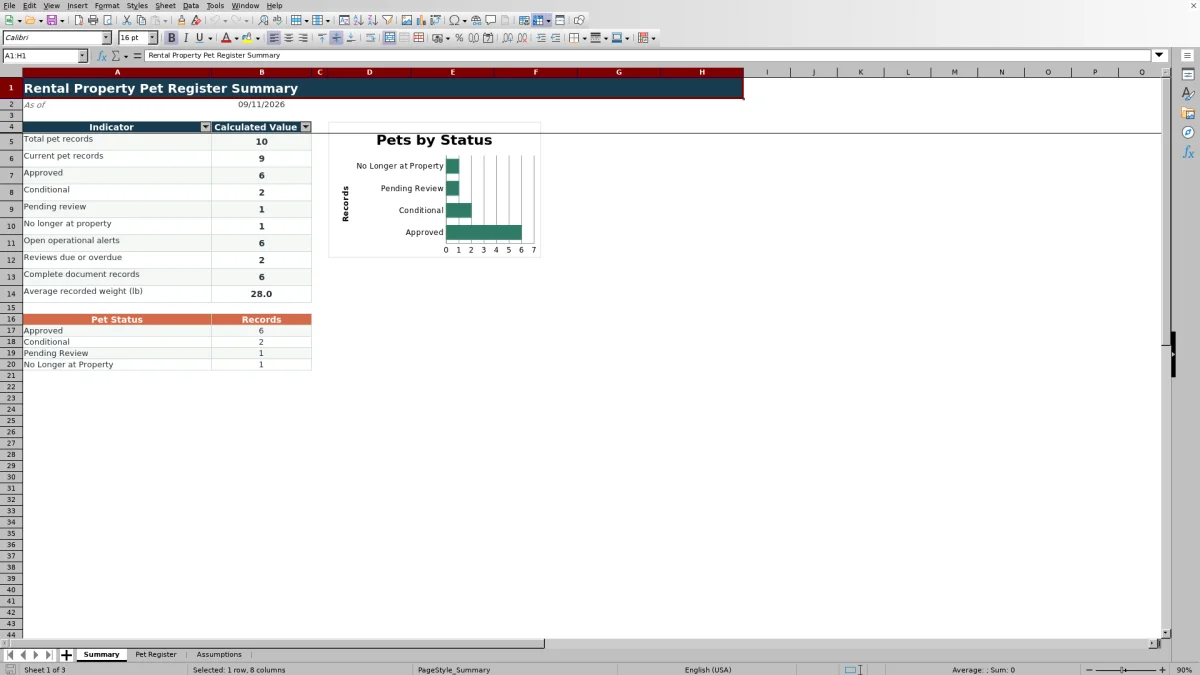
The XLSX includes validated inputs, formula-driven operational alerts, editable assumptions, summary metrics, and a pet-status chart. Fictional sample records demonstrate the structure and can be replaced with current portfolio information.
How this workbook can help
- Keep pet, property, unit, tenancy, responsibility, and document details in one structured register.
- Use consistent status and category entries through validated dropdown lists.
- Identify missing information and approaching or overdue review dates through calculated prompts.
- View status totals, document completion, open alerts, and recorded weight information on a summary sheet.
What is in the file
How to get started
1. Configure the operating values
Open the Assumptions sheet and replace the fictional property values and other list entries as needed. Confirm the review warning window and weight-check threshold before entering portfolio records.
2. Replace the fictional examples
On the Pet Register, replace the sample inputs in rows 5 through 7. Enter one pet per row in columns A through O, and leave the formulas in the Operational Alert column intact.
3. Record status, dates, and documents
Select the applicable pet status, responsible party, and document status. Enter approval, next-review, and documents-received dates where applicable, then add concise operational notes.
4. Check alerts and summary totals
Filter the Pet Register by Operational Alert to find records needing follow-up. Use the Summary sheet to monitor record counts, status totals, complete document records, upcoming or overdue reviews, and average recorded weight.
What the rental property pet register records
The workbook provides 100 prepared record rows, covering rows 5 through 104 of the Pet Register. Use one row per pet so each animal remains connected to its property, unit, tenancy reference, status, dates, documents, and notes.
- Identification fields include Pet Record ID, property, unit, tenancy reference, and pet name.
- Pet details include species, breed or description, and weight in pounds.
- Operational fields include status, responsible party, approval date, next review date, document status, documents received date, and notes.
- The final column calculates an operational alert from the information entered in that row.
Statuses, documents, and review dates
The Pet Status list contains Approved, Conditional, Pending Review, and No Longer at Property. Document Status contains Complete, Incomplete, and Not Required, while Responsible Party contains Resident, Manager, and Shared. These controlled list entries support consistent filtering and summary counts.
Approval Date, Next Review Date, and Documents Received Date accept dates from January 1, 2000, through December 31, 2100. Recorded weight accepts values from 0.1 through 500 lb. The Assumptions sheet supplies the property, species, status, responsibility, and document-status lists used by the register.
Worked scenario: a pet review coming due
Input: A fictional manager enters a complete record for a 12.4 lb cat at Fictional Copper Lantern Place, selects Conditional status, enters an approval date, sets the next review date to 20 days after the workbook is opened, and marks the documents Complete with a received date.
Result: With the review warning window set to 30 days, the Operational Alert formula returns Review due soon.
Interpretation: The core fields and approval date are present, but the next review date falls within the configured warning period.
Next decision: The manager can confirm the scheduled follow-up, update the operational notes, and revise the next review date after the review is completed.
Common errors and solutions
- If the alert remains blank after other details are entered, check Pet Record ID. The formula returns a blank result when that field is empty.
- If Complete core fields appears, check Property, Unit, Tenancy Reference, Pet Name, Species, Pet Status, Responsible Party, and Document Status.
- If Approval date check appears, confirm that an Approved or Conditional record has an Approval Date.
- If Review overdue or Review due soon appears unexpectedly, inspect the Next Review Date and the warning-window value on the Assumptions sheet.
- If a new dropdown choice does not appear, confirm that it was placed within the existing source-list range or update the applicable validation source.
Using the summary for operational follow-up
The Summary sheet uses the Pet Register to calculate total records and counts for Approved, Conditional, Pending Review, and No Longer at Property. Its Current pet records figure combines Approved, Conditional, and Pending Review entries.
Additional indicators show open operational alerts, reviews due or overdue, Complete document records, and average recorded weight for positive weight entries. The status chart uses the four pet-status totals, while the register filter can be used to inspect the records behind each result.
Workbook and blank spreadsheet comparison
Use the prepared workbook when its verified fields and calculations fit the task. Start with a blank spreadsheet when you need to design a different model and can build and test every field and formula yourself.
| Method | Setup | Calculations and review | Practical fit |
|---|---|---|---|
| This Excel workbook | Use the prepared structure in the validated file | Review the documented calculations and results | Local editable workflow supported by the workbook |
| Blank spreadsheet | Create the structure yourself | Build and test every formula and check | A custom model built from scratch |
Workbook limits and appropriate use
The supplied register has 100 prepared entry rows. Adding capacity beyond row 104 requires the formulas, validations, conditional formatting, filter range, and Summary references to be extended.
The workbook records document status, received dates, and notes but does not contain or attach supplied files. It also does not send notifications or update records outside Excel. Alerts depend on the entered values, the current date, and the Assumptions settings, so they serve as operational prompts rather than approval decisions.
Frequently asked questions
What information can I record for each pet?
You can record a pet ID, property, unit, tenancy reference, pet name, species, breed or description, weight, status, responsible party, approval date, next review date, document status, documents received date, and operational notes.
How many pet records are prepared in the workbook?
The Pet Register contains 100 prepared rows, from row 5 through row 104. Each row includes an Operational Alert formula.
How does the Operational Alert column work?
The formula checks entered fields, pet status, approval and review dates, document information, and the operating values on the Assumptions sheet. Depending on the record, it can prompt follow-up for missing core fields, approval dates, or review timing.
Can I change the dropdown choices and operating thresholds?
Yes. The Assumptions sheet contains the source values for property, pet status, species, document status, and responsible party. It also contains the editable review-warning and weight-check values used by the workbook.
Does the Excel register store supplied document files?
No. It records Document Status and Documents Received Date and provides space for related operational notes. The actual files must be stored separately.
Editorial responsibility

Marcus ReedLeasing and property workflows

Elena BrooksWorkbook logic and financial operations