The Tenant Payment Plan Tracker is an Excel workbook for recording manager-approved payment arrangements, installment due dates, scheduled amounts, receipt details, and remaining balances.
Use the connected plan and installment sheets to monitor totals, payment-status prompts, upcoming due amounts, past-due open amounts, and schedule checks based on the entries in the file.
How this workbook can help
- Keep manager-approved plan details, installment schedules, receipt entries, and balances in one workbook.
- Calculate scheduled totals, received totals, open amounts, and outstanding balances from linked Plan IDs.
- Surface Past due, Partial, Scheduled, Received, and Check statuses from entered dates and amounts.
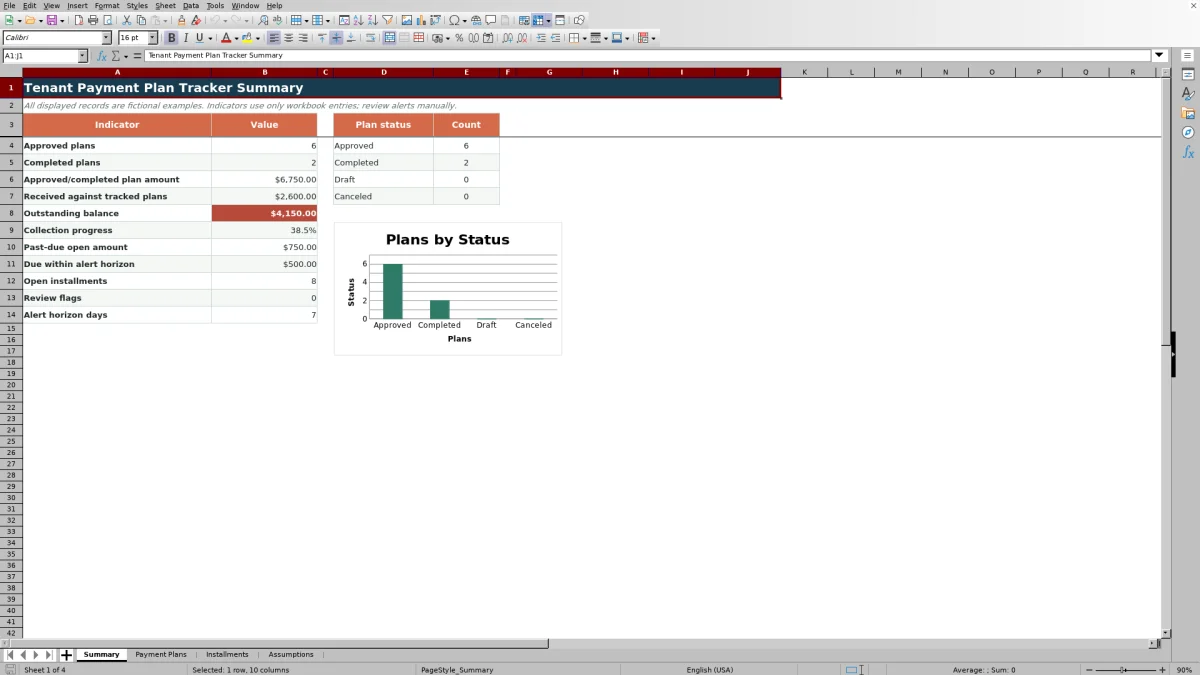
- Use summary indicators and a plan-status chart to monitor tracked activity.
What is in the file
How to get started
1. Configure the operating choices
Open the Assumptions sheet and confirm the alert horizon, amount limits, permitted date range, installment-number limit, plan statuses, and approver choices.
2. Enter each payment plan
On Payment Plans, replace the fictional examples and enter a unique Plan ID, property, unit, tenant, approval date, approver, plan amount, and status in the editable cells.
3. Add installments and receipts
On Installments, select the matching Plan ID and enter the installment number, due date, and scheduled amount. When payment is received, add the receipt date, amount received, and receipt note.
4. Check calculated results
Confirm the scheduled total, received total, outstanding balance, open amount, payment status, and schedule check. Use Summary to monitor plan counts, upcoming amounts, past-due open amounts, and flagged entries.
Organize Manager-Approved Payment Plans
The workbook creates a plan-level record containing the Plan ID, property, unit, tenant, approval date, approver, plan amount, and plan status.
Each plan can be marked Draft, Approved, Completed, or Canceled. Scheduled Total and Received Total are drawn from installment rows with the same Plan ID. Outstanding Balance is calculated for Approved and Completed plans.
Track Installment Dates and Receipt Entries
Each installment row records a Plan ID, installment number, due date, scheduled amount, receipt date, amount received, and receipt note. The workbook applies installment status logic to the entered dates and amounts.
- Received indicates that the calculated open amount is zero.
- Past due indicates that an open amount remains after the due date.
- Partial indicates that part of a current or future installment has been received.
- Scheduled indicates that an unpaid installment has not passed its due date.
- Check identifies missing or inconsistent date and amount entries.
Worked Payment Plan Scenario
Fictional worked scenario: Enter plan DEMO-EX-100 as Approved with a $1,200 plan amount. Add two $600 installments under the same Plan ID. Record a $600 receipt and receipt date for the first installment, while leaving the future second installment unpaid.
The result is a $1,200 Scheduled Total, a $600 Received Total, a $600 Outstanding Balance, and an OK Schedule Check. The first installment has a zero Open Amount and a Received status; the future second installment has a $600 Open Amount and a Scheduled status.
This means the installment schedule matches the plan amount, half of the tracked balance has been received, and $600 remains open. The next decision is to monitor the second due date and enter its receipt details when payment is recorded.
Common Errors and Solutions
The workbook uses source-entry checks to expose several common record problems.
- If Schedule Check displays Review, compare the plan amount with the scheduled installment total and confirm that every installment uses the correct Plan ID.
- If Payment Status displays Check, confirm that the due date and scheduled amount are valid, a positive receipt amount has a receipt date, and the amount received does not exceed the scheduled amount.
- If data validation blocks an entry, compare it with the amount, date, or installment-number limits on Assumptions.
- If a date-based status changes unexpectedly, confirm the due date because the status formulas use the current date.
Workbook and blank spreadsheet comparison
Use the prepared workbook when its verified fields and calculations fit the task. Start with a blank spreadsheet when you need to design a different model and can build and test every field and formula yourself.
| Method | Setup | Calculations and review | Practical fit |
|---|---|---|---|
| This Excel workbook | Use the prepared structure in the validated file | Review the documented calculations and results | Local editable workflow supported by the workbook |
| Blank spreadsheet | Create the structure yourself | Build and test every formula and check | A custom model built from scratch |
Workbook Limits and Boundaries
The workbook has clear operating limits that should be considered before use.
- Payment Plans and Installments each provide 100 data rows, from row 5 through row 104.
- The 100 installment rows are shared across all plans rather than provided separately for each plan.
- The default alert horizon is 7 days, the maximum plan amount is $25,000, and the maximum installment amount is $10,000; these values are editable on Assumptions.
- The default permitted date range is September 11, 2024, through September 10, 2029, and the default installment-number ceiling is 24.
- Each installment row has one receipt date, one amount-received value, and one receipt note field. The workbook does not attach receipt files.
- Date-based statuses depend on TODAY(), and outstanding balances are limited to Approved and Completed plans.
- The workbook records operating information and does not provide legal advice or create a payment agreement.
Maintain Consistent Records
Use consistent Plan IDs so installment amounts and receipts flow to the intended plan. Enter one row for each expected installment and keep the receipt date aligned with a positive amount received.
Replace all fictional examples before operational use. Filter the plan and installment sheets as needed, address Review or Check prompts by correcting the related source entries, and use the Summary indicators to monitor the recorded portfolio.
Frequently asked questions
What does the Tenant Payment Plan Tracker record?
It records plan details, approval information, plan status, installment dates, scheduled amounts, receipt dates, amounts received, receipt notes, open amounts, and outstanding balances.
How is the outstanding balance calculated?
For plans marked Approved or Completed, the workbook subtracts the received total from the plan amount and prevents the displayed balance from falling below zero.
What causes a Review or Check prompt?
Review can appear when the scheduled installment total does not match the plan amount. Check can appear when required due-date or amount information is invalid, receipt dates and positive receipt amounts do not align, or an amount received exceeds its scheduled amount.
Can the upcoming-payment alert period be changed?
Yes. Change Alert horizon days on the Assumptions sheet. The Summary then totals qualifying open installments due from the current date through that number of days.
Does the workbook store receipt files?
No. The Installments sheet records a receipt date, amount received, and receipt note, but it does not attach or store receipt images or documents.
Editorial responsibility

Marcus ReedLeasing and property workflows

Elena BrooksWorkbook logic and financial operations