The Rental Listing Performance Tracker is an Excel workbook for recording each long-term residential rental unit-and-channel listing in a consistent row. It keeps listing dates, channel, asking rent, inquiries, showings, applications, and status together.
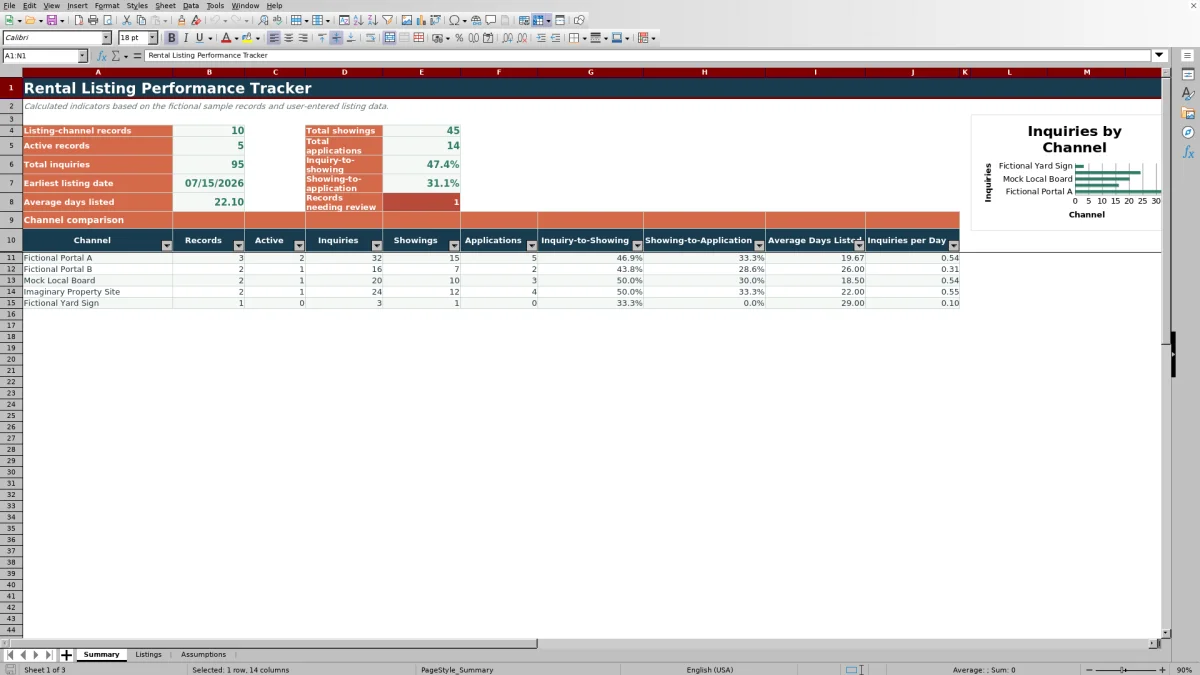
Built-in formulas calculate days listed and conversion rates, while the Summary sheet rolls activity into overall indicators and a five-channel comparison. Fictional sample entries show the intended structure before you replace them with your own records.
How this workbook can help
- Compare inquiry, showing, and application activity across rental listing channels.
- Monitor listing age and conversion rates without calculating each record manually.
- Identify incomplete entries, inconsistent counts, and date or status conflicts through formula-based prompts.
- Adjust channel choices, status choices, validation limits, and listing thresholds for your operating process.
What is in the file
How to get started
Step 1: Configure the assumptions
Open the Assumptions sheet and adjust the review-age threshold, low-inquiry ceiling, rent limits, activity limits, date boundaries, statuses, and five channel choices as needed.
Step 2: Enter each listing record
On the Listings sheet, use one row for each unit-and-channel combination. Enter the property, unit, dates, channel, monthly asking rent, inquiries, showings, applications, and status.
Step 3: Check the calculated output
Read the Days Listed, Inquiry-to-Showing, Showing-to-Application, and entry-check prompt columns. Correct source entries when a prompt identifies missing fields, conflicting dates, inconsistent counts, or a status issue.
Step 4: Compare channel performance
Use the Summary sheet to examine totals, conversion rates, average listing duration, inquiries per day, and the inquiries chart for the configured channels.
Organize Rental Listings by Unit and Channel
The workbook uses one unit-and-channel record for each listing. If the same unit appears on two advertising channels, enter two rows so inquiries, showings, and applications remain attributable to the correct source.
- Identify the property and unit.
- Record listing and end dates.
- Select the advertising channel and status.
- Enter asking rent and activity counts.
Measure Listing Activity and Conversion
The Listings sheet calculates days listed, inquiry-to-showing rate, and showing-to-application rate. The Summary sheet totals records, active records, inquiries, showings, and applications while also reporting conversion rates, earliest listing date, average days listed, and records with prompts.
The channel section adds record counts, active counts, average listing duration, and inquiries per day for each of the five configured channels.
Worked Rental Listing Scenario
Input: A fictional Harbor Flats unit is listed on Mock Local Board from July 25, 2026, through August 18, 2026, at $2,250 per month. The row records 18 inquiries, 9 showings, 3 applications, and a Leased status.
Result: The formulas return 24 days listed, a 50.0% inquiry-to-showing rate, and a 33.3% showing-to-application rate.
Interpretation: Half of recorded inquiries became showings, and one-third of those showings became applications. This describes the row's activity without establishing why prospects converted.
Next decision: Compare the result with the aggregated figures for other configured channels, then decide whether to retain the current channel mix or test a different source for a future listing.
Common Errors and Solutions
Resolve flags at the source by correcting the editable cells rather than overwriting formula results.
- If an end date precedes the listing date, verify and correct the dates.
- If showings exceed inquiries or applications exceed showings, confirm the activity counts.
- If an Active record has an end date, update either the status or the date.
- If a non-active record lacks an end date, add the applicable end date.
- If key fields are missing, complete the property, unit, date, channel, rent, activity, and status entries.
Workbook and blank spreadsheet comparison
Use the prepared workbook when its verified fields and calculations fit the task. Start with a blank spreadsheet when you need to design a different model and can build and test every field and formula yourself.
| Method | Setup | Calculations and review | Practical fit |
|---|---|---|---|
| This Excel workbook | Use the prepared structure in the validated file | Review the documented calculations and results | Local editable workflow supported by the workbook |
| Blank spreadsheet | Create the structure yourself | Build and test every formula and check | A custom model built from scratch |
Workbook Limits to Consider
The prepared Listings range covers rows 5 through 104, so its formulas, validations, filters, and summaries are designed for 100 listing-channel records. The channel comparison is limited to five configured choices, and its chart plots inquiries only.
Summary record counts represent listing-channel rows, not distinct rental units. Active listing duration changes with the current date, and the workbook does not determine the cause of performance differences between channels.
Keep Listing Records Current
Update inquiry, showing, and application counts on a consistent schedule. When a listing ends, enter the end date and change its status so days listed no longer depends on the current date.
Use the Listings filters to focus on a property, channel, status, or prompted record. If channel names or operating limits change, update the Assumptions sheet and keep the five prepared channel-choice cells populated for the Summary comparison.
Frequently asked questions
What does one row in the Listings sheet represent?
Each row represents one long-term rental unit listed through one channel. A unit advertised through multiple channels should have a separate row for each channel.
How does the workbook calculate days listed?
For an Active record, the formula measures from the listing date to the current date. For another status, it measures from the listing date to the entered end date.
Can I change the available statuses and channels?
Yes. The Assumptions sheet provides four editable status choices and five editable channel choices used by the Listings validation lists. The Summary sheet compares the five configured channels.
What causes an entry-check prompt?
A prompt may appear when key fields are incomplete, an end date precedes a listing date, showings exceed inquiries, applications exceed showings, or the status conflicts with the presence or absence of an end date. The configured age and low-inquiry thresholds can also flag an older active listing with limited inquiries.
What does the Summary sheet compare?
It compares the configured channels by record count, active count, inquiries, showings, applications, both conversion rates, average days listed, and inquiries per day. Its record totals count listing-channel rows rather than distinct units.
Editorial responsibility

Marcus ReedLeasing and property workflows

Elena BrooksWorkbook logic and financial operations