The Renters Insurance Certificate Tracker for Excel is an XLSX workbook for recording manager-requested policy evidence across rental properties and units. It organizes certificate references, policy dates, evidence receipt dates, manager review dates, responsible parties, notes, and follow-up dates.
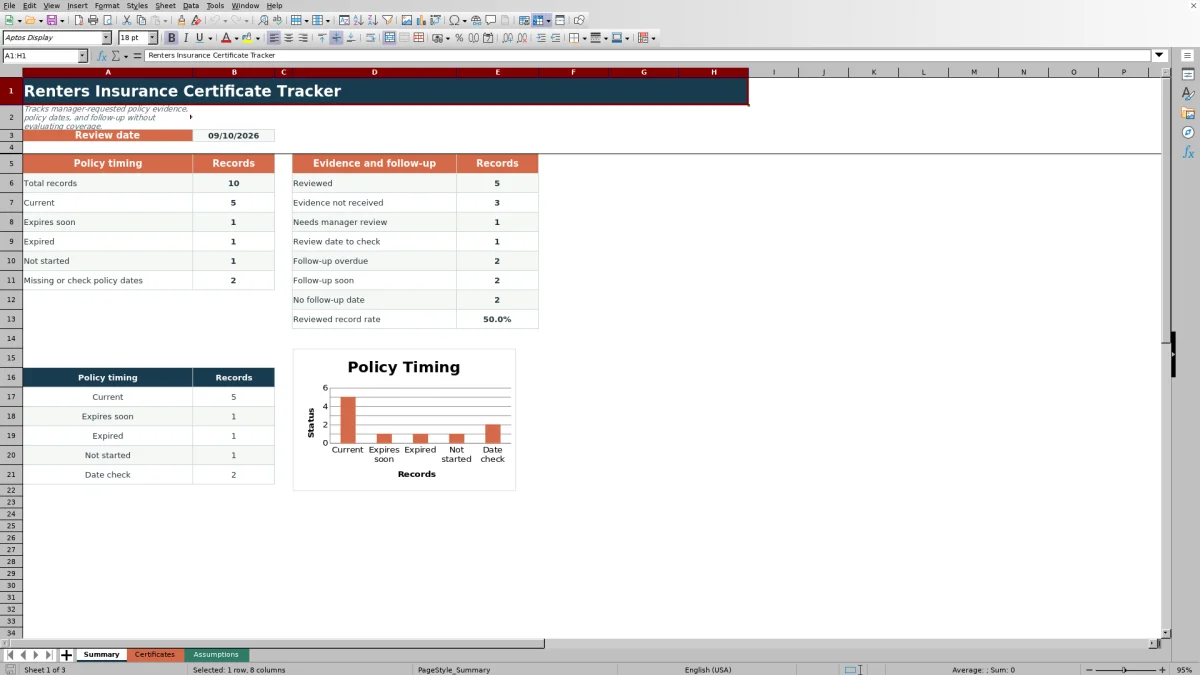
Formula-driven status fields identify policy timing, evidence review progress, and follow-up timing based on the workbook's adjustable assumptions. A separate Summary sheet presents record counts, a reviewed-record rate, and a chart without evaluating insurance coverage or legal sufficiency.
How this workbook can help
- Centralizes certificate references, policy dates, evidence dates, manager review dates, and follow-up details in one record list.
- Separates editable record fields from formula-driven policy, evidence, and follow-up statuses.
- Summarizes policy timing, evidence review, and follow-up counts for up to 100 record rows.
- Uses adjustable review-date, expiration-warning, and follow-up-lookahead settings.
What is in the file
How to get started
1. Set the tracking assumptions
Open the Assumptions sheet and enter the review date. Adjust the expiration-warning period and follow-up lookahead period as needed, using whole numbers from 0 through 365.
2. Prepare the certificate list
Open the Certificates sheet and remove or replace the fictional demonstration entries. Use one row for each property, unit, and tenancy or household record.
3. Enter evidence and follow-up details
Record the provider, certificate or policy reference, policy dates, evidence received date, manager review date, follow-up date, responsible party, and notes. Select a responsible party from the choices maintained on the Assumptions sheet.
4. Monitor calculated results
Check the Policy Timing, Evidence Review, and Follow-Up Status columns for operational prompts. Then use the Summary sheet to review counts, the reviewed-record rate, and the policy-timing chart.
What the Excel tracker records
One record per row keeps the property, unit, tenancy or household, insurance provider, certificate or policy reference, and related dates together. The Certificates sheet provides 100 record rows from row 5 through row 104.
Editable fields cover policy start and end dates, evidence receipt, manager review, follow-up, responsibility, and notes. The final three columns calculate Policy Timing, Evidence Review, and Follow-Up Status.
How calculated status labels work
The Review date on the Assumptions sheet drives all timing formulas. The expiration-warning setting determines when an ending policy is labeled Expires soon, while the follow-up lookahead setting determines when a scheduled follow-up is labeled Follow-up soon.
- Policy Timing can show Current, Expires soon, Expired, Not started, Missing policy start, Missing policy end, or Check dates.
- Evidence Review can show Reviewed, Evidence not received, Needs manager review, or Check review date.
- Follow-Up Status can show Scheduled, Follow-up soon, Follow-up overdue, or No follow-up date.
Worked scenario: from entry to next decision
Input: A fictional unit has a policy start date of November 14, 2025, a policy end date of October 10, 2026, an evidence received date of August 21, 2026, a manager review date of August 23, 2026, and a follow-up date of September 30, 2026. The workbook review date is September 10, 2026, with a 30-day expiration warning and a 7-day follow-up lookahead.
Result: The row displays Expires soon for Policy Timing, Reviewed for Evidence Review, and Scheduled for Follow-Up Status.
Interpretation: The policy end date is exactly 30 days after the review date, the manager review date follows the evidence received date, and the follow-up date falls beyond the 7-day lookahead window.
Next decision: Keep the September 30 follow-up scheduled and use it to request or record updated evidence before the listed policy end date.
Common errors and solutions
Correct date sequence is essential because the formulas compare entered dates rather than inspecting source documents.
- If Policy Timing shows Missing policy start or Missing policy end, enter the absent date from the available record.
- If Policy Timing shows Check dates, confirm whether the policy end date was entered earlier than the start date and correct the entry if needed.
- If Evidence Review shows Evidence not received, leave the received date blank until evidence is recorded.
- If Evidence Review shows Needs manager review, enter the manager review date after that review occurs.
- If Evidence Review shows Check review date, verify why the manager review date precedes the evidence received date.
- If Follow-Up Status shows No follow-up date or Follow-up overdue, enter or update the next operational follow-up date when appropriate.
Workbook and blank spreadsheet comparison
Use the prepared workbook when its verified fields and calculations fit the task. Start with a blank spreadsheet when you need to design a different model and can build and test every field and formula yourself.
| Method | Setup | Calculations and review | Practical fit |
|---|---|---|---|
| This Excel workbook | Use the prepared structure in the validated file | Review the documented calculations and results | Local editable workflow supported by the workbook |
| Blank spreadsheet | Create the structure yourself | Build and test every formula and check | A custom model built from scratch |
Operational limits
Administrative tracker only describes the workbook's intended boundary. It records dates and produces operational prompts, but it does not evaluate coverage, determine whether evidence satisfies a lease, or establish legal sufficiency.
The workbook does not inspect certificate documents or send messages. Its formulas cover 100 prepared rows, and its results depend on the accuracy and completeness of the entered data and assumption settings.
Keeping the workbook ready for routine use
Update the review date whenever the tracking period changes so policy and follow-up labels reflect the intended date. Keep the expiration-warning and follow-up-lookahead values aligned with the team's operating schedule.
The Certificates sheet freezes the area above row 5 and applies an AutoFilter across columns A through O. Date validation covers the five date-entry columns, and the Responsible Party field uses the three choices listed on the Assumptions sheet.
Frequently asked questions
Does this Excel tracker determine whether renters insurance coverage is sufficient?
No. It records manager-requested evidence, dates, and follow-up activity. Its status labels do not evaluate coverage or determine whether a policy satisfies a lease.
How many certificate records can the workbook hold?
The prepared Certificates range contains 100 record rows, from row 5 through row 104. Summary counts treat rows with a nonblank Property field as records.
What date controls the status calculations?
The review date in cell B4 of the Assumptions sheet drives the policy-timing and follow-up calculations. The default review date is September 10, 2026.
Can the expiration and follow-up windows be changed?
Yes. The Assumptions sheet provides an expiration-warning setting and a follow-up-lookahead setting. Each accepts a whole number from 0 through 365.
Can the Responsible Party choices be edited?
Yes. The available choices are maintained on the Assumptions sheet. The included options are Property manager, Leasing staff, and Resident contact.
Editorial responsibility

Marcus ReedLeasing and property workflows

Elena BrooksWorkbook logic and financial operations