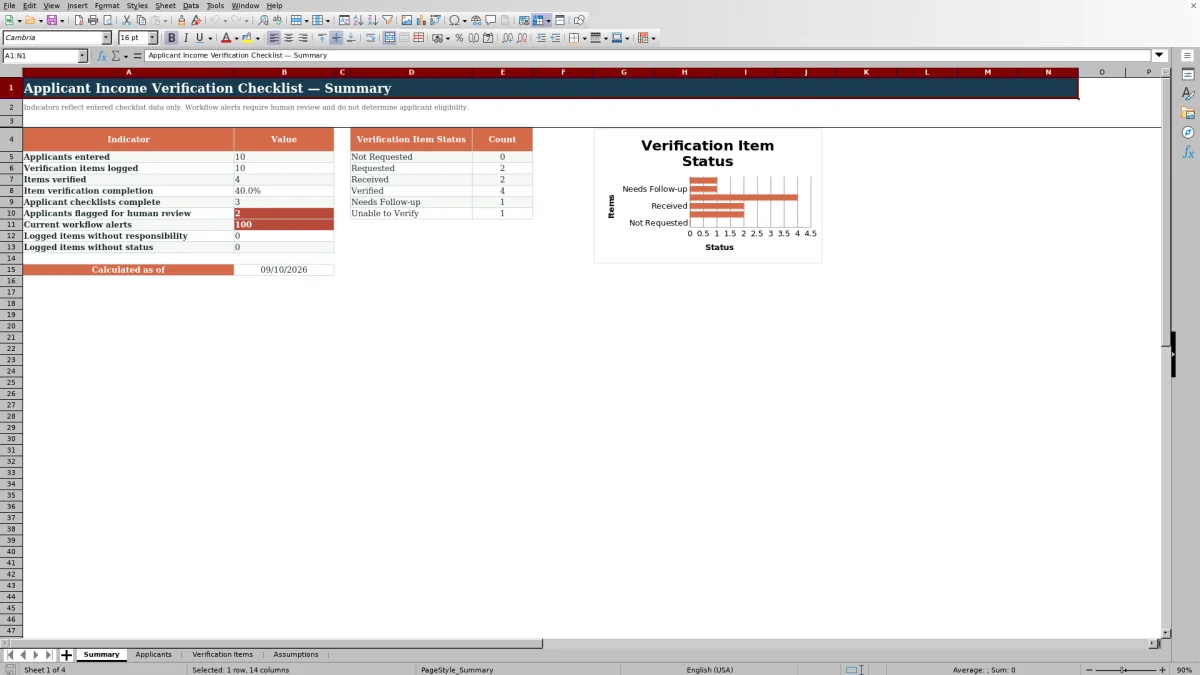
The Applicant Income Verification Checklist is an Excel workbook for recording applicant details and tracking each requested income document or verification item through completion.
Use the spreadsheet to record verification contacts, dates, responsibility, status, and notes while calculated fields summarize item counts, monthly equivalents, checklist progress, and workflow alerts.
How this workbook can help
- Keep applicant records and related income-verification items in a consistent two-level workflow.
- See logged items, verified items, completion percentages, checklist statuses, and summary counts without manual tallying.
- Record verification contacts, request, receipt, checked, and follow-up dates, responsibility, and notes in one item log.
- Adjust list choices, income-frequency multipliers, required-item limits, and alert windows on the Assumptions sheet.
What is in the file
How to get started
1. Replace the sample records
Remove the clearly labeled fictional examples before entering operational applicant information.
2. Add each applicant
Enter a unique applicant ID, applicant name, property, unit, target tenancy date, required-item count, and any applicant-level notes on the Applicants sheet.
3. Log each verification item
On the Verification Items sheet, select the matching applicant ID and enter the income description, document or item, period gross amount, frequency, verification contact, contact method, relevant dates, status, responsibility, and notes.
4. Review and update progress
Check the calculated monthly equivalent, applicant completion fields, workflow alerts, and Summary indicators. Update receipt, checked, status, and follow-up fields as the verification process advances.
Organize Applicant Checklists
Applicant-level tracking begins on the Applicants sheet. Each row can hold an applicant ID, name, property, unit, target tenancy date, required-item count, and notes.
The sheet calculates items logged, items verified, completion percentage, and checklist status from records carrying the same applicant ID on the Verification Items sheet. A unique-ID validation helps identify duplicate applicant IDs within the prepared entry range.
Track Individual Income Verification Items
Item-level detail is recorded on the Verification Items sheet. Available fields cover the income description, document or item, period gross amount, payment frequency, monthly equivalent, verification contact, contact method, requested date, received date, checked date, status, follow-up date, responsibility, alert, and notes.
Applicant name, property, and unit are looked up from the Applicants sheet. The status list includes Not Requested, Requested, Received, Verified, Needs Follow-up, and Unable to Verify.
Worked Applicant Verification Scenario
Consider a fictional applicant, FAKE-APP-021, with two required items.
- Input: Add the applicant, set Required Items to 2, and log two related records. Enter a fictional weekly gross amount of $1,200 for a verified pay statement. Enter a second employer-verification record with Requested status, a contact, a requested date, and assigned responsibility.
- Result: The weekly multiplier calculates a $5,200 monthly equivalent for the pay-statement item. The applicant row shows two items logged, one item verified, and 50% completion.
- Interpretation: One of the two required items has reached Verified status, while the requested employer verification remains outstanding. The monthly equivalent applies to its individual item and is not automatically a combined applicant-income total.
- Next decision: Check the requested employer verification on the planned follow-up date, then update the received date, checked date, and status when new information is recorded.
Common Errors and Solutions
- If applicant details do not populate on an item row, confirm that its applicant ID exactly matches an ID entered on the Applicants sheet.
- If Monthly Equivalent is blank, enter both a nonnegative period gross amount and a frequency included in the Assumptions list.
- If an alert says Add follow-up date, enter a follow-up date for the item carrying Needs Follow-up status.
- If summary counts appear incomplete, check logged item rows for missing status or responsibility values.
- If a duplicate applicant ID is rejected, assign a unique ID rather than reusing an existing applicant row.
Workbook Limits and Appropriate Use
The prepared ranges provide 100 applicant rows and 100 verification-item rows, covering rows 5 through 104. Using additional rows requires updates to the relevant formulas, validation ranges, filters, and summary references.
Monthly equivalents are calculated per item from editable frequency multipliers. They should not be added when several items describe the same income. Date-based alerts depend on the current date and the warning periods entered on the Assumptions sheet.
This workbook tracks entered checklist activity. Its counts, completion measures, statuses, and alerts do not make an applicant decision.
Workbook and blank spreadsheet comparison
Use the prepared workbook when its verified fields and calculations fit the task. Start with a blank spreadsheet when you need to design a different model and can build and test every field and formula yourself.
| Method | Setup | Calculations and review | Practical fit |
|---|---|---|---|
| This Excel workbook | Use the prepared structure in the validated file | Review the documented calculations and results | Local editable workflow supported by the workbook |
| Blank spreadsheet | Create the structure yourself | Build and test every formula and check | A custom model built from scratch |
Maintain Lists, Multipliers, and Alert Windows
The Assumptions sheet stores editable income frequencies and monthly multipliers, verification statuses, contact methods, document or item choices, responsibility choices, and workflow limits.
The included multipliers cover weekly, every-two-weeks, twice-monthly, monthly, and annual amounts. The initial workflow settings allow up to 10 required items per applicant, a three-day follow-up warning period, and a seven-day request-age alert period. Update these inputs when the operating process changes, then confirm that calculated results and alerts behave as expected.
Frequently asked questions
What does the Applicant Income Verification Checklist track?
It tracks applicant records and individual income-verification items, including documents, gross amounts, frequencies, contacts, request and completion dates, statuses, follow-up dates, responsibility, alerts, and notes.
How does the workbook calculate a monthly equivalent?
It multiplies the entered period gross amount by the frequency multiplier stored on the Assumptions sheet. The result applies to that individual item and should not be combined with another item describing the same income.
Can the workbook choices and alert periods be changed?
Yes. The Assumptions sheet contains editable frequency multipliers, statuses, contact methods, document or item choices, responsibility choices, the maximum required-item setting, and alert windows.
Why are the applicant name, property, or unit blank on a verification-item row?
Those fields use the applicant ID to look up information from the Applicants sheet. Confirm that the ID is entered there and that the item row uses the same value.
How many records are prepared in the workbook?
The workbook provides 100 prepared applicant rows and 100 prepared verification-item rows, from row 5 through row 104. Expanding beyond those ranges requires corresponding formula, validation, filter, and summary-reference updates.
Editorial responsibility

Marcus ReedLeasing and property workflows

Elena BrooksWorkbook logic and financial operations