This rental applicant document request tracker is an Excel workbook for recording missing-document requests associated with long-term residential rental applications. It keeps applicant, property, unit, document, request, due date, reminder, receipt, responsibility, status, and notes information together.
Use the Requests sheet for individual records, the Summary sheet for formula-based counts and the status chart, and the Assumptions sheet for editable workflow settings and choice lists. The XLSX includes 100 prepared request rows with calculated Days Open and Alert fields.
How this workbook can help
- Keep each requested document tied to its applicant, property, unit, and application.
- Track request dates, due dates, reminder activity, receipt dates, and notes in one record.
- Identify overdue requests, approaching due dates, missing dates, and inconsistent statuses through calculated alerts.
- Monitor request volume, completed receipts, action prompts, overdue items, completion rate, and status counts.
What is in the file
How to get started
1. Set the workflow assumptions
Open the Assumptions sheet and adjust the reminder lead time, due-soon period, maximum reminder count, accepted date range, and available choice lists for the local rental workflow.
2. Enter each document request
Add one record for each requested document on the Requests sheet. Complete the request ID, applicant record, property, unit, application date, document, request date, due date, responsibility, and status fields.
3. Record follow-up and receipt
When follow-up occurs, enter the Last Reminder Date and update the Reminder Count. When a document arrives, enter its Received Date and change its status to Received.
4. Check alerts and summary results
Use the Days Open and Alert columns to find records needing action. Check the Summary sheet for request counts, completed receipts, action prompts, overdue requests, completion rate, and status distribution.
What the Excel Tracker Records
The Requests sheet uses one request per row so multiple missing documents for the same application can be tracked separately. Its fields cover the request ID, applicant record, property, unit, application date, requested document, request date, due date, last reminder date, reminder count, received date, responsibility, status, calculated days open, alert, and notes.
Rows 5 through 104 are prepared for data entry and formulas. The filter spans A4:P104, and the sheet freezes at E5 so identifying fields remain accessible while moving through the tracking columns.
From Request Date to Receipt
Start a record when a document is requested, assign its due date and responsibility, and set its status. Reminder activity is recorded with a date and count rather than being sent by the workbook.
The Alert formula acts as a review prompt. It can identify missing setup information, inconsistent dates or statuses, completed requests, overdue items, items due today, items due soon, and records that may need a reminder check.
Worked Fictional Request Scenario
Input: Fictional Applicant Rowan at Demo Juniper Place has an Income evidence request dated September 1, 2026, with a due date of September 8, 2026. The status is Open, and no Received Date is entered.
Result: If the workbook is opened on September 10, 2026, Days Open calculates as 9 and the Alert field displays Overdue.
Interpretation: The request has remained open for nine days, and its recorded due date passed two days earlier.
Next decision: Send the planned follow-up outside the workbook and then record the Last Reminder Date and updated Reminder Count. If the document arrives, enter the Received Date and change the status to Received.
Common Errors and Solutions
Fix the source fields when an alert identifies an incomplete or inconsistent record.
- If a due date, reminder date, or received date precedes the request date, correct the dates associated with the Check date order alert.
- If the status is Received but the Received Date is blank, enter the receipt date to resolve Check received date.
- If the status is Open while a Received Date is present, confirm and update the status to resolve Check status.
- If the status or request date is missing, complete the corresponding field associated with Set status or Set request date.
Limits and Operating Boundaries
The prepared tracking area ends at row 104, providing space for 100 request records. Extending the workbook requires extending the formulas, validation, filter range, and Summary references consistently.
- The workbook displays prompts but does not send emails, text messages, or calendar reminders.
- The initial accepted date range is January 1, 2024, through December 31, 2028.
- The initial maximum Reminder Count is 20.
- Calculations depend on complete and accurate dates and statuses entered in the Requests sheet.
- The tracker records request activity; it is not a document-file storage repository.
Workbook and blank spreadsheet comparison
Use the prepared workbook when its verified fields and calculations fit the task. Start with a blank spreadsheet when you need to design a different model and can build and test every field and formula yourself.
| Method | Setup | Calculations and review | Practical fit |
|---|---|---|---|
| This Excel workbook | Use the prepared structure in the validated file | Review the documented calculations and results | Local editable workflow supported by the workbook |
| Blank spreadsheet | Create the structure yourself | Build and test every formula and check | A custom model built from scratch |
Using Summary Results for Follow-Up
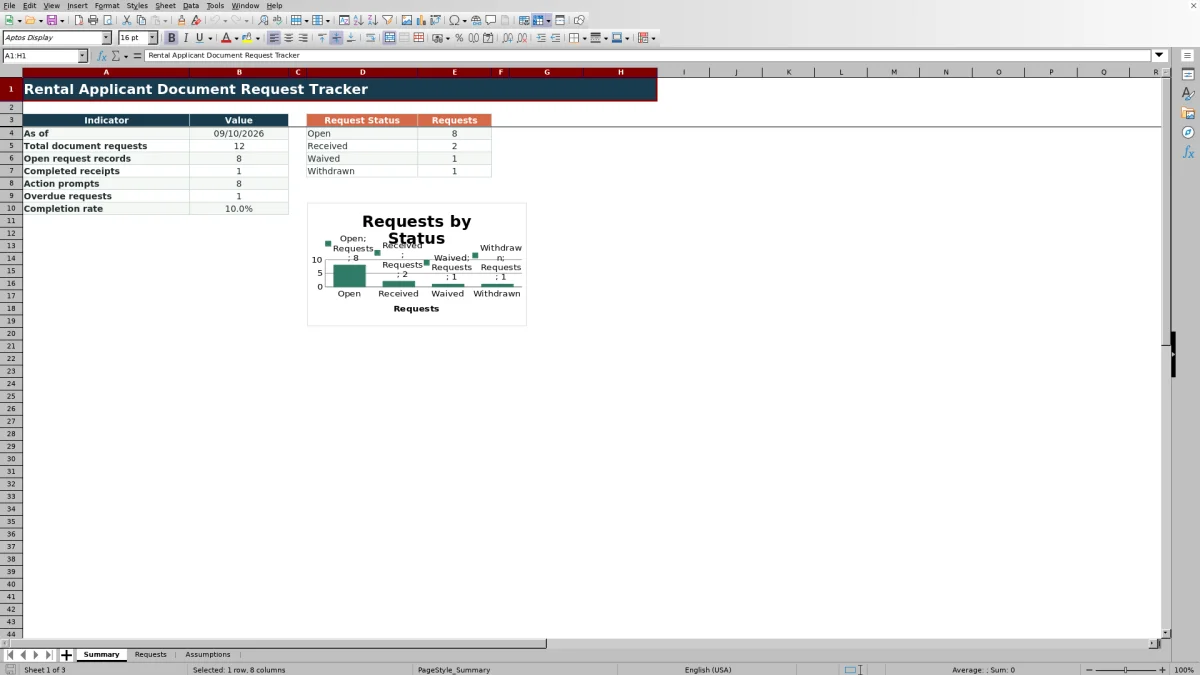
The Summary sheet reports the current date, total document requests, open request records, completed receipts, action prompts, overdue requests, and completion rate. It also counts Open, Received, Waived, and Withdrawn records and displays those counts in a chart.
Use the action-prompt and overdue totals to identify whether the Requests sheet needs attention, then filter the detailed records by status, alert, due date, responsibility, property, or another recorded field. After updating a request, return to the Summary sheet to see the recalculated operational totals.
Frequently asked questions
How many document requests can the Excel tracker hold?
The prepared Requests sheet provides 100 record rows, covering rows 5 through 104. Extending that range requires corresponding updates to formulas, validation, filters, and Summary references.
Does the workbook send document reminders automatically?
No. The workbook records reminder dates and counts and displays follow-up prompts, but it does not send emails, text messages, or calendar notifications.
Which request statuses are included?
The included status choices are Open, Received, Waived, and Withdrawn. Summary formulas count each of these statuses separately.
How does the tracker calculate Days Open?
Days Open is based on the Request Date and either the Received Date or the current date. The result is blank when the record has no request ID, no Request Date, or a status of Waived or Withdrawn.
How is the completion rate calculated?
The Summary sheet divides completed receipts by total request records after excluding records marked Waived or Withdrawn. If the calculation produces an error, the displayed result is zero.
Editorial responsibility

Marcus ReedLeasing and property workflows

Elena BrooksWorkbook logic and financial operations